Job Tiles
Automatic Paper Stretch Compensation provides you with job tiles for a fast overview of the status of the jobs. Jobs with certain properties are grouped in a job tile. For example, all running jobs, all edited jobs, all canceled jobs, etc. Four job tiles are configured by default in "View > Jobs".
Apart from that, you can also define other job tiles.
1.To do this, go to "Settings > Job Tiles".
2.Click "Create".
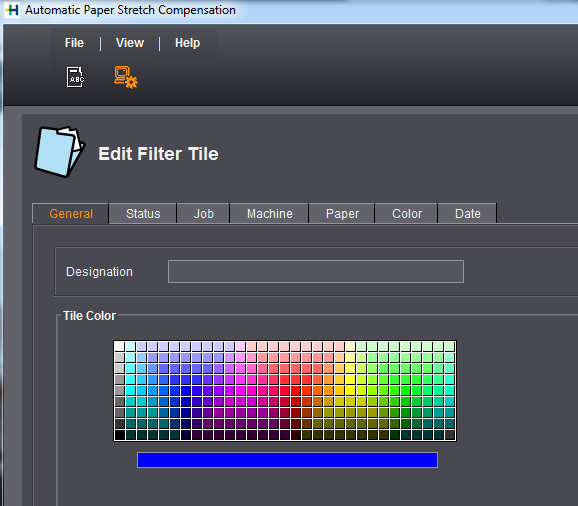
This opens the "Edit Filter Tile" dialog.
3.Define your filter using the various tabs.
·General
This is where you set the color and name of the tile.
·Status
This is where you can link all job states available in Automatic Paper Stretch Compensation.
·Job
In this tab, you can set filters for job-related attributes.
·Machine
This is where you can set filters for a list of machines.
·Paper
In this tab, you can set filters for paper parameters like grain direction, paper grade, etc.
·Color
This is where you can set filters for certain colors in the job (e.g. for spot colors).
·Date
This is where you can set time-related filters (e.g. all jobs of the last few hours).
4.Click "Save" to save the filter settings for the new job tile.
5.Click "Close".
The new job tile is now saved.