Assign Plate Material ("Plates")
Plate materials are set up separately in the Prinect Business Manager and Prinect Integration Manager (import not possible). If plate materials are set up on both sides, usually feedback about the correct setup is sent to the Prinect Business Manager (no intervention needed).
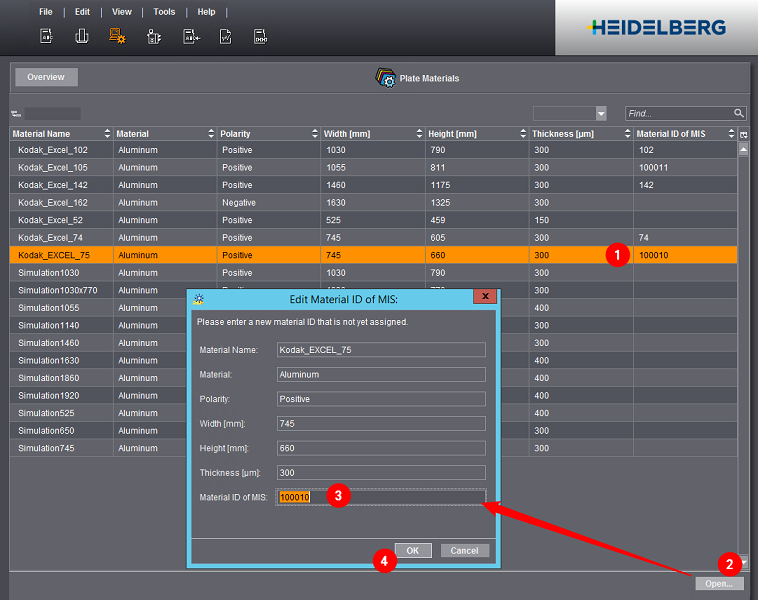
In the case of re-imaging and jobs that are not sent as JDFs by the Prinect Business Manager, a feedback is possible only if the IDs of the plate materials are the same ("MaterialID" in the Business Manager or "Material ID of MIS" in the Integration Manager). To make sure that the IDs match, the plate materials must be assigned to each other. This is done in the Web UI or in the administration of the Integration Manager. Below we will describe the process through the Web UI.
Procedure
Proceed as follows to assign the plate materials of the Business Manager and the Integration Manager to each other.
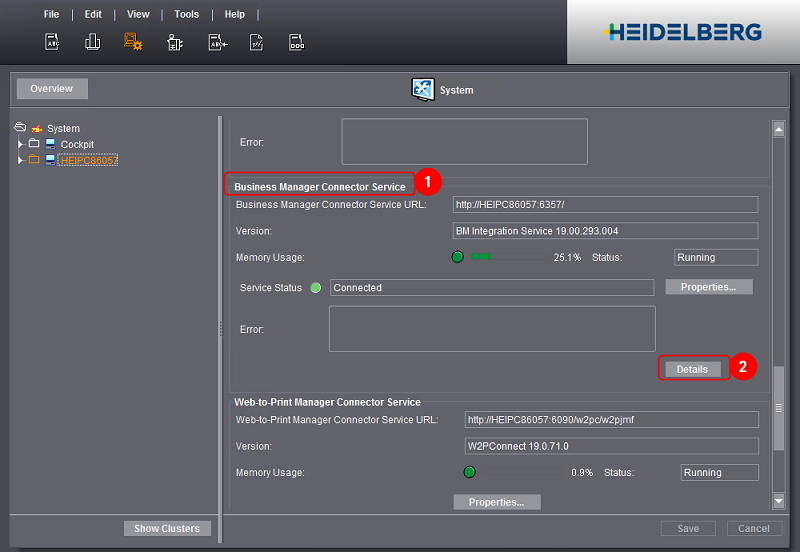
1.In the Prinect Cockpit, go to "Administration > System".
2.Click the Prinect server in the left column.
3.Scroll to "Business Manager Connector Service" (1) on the right side.
4.Click "Details" (2).
The "Configuration Status" window opens in the Internet browser.
5.Go to "Synchronization > From Business Manager > Plates" (1).
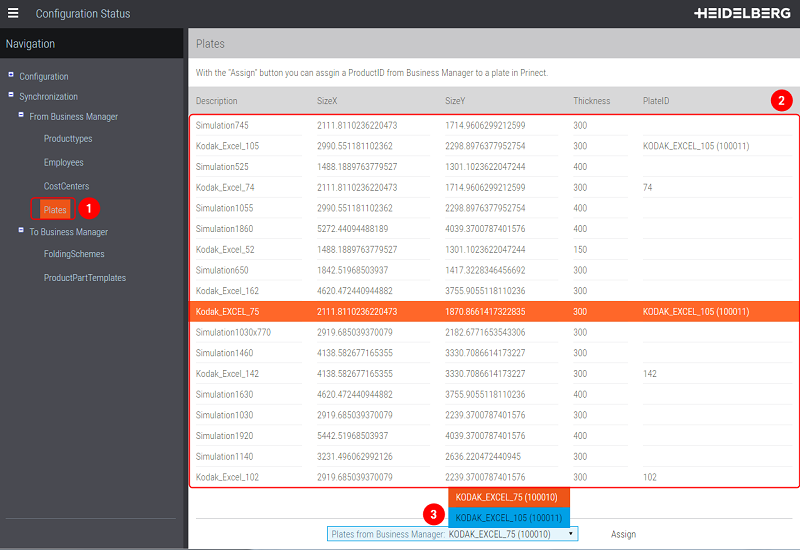
The list displays all plate materials set up in the Prinect Integration Manager (2). The "PlateID" column shows the currently assigned "MaterialID" of the Business Manager.
The list box (3) displays all the plate materials set up in the Prinect Business Manager. The number in parentheses is the "MaterialID".
6.To assign the plate materials to each other, select them (1/2).
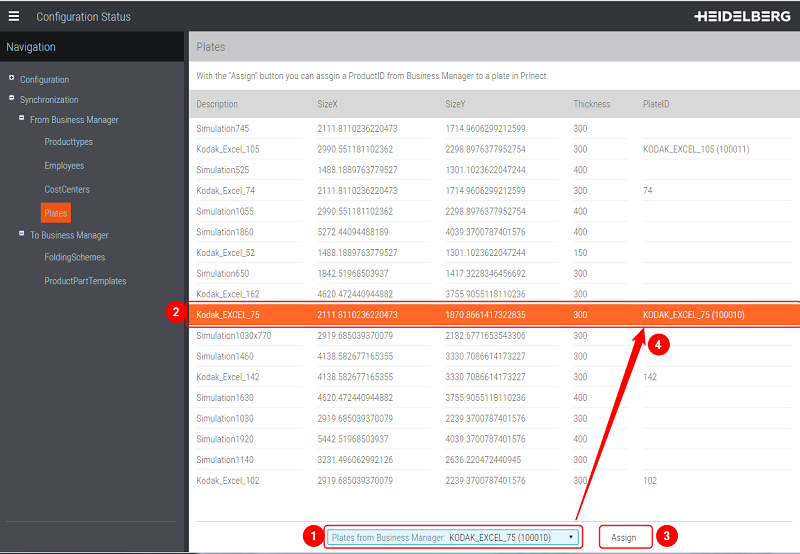
7.Click "Assign" (3).
Assignment is finished whenever the plate material displays in the "PlateID" column (4).

Note: If the MaterialID from the Business Manager is known, the plate materials can also be assigned in Administration in the Prinect Cockpit.