
Initial Installation of Prinect Maintenance Center (PMC)
Installation of Prinect Maintenance Center (PMC)
In this section, we show you how to proceed with an initial installation of the PMC and, in the following section, how to start up the PMC for the first time.
For the initial installation, you will need the following:
•An installation code: To be able to use the PMC, you must be a registered user for online licensing. Registration and provision of the required installation code is done through your local sales partner.
•A user with administrator permissions: This user must have access permissions for the computer (where you wish to install) and must be a member of the local administrators group.
Run the initial installation as follows:
1.Go to the Heidelberg website "www.heidelberg.com/global". Download the PMC from this site in "Software > Prinect Download".
Then you will find an XPMC installation package on your local computer, like this package:
2.Unzip the XPMC installation package. Then there is an XPMC folder on your computer, in our example the "XPMC_21.00.00061.00000" folder.

3.Open the XPMC folder, in our example "XPMC_21.00.00061.00000".
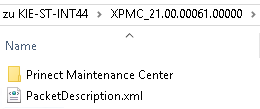
4.Open the "Prinect Maintenance Center" folder.
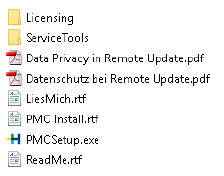
5.Double-click "PMCSetup.exe".
6.Select the desired language.
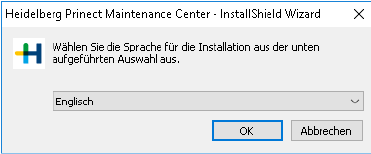
7.Click "Next".
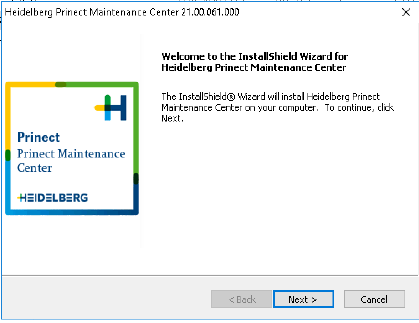
8.Accept the License Agreement and click "Next".
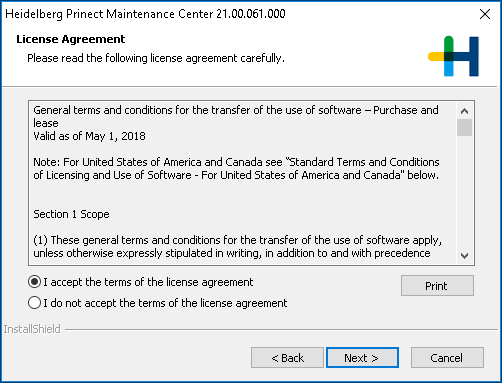
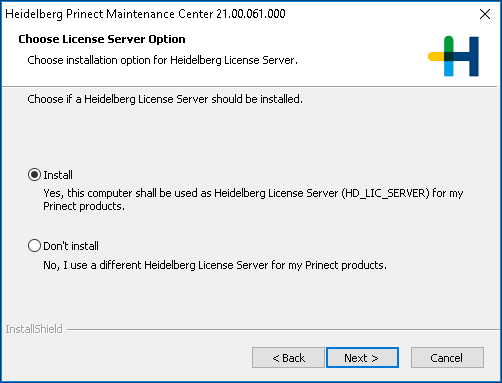
9.Select the "Install" option and click "Next".
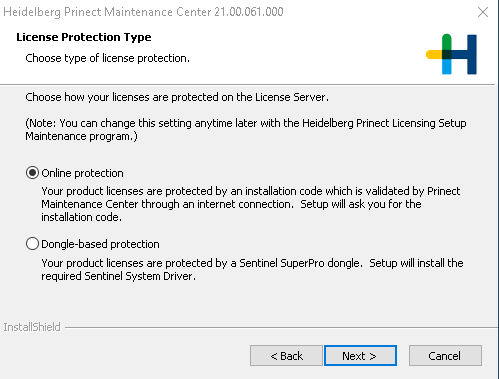
10.Select the "Online protection" option and click "Next".
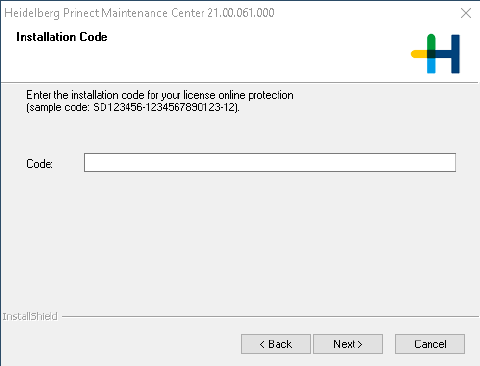
11.Enter the installation code and click "Next". (Registration and provision of the required installation code will be done through your local sales partner.)
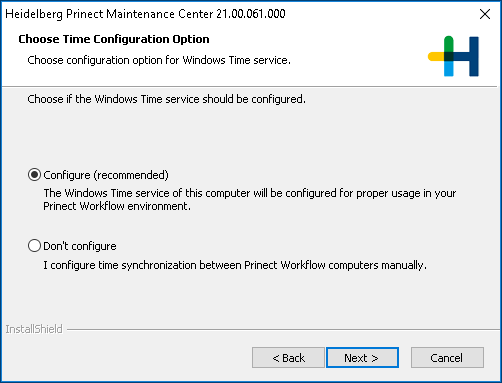
12.Select the "Configure" option and click "Next".
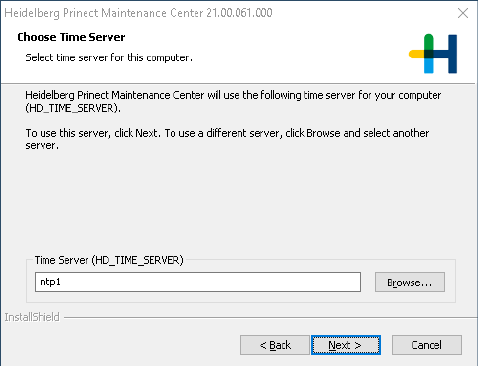
13.Set the time server and click "Next".
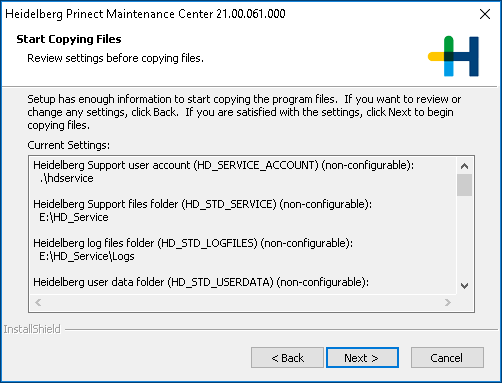
14.Check your settings. Click "Next" to copy the program files to your computer.
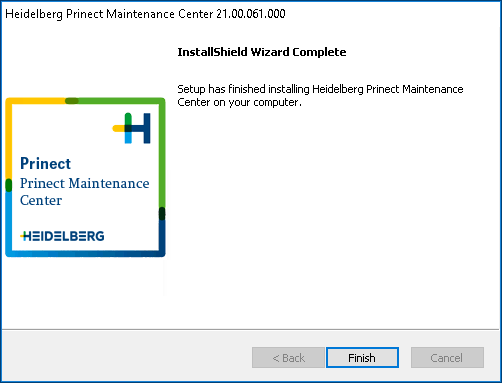
15.Click "Finish".
16.After installation, this Prinect Maintenance Center program icon is located on your desktop.
