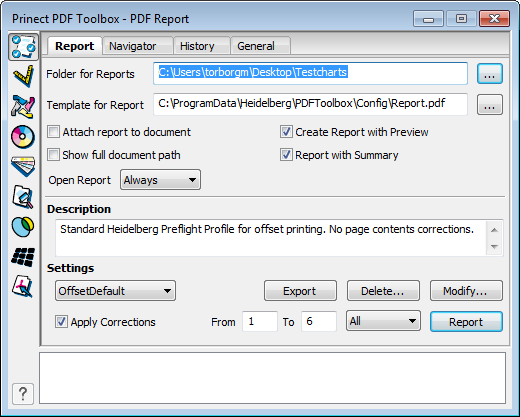
Tabs
Folder for Reports
Type the path where the report is to be saved in the "Folder for Reports" text box.

Note: Once created, the report is automatically saved in the folder specified in this box. The report file name is made up of the file name of the analyzed PDF file and _rep. A number is appended to the file name if several reports are created for the same file.
Template for Report
The default template for the report, "Report.pdf", is set by default in this box. You can select other folders and templates to suit your needs.
Attach report to document
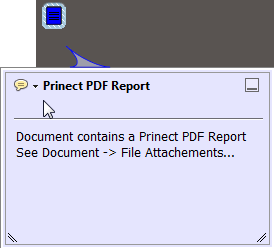
Enable the "Attach report to document" option if you wish to include the report as a PDF attachment to the analyzed PDF.
The PDF document then shows a suitable note:
Show full document path
Enable "Show full document path" if you wish to have the path to the current PDF document listed in the report.
In addition, a preview of the first page can be generated automatically and added to the report. This functionality makes it easier for you to see which reports belong to which analyzed PDFs.
Generates additional details in the report. Can be found in "Additional information". The following details also display:
•Name of the setting used
•Number and display of the color separations used per uniform page range
•Color spaces used
•Fonts used
•Screen systems used (if any)
Open Report
The report can open automatically based on the following conditions:
"Always", "Never", "If Warning", "If Error".
Description
This is where you can view descriptions of the default preflight profiles or make some additional explanatory notes about them.
Settings
This is where you can select default or custom parameter sets that are used for checking a PDF.
Global option which, if disabled, allows you to not apply corrections. The function is disabled if the parameter set you selected does not include any corrections.
Restrict Preflight check to selected page ranges
See Specify a page range.
Delete
You can delete the selected parameter set. By default, an alert message displays, asking whether you really want to delete.
Change
You can make changes to the existing parameter sets. More details can be found in Modify....
You can export the selected parameter set (preflight profile) with all its settings as a template for Prinect. The correct Prinect path (\PTConfig\SysConfig\Resources\PreflightProfiles) is usually set by default.
In the Prinect Cockpit you can then load these files to the Qualify or Prepare preflight templates in "Actions > Heidelberg Preflight Profile > Import File".
Report
Click "Report". The opened PDF will be checked against the selected parameter set and the settings you made, and the report on the check displays as a PDF document.
The report is now also filed in the folder that you specified in "Folder for Reports". The report is really added to the PDF document only when the PDF document is saved.
The report contains general information about the document such as file name, location, author, creation and modification date, screen system data, lossy compression, etc.
If a PDF report or even a report from the Prinect Prepress Manager is open, you can jump directly to the problem in the PDF file by positioning the mouse pointer on an individual message in the report (the hand then turns into a pointing finger).
If a PDF file and the Navigator window are open, clicking an X in the PDF selects the error message in the window's list. In the same manner, you can select a message in the Navigator window to jump to the problem in the PDF file.
The "Settings" dialog with eight tabs opens after you click "Modify":
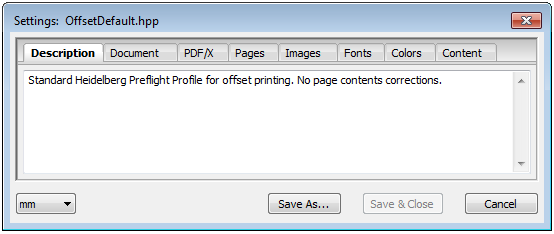
You can edit the selected parameter set (profile) with its default parameters in this window. You can edit each of these check parameters separately.
You can save all the data that you set in the various tabs.
•Save As...
To save the set: Click "Save As...". A dialog box appears where you can change the name of the set. Finally click "Save".
•Save & Close
With this function, you can save the selected set using the same name and quit "Settings" at the same time. Click "Save & Close".
•Cancel
Closes the "Settings" window without applying any changes.
Select how each check parameter is to be handled in the report:
|
|
Ignore Settings that do not affect the print output and can be ignored. |
|
|
Info Settings that could affect the print output and therefore require a message to be issued. |
|
|
Warning Yellow symbols mark off settings that should be verified. |
|
|
Error Red symbols mark off settings that are likely to cause problems, such as images with very low resolutions or fonts that are not embedded. |
You can change all the settings of a tab at the same time. For example, you can set all check parameters to "Ignore" to check just specific parameters.
To do this, keep the Shift key pressed down when you click a list item (Ignore, Info, Warning or Error). All the check parameters are set to this list item. Exception: In the "Images > Resolutions" tab, this is valid only for "Ignore".
To view a description of the various check parameters, move the mouse pointer to a check parameter. When a question mark appears, you can then display a tooltip with a click. The check parameters will be described briefly below.
"Description" displays information about preflight profiles like in the previous window. You can modify this information by making changes to the text.
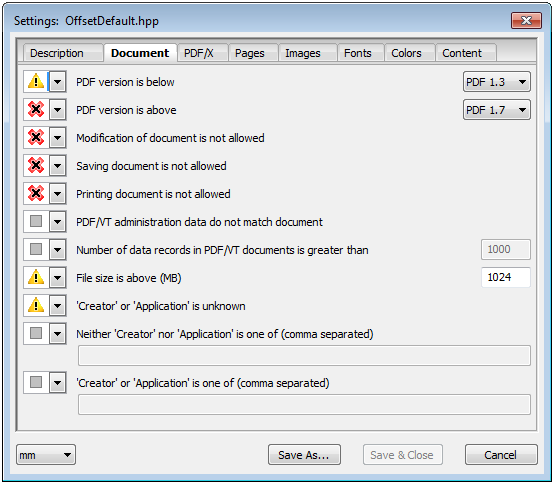
These are validation rules applying to the page-independent properties of the entire PDF file. Corresponding error messages do not refer to pages or page objects.
PDF version is below / PDF version is above
You can choose from PDF 1.2 up to PDF 1.7.
Modification of document is not allowed / Saving document is not allowed / Printing document is not allowed
The default is "Error" in each case.
PDF/VT administration data do not match document
In the case of PDF/VT data, an overall page total results from a number of documents, each with a page total. Generally, the overall page total should match that in the PDF.
Number of data records in PDF/VT is greater than
Issues with the processing speed can occur if a PDF/VT has a great number of data records. A warning is issued if the number of data records exceeds the set value.
File size is above (MB)
This shows information if a set file size is exceeded.
"Creator" or "Application" is unknown
Example: "Creator" = "Acrobat Distiller" and "Application" = "QuarkXPress". Missing entries are mainly from outdated applications or exotic PDF creators.
Neither "Creator" nor "Application" is one of (comma separated)
This checks whether the user entered the name. For example: "Acrobat Distiller" means all Distiller versions, "Acrobat Distiller x.x" means only version x.x.
"Creator" or "Application" is one of (comma separated)
This checks whether the name is included. In other words, "Acrobat Distiller" means all Acrobat Distiller versions. "Acrobat Distiller X" means only version X.
PDF/X format
The format is defined from ISO standard 15930 (PDF/X-3) for the exchange of digital data and files in the graphic arts industry. The standard is based on the Adobe® Portable Document Format (PDF Version 1.4).
The PDF/X format is available basically in versions PDF/X-3:2003 and PDF/X-1a:2003. You can find a description of the versions and more details in the Internet at the address named below.
For further information on PDF/X, see http://www.pdfx3.org/.
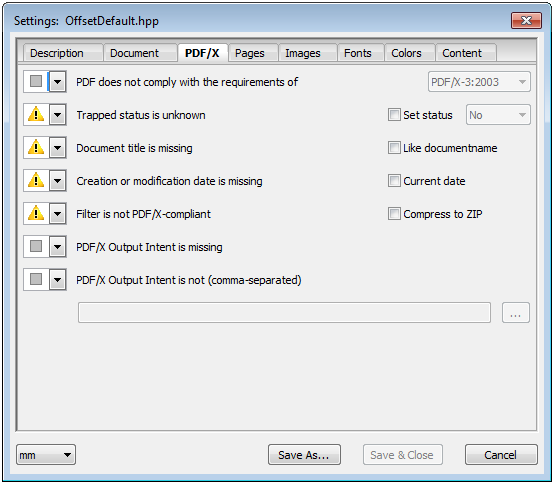
The "PDF/X" tab comprises details required for compliance with the PDF/X standard:
PDF does not comply with the requirements of
Checks the document for compliance with the selected PDF/X standard. Even if this check is not enabled here, the appropriate entry is set automatically in the PDF if all PDF/X requirements are met.
Trapped status is unknown
PDF/X requires a "Yes" or "No" for the trap status.
Document title is missing
PDF/X requires a PDF-internal document title.
Creation or modification date is missing
PDF/X requires a creation and modification date.
Filter is not PDF/X-compliant
Filters such as LZW or JPEG 2000 are not allowed in PDF/X.
PDF/X Output Intent is missing
Checks whether the intent for which the PDF was prepared is set in the document.
PDF/X Output Intent is not (comma-separated)
If there is an intent, this checks whether its description contains one of the names.
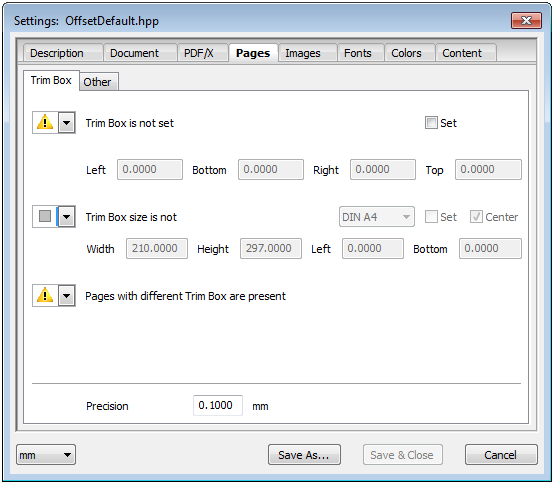
The following tabs are found:
"Trim Box" subtab
These are validation rules applying to the object-independent parts of a single PDF page. These are basically checks regarding the format, the orientation or specific content properties. Respective error messages do not refer to page objects.
Trim Box is not set
Checks whether the TrimBox is directly set. A trim box that is identical to the media box is also rated as not being set.
•Set
Creates a trim box with constant offset to the media box.
•Left
Distance of the trim box from the left edge of the media box
•Bottom
Distance of the trim box from the bottom edge of the media box
•Right
Distance of the trim box from the right edge of the media box
•Top
Distance of the trim box from the top edge of the media box
Trim Box size is not … DIN A4
Checks whether the trim box has a given format. Note: The orientation is ignored in this case, i.e. DIN A4 fits A4 landscape and portrait format.
•Set
Creates a trim box in the required size
•Center
If this parameter is enabled, the TrimBox created is centered to the MediaBox. When it is disabled, the Trim Box is created with a constant distance to the left bottom edge of the Media Box.
•Width
Width of the required trim box
•Height
Height of the required trim box
•Manually specifying the format in "Width/Height" will automatically select "Custom".
•Left
Distance of the trim box from the left edge of the media box
•Bottom
Distance of the trim box from the bottom edge of the media box
Pages with different Trim Box are present
This checks whether the pages in a document have different sizes.
Precision
The settings you make here apply to all parameters in this tab, for example to the accuracy used for checking the trim box size.
"Other" subtab
Rotation operators are present
A PDF rotate key rotates one page in Acrobat for display purposes. This rotated view often causes problems during imposition or when interpreting page formats.
•Remove:
The rotate key is removed without changing the page content. The page view in Acrobat is no longer rotated.
•Apply:
The rotate key is applied to the page content data and then removed. The page appears unchanged but without rotate key in Acrobat.
Orientation is not
The pages of a multi-page document are checked for a specific or uniform orientation.
•The first page is decisive in the case of "Uniform".
•All landscape pages are rotated to portrait if "Portrait" is set.
•All portrait pages are rotated to landscape if "Landscape" is set.
Media Box and Crop Box are different
Different media and crop boxes often cause confusion regarding the paper format; you can set them to equal values without any problems.
Page boxes are not PDF/X-compliant
PDF/X requires that certain page boxes be defined (trim box or art box must be present). Existing page boxes are subject to certain restrictions. During corrections, the art box is deleted since the PDF/X format stipulates that only one box be present, e.g. the trim box.
Number of pages is ...:
not equal n: All documents that do not have the set number of pages are handled according to what is set (Warning, Info, Error, etc.).
Page contents are empty
The contents are empty when no contents are defined in the PDF or none of the page objects is inside the Trim Box. The bounding box of an object is used for comparison since the actual structure of the object makes it impossible to detect all blank pages.
Page is separated
A separated composite page consists of several gray pages describing the single color separations. Separated pages are not allowed in PDF/X and cannot be processed by functions like color management or trapping. A Heidelberg pseudo composite page is also reported as separated (see also "PDF Assistant > Separation Control").
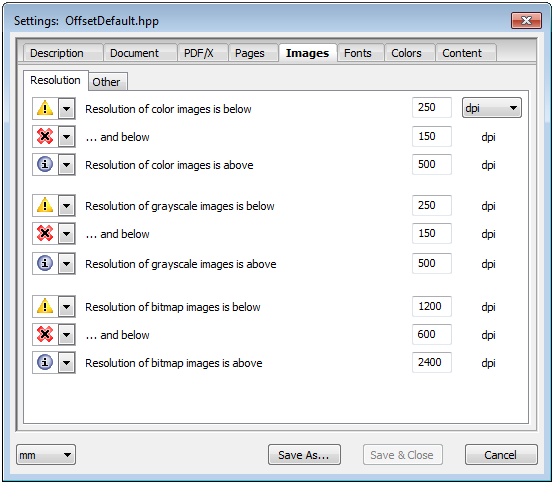
These are rules referring to the images or bitmaps (1-bit images or image mask operators) contained in the page contents. Respective error messages always refer to page objects.
"Resolution" subtab
This is where you set check criteria that check the properties of images or bitmaps that are found in the page contents of the PDF documents.
Resolution of color images is below... and below...
The check criterion is met if there are color images whose resolution is less than the set value.
The "... and below" setting is enabled if "Continue with warning" is set as the preflight action.
You can set a second check with this setting. When you enter a second, lower resolution and set the preflight action to "Cancel with error", processing aborts and an error message is issued if there are images whose resolution is less than this second value.
Resolution of color images is above
The check criterion is met if there are color images whose resolution is more than the set value.
Resolution of grayscale images is below/... and below/Resolution of grayscale images is above
The settings for grayscale images are equivalent to the settings for color images (see the "Resolution of color images is below" parameter).
Resolution of bitmap images is below/... and below/Resolution of bitmap images is above
The settings for bitmap images are the same as those for color images (see "Resolution of color images is below").
"Other" subtab
Images using lossy JPEG compression are present
Compression of JPEG images always involves a loss of data. JPEG 2000 supports both lossless and lossy compression. This check criterion is met if there are images in a lossy JPEG compression.
1-, 2- or 4-bit images are present
PDF allows images with 1, 2, 4, 8 or 16 bit per pixel and color channel. 8-bit images are usual.
16-bit images are present
16-bit images are supported as of PDF version 1.5.
The PDF/X standard does not permit 16-bit images.
OPI comments are present
In OPI image data inclusion ("Open Prepress Interface"), the documents do not contain high-resolution images but only placeholders and references to the high-resolution images. These references are found as "OPI comments" in the code of the input documents. OPI image data replacement is illegal in a PDF/X workflow.
•Remove
You can remove these OPI comments safely only if you do not wish to use OPI image data inclusion and you are sure that all the images are embedded in the PDF documents in the correct resolution.
Images with alternate image are present
This checks whether the documents already have alternate images that are used for a fast view.
•Remove
It is a good idea to enable automatic creation of alternate images in the Preflighter, and for that reason you should also enable "Remove". If you don't, alternate images are created only for those images that do not yet have any alternate images.
The PDF/X standard allows alternate images.
Alternate image is default for printing
If your PDF document has one or more alternate images, you can set one alternate image to be the default for printing. In this case, this alternate image is printed. Generally, this alternative image is different to what you see in the document on the screen.
•Change
You should enable "Change" to avoid any issues that may occur in this context.
Alternate images as a default for printing are prohibited in PDF/X.
Not enough image data
An image that is defined among other things by height, width and color space always has an exact number of bytes. Missing image data normally is due to an error in the generation of the PDF.

Note: This check is time-consuming because each image must be fully read in.
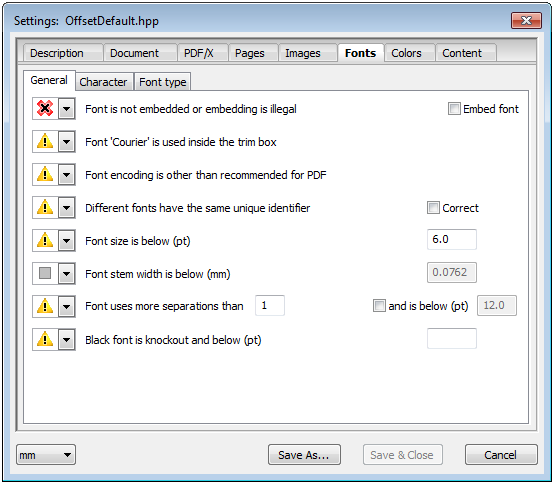
These are validation rules relating to the fonts used by the page contents. Respective error messages always refer to page objects.
Forms/comment fields are not checked.
"General" subtab
Font is not embedded or embedding is illegal
A font that is not embedded or a font that does not allow embedding cannot be printed reliably (TrueType).
This is remedied automatically when "Embed font" is enabled:
•Embed font
Embedding is with Adobe Acrobat and uses the installed system fonts.
Font "Courier" is used inside the TrimBox
Courier is often used as substitution font for missing fonts. Usage of the Courier font inside the Trim Box could indicate that an undesired font replacement has taken place.
Font encoding is other than recommended for PDF
The PDF specification contains strict rules with regard to encoding (e.g. WinAnsi or MacRoman) – in particular for TrueType fonts. Failure to comply with these recommendations can result in faulty font output.
Different fonts have the same unique identifier
Correct Type1 fonts have a UniqueID valid worldwide. Fonts can be printed incorrectly if a document contains different fonts with the same UniqueID.
You can enable "Correct".
Font size is below (pt)
Fonts that are too small are sometimes not legible when printed.
In some cases, letters with a narrow stem width cannot be printed in good quality.
Font uses more separations than
In particular smaller fonts with more than one color channel are problematic in printing because fringes or flashes can occur.
Black font is knockout and below (pt)
In particular smaller black fonts are normally set to overprint when created (i.e. CMY channels lying below them are preserved) so that no fringes or flashes will occur.
"Character" subtab
Width of a character is not defined
A character with an undefined width is an indication of a font with a faulty encoding and normally produces impaired texts. This check should always be enabled.
Character is not defined in the embedded data/Character is defined several times in the embedded data/Character is defined incorrectly in the embedded data
Missing characters or those that are defined several times or incorrectly cannot be printed reliably or cannot be printed at all.
Character without glyph is not encoded as space
This occurs mainly in incorrectly embedded or incorrectly encoded fonts.
"Font type" subtab
Multiple master font is used
Multiple master (MMType1) fonts create characters by calculating certain font parameters from templates. You should not use such fonts for printing.
OpenType font is used
OpenType fonts are an extension of the TrueType format and were introduced as late as PDF 1.6. OpenType fonts may not be understood by older output systems and are prohibited in PDF/X-1a:2003 and PDF/X-3:2003.
Type3 (user-defined) font is used
User-defined fonts are quite common and normally do not cause any print problems. You can enable this for information purposes.
TrueType font is used
TrueType fonts can cause print problems, in particular when their encoding does not comply with the PDF specification. The quality of these fonts is normally lower than that of Type1 fonts.
TrueType CID font is used
Checks whether the TrueType CID variant (Type0/CIDFontType2) is used. Acrobat Distiller often embeds European TrueType fonts as CID variant since these can be encoded better.
Type1 font is used
Fonts in standard Adobe Type1 format are quite common and normally do not cause any print problems. You can enable this for information purposes.
Type1 CID font is used
Fonts in standard Adobe Type1 CID format (Type0/CIDFontType0) are quite common and normally do not cause any print problems. You can enable this for information purposes.
Here you can specify the names of fonts that, for example, tend to cause problems during output. You can also enable the option "Convert to graphics" to automatically convert the fonts.
These are test rules referring to the colors and color spaces used by the page contents. Respective error messages always refer to page objects.
"General" subtab
Marks color "All" is used inside the TrimBox
With the "All" marks color, an area coverage of 100% is used in each separation to be printed. The use of "All" is mainly not wanted within the trim box because too much ink will be applied.
This can be corrected automatically by selecting the appropriate option in the list box beside the feature.
Select option:
"Remove", "Convert to K", "Convert to CMYK"
Contains chromatic gray (R=G=B or C=M=Y, K=0):
Gray RGB or CMYK can be converted to CMYK black with Heidelberg products (Prinect Integration Manager or Prinect Color Editor). This enhances the quality of your printing considerably.
Contains repeat pattern (color space pattern)
This parameter checks whether there is a repeat pattern (e.g. wall paper with repetitive elements).

Note: Pattern color spaces cannot be trapped. You can use a Pattern color space as a design element.
Maximum area coverage in elements is above (%)
This parameter checks whether the maximum area coverage for single graphic elements and optionally also for images exceeds a set value. The value for area coverage is obtained from the sum of the area coverage values of the single color separations. Theoretically, this means that the maximum area coverage in the CMYK color space is 400%. An area coverage that results from overprinting the single elements cannot be calculated correctly for this check.
•Check images
When this option is enabled, images are also checked to see whether they exceed the maximum area coverage. Images must have a minimum number of pixels, not necessarily contiguous, in order for this check to be worthwhile. You set this value in "Image area comprises at least (dots)".
"Color Space" subtab
Contains Device RGB colors
Device RGB colors belong to the group of device-dependent color spaces and are not allowed in PDF/X (exception: the output intent color space is of the RGB type). For printing, you must convert RGB colors to the process color space using color management and a suitable RGB ICC profile.
Contains CIE L*a*b colors or calibrated RGB
The device-independent colors that are checked here are CIELab, calibrated RGB and ICCBased(RGB). Device-independent colors are forbidden in PDF/X-1a, but allowed in PDF/X-3. For printing, you must convert device-independent colors into the process color space using color management.
Contains CMYK colors with ICC profile
CMYK with ICC profile (ICCBased (CMYK)) belong to the device-independent colors; they are forbidden in PDF/X-1a but allowed in PDF/X-3. For printing, these colors are normally also converted to the print color space using color management. This often leads to undesired results, for example because chromatic black is created. With the help of Heidelberg products (Prinect Integration Manager or Prinect Color Editor), you can optionally convert ICCBased (CMYK) to device CMYK directly – without Color Management – so that the color values are not changed.
Contains ICC profile identical to PDF/X Output Intent
You may get unwanted results after Color Management if identical profiles are used for the images of a page and for PDF/X Output Intent.
Contains calibrated gray
Calibrated gray and gray with ICC profile (ICCBased (Gray)) belong to the device-independent colors; they are forbidden in PDF/X-1a but allowed in PDF/X-3. For printing, these colors are normally also converted to the print color space using color management. This often leads to undesired results, for example because chromatic black is created.
Using the Prinect Integration Manager, you can convert these colors directly to DeviceGray - without Color Management - so that the color values are not changed.
Contains DeviceN colors with ICC profile (NChannel)
This parameter checks whether a document has objects in the "NChannel" color space. NChannel is an extension of the device-dependent, multi-channel color space (DeviceN). This extension was introduced with PDF 1.6.
A DeviceN color space is a combination of up to eight single separation colors, for example, HexaChrome, a combination of C, M, Y, K, Green and Orange. You can combine spot colors with any process colors in a DeviceN color space. Theoretically, this means that Device RGB can be combined with a PANTONE® color.
It is possible that NChannel is not interpreted correctly by older output systems; it is not permitted in PDF/X.
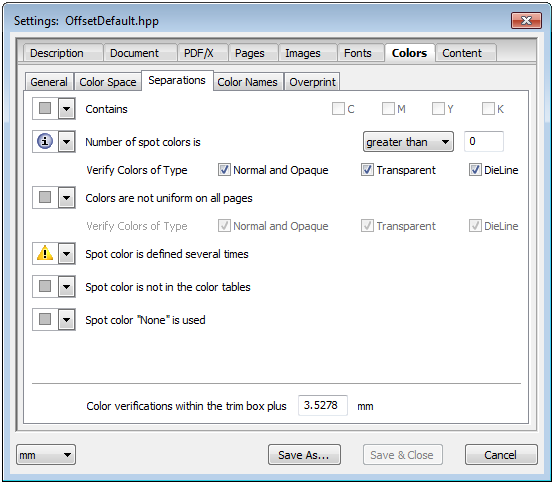
"Separations" subtab
This is where you find check criteria affecting color separations and spot colors:
Contains C, M, Y, K
This lets you check CMYK colors specifically.
This parameter checks whether the number of spot colors in a document deviates from a set value or matches one (depending on condition set). This check affects only the spot colors and not the CMYK process colors.
A distinction between several spot colors is also possible:
"Normal and Opaque", "Transparent" and "DieLine".
Colors are not uniform on all pages
Checks all pages for uniform color assignment.
A distinction between several spot colors is also possible:
"Normal and Opaque", "Transparent" and "DieLine".
Spot color is defined several times
Unfortunately, the PDF specification permits the definition of differing alternative color spaces for the same spot color. This can cause undesired results, in particular when this color is to be printed with the alternative color.
Spot color not found in the color tables
Checks if spot colors are present in the current color tables.
Spot color "None" is used
Elements in spot color "None" cannot be seen and can produce unwanted results in the output.
The impact of spot color "None" can be seen after the PDF was edited, for example, with Color Management.
Color verifications within the TrimBox plus
The Preflighter uses a tolerance for the offset to the trim box when verifying colors. You can edit this manually in the box below if the set value of 3.5 mm generates unwanted error messages.
"Color Names" subtab
Contains spot colors with conflicting names
This checks whether a document has spot colors of the same name but in different notations (e.g. Green, GREEN, green).
Different notations can cause problems in production. In the Prinect Integration Manager, the exact spelling of the color names is important, whereas in Prinect MetaDimension it is not.
Conflicts with color names can occur, for example, if the color names differ by uppercase/lowercase letters only (Green, GREEN, green) or if PANTONE® colors with the same number but a differing extension (e.g. 125 C and 125 CV) are defined. Without any further intervention such spot colors are handled as different colors; in other words, separate plates will be imaged for each color, something which is normally not wanted.
Spot color name contains non-ASCII characters
The name of the spot color contains characters that are not in the ASCII character set.
The characters are replaced automatically by their hexadecimal ASCII code when the "Rename" option beside the function is enabled.
Old-style Pantone color name is used
Current Pantone color names end with C, M, U or EC, PC, HC. The old-style color names ended with CV, CVC or CVU.
There is no check whether or not the color is found in the current PANTONE ® color tables.
Illegal Pantone color name is used
This parameter checks whether illegal PANTONE® color names are used in a document. For example, PANTONE® color names without an extension are illegal (e.g. "PANTONE 125" instead of "PANTONE 125 C").
The color names must also start with an uppercase letter. There is no check whether or not the colors are found in the current PANTONE® color tables.
Illegal HKS color name is used
This parameter checks whether illegal HKS® color names are used in a document. For example, HKS® color names without an extension are illegal (e.g. "HKS 12" instead of "HKS 12 K"). The color names must also start with an uppercase letter. There is no check whether or not the colors are found in the current HKS® color tables.
Spot color is not...
You can check for custom names.
"Overprint" subtab
CMYK White is overprinting - Check images
This parameter checks whether a color is defined as "overprinting CMYK white" in a document.
Overprinting CMYK white is a color without effect in the page content. This is undesired in most cases and can cause faulty prints. Note: overprinting 0% spot colors are also detected here. Heidelberg products (Prinect Integration Manager or Prinect Color Editor) can convert overprinting white to knockout white.
0% spot color is overprinting - Check images
Normally overprinting 0% spot colors are not visible. However, they can be problematic in printing if they are printed using an alternate process color (converted to CMYK).
Gray is overprinting
According to the PDF specification, overprinting gray cannot overprint any CMY colors underneath although most users would assume that this is possible. This is the desired behavior in most cases. Heidelberg products (Prinect Prepress Integration or Prinect Color Editor) can convert overprinting device gray to overprinting black process color.
Spot color is overprinting
This parameter checks whether spot colors with an "overprinting" property are defined in a document.
Overprinting spot colors are problematic in printing because they are not printed as a separate separation but using their alternative process color. In such cases, the overprint property normally cannot be reproduced properly.
CMYK element with ICC profile is overprinting
This checks whether a CMYK element with an embedded profile was found that is overprinting at the same time. A CMYK element (graphic or text) with an ICC profile does not have a unique overprinting behavior during output if the overprint mode (OPM=1) is enabled at the same time.
This is illegal in PDF/X-4.
Any other color is overprinting
This parameter checks whether colors with an "overprinting" property are defined in a document.
These are validation rules for fatal errors relating to certain page contents. Respective error messages always refer to page objects. Exception: optional contents (several layers) are reported across pages. The Layer function in Acrobat lets you easily view details on optional contents.
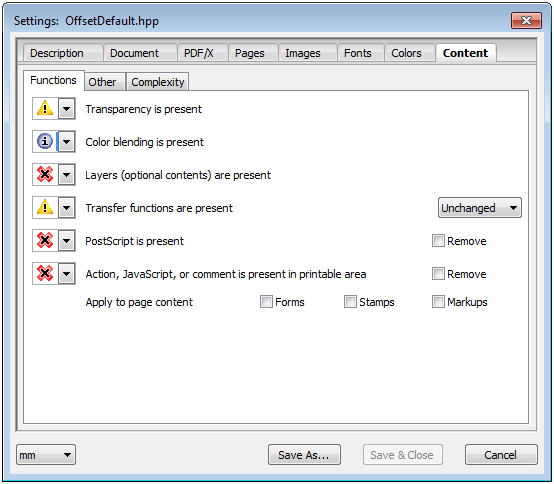
"Functions" subtab
Transparency present
The transparencies introduced with PDF 1.4 can cause considerable print problems. There are many reasons for the problems that produce faulty or unattractive results again and again. Transparency is prohibited in PDF/X.
On rare occasions, color blending can cause quality issues in conjunction with color management.
Color blending is not allowed in the "PDF/X3" and "PDF/X-1a" formats.
Layers (optional contents) are present
Layers were introduced in PDF 1.5 and allow optional contents to be defined. This means, the currently visible content of a page depends on Acrobat user settings or the screen resolution. Layers are illegal in the PDF/X format.
In contrast, layers are allowed in the PDF/X-4 and 5 formats.
Transfer functions are present
Transfer functions are for artistic effects and to correct the properties of a particular output device. In this way, a PostScript file that is planned for output on a particular imagesetter, for example, can have transfer functions that compensate the dot gain generated by this device. Dot gain can be caused, for example, by scattering or focusing inaccuracies of the laser beam when a plate is being imaged. In this context, dot gain is the difference between the screen value defined in the digital copy (area coverage) and the screen value measured on the imaged plate.
Transfer functions make it possible to change the colors of single page elements from the outside, as it were. A normal gray image can, for example, be set fully to 0%. If you measure such an image with Prinect Color Editor, the actual image data are shown, but not the values resulting from the additional transfer function. Transfer functions are normally found only in preseparated data and are prohibited in PDF/X.
•Unchanged
The transfer functions are kept as part of the generated PDF file and used during output. This setting makes sense if the transfer curve was used as a design element.
•Remove
All transfer functions in the PostScript code are removed. Generally, it is advisable to use this setting, except when the PostScript documents have device-specific transfer functions for exactly the device (imagesetter) that is used for output (e.g. to compensate dot gain).
•Apply
The transfer functions are not kept as part of the generated PDF documents but are used during further processing of the documents. This can cause the reproduced colors to change. You can use this option, for example, to create color effects in your output.
Applied transfer functions are already taken into account when PDF page objects are created as the objects already have modified tonal values. The transfer functions originally in the PostScript code are no longer required afterwards. As a result of the "Apply" setting, there are no conflicts about the used transfer functions during further processing. However, one disadvantage is that you cannot remove these transfer functions later if you discover that they were applied incorrectly. PDF/X files must not have any transfer functions for the reasons mentioned above.
PostScript is present
PostScript commands can be embedded in a PDF page as page content. These PostScript elements are not shown by Acrobat. Usually, only the marks elements of a layout PDF contain PostScript commands today. PostScript commands are illegal in the PDF/X format.
•Remove
The PostScript commands are removed from the single page elements.
Action, JavaScript, or comment is present in printable area
PDF permits the use of different kinds of comments or other visible elements that are not part of the actual page description. Normally, these are ignored in printing, are prohibited in PDF/X and should be removed if they are in the page area.
•Remove
All comments, JavaScript instructions and other action-related elements that do not come from Heidelberg Prinect applications are removed from the documents.
Forms, stamps and mark-ups can be printed.
Note: Usually, you will not want this.
"Other" subtab
Line art flatness is beyond (Dots)
Flatness is measured in pixels and specifies the precision with which Bezier curves will be approximated on an output device. Too high a value produces curves with visible corners. Too low a value results in longer output times during imaging. Note: The default of the output device is used if a value of 0 is set.
•Correct
Change flatness to the nearest admissible value Values below this value are set to the lower value. Values above this value are set to the upper value. Example: [0.5-1.0] corrects the flatness to values between 0.5 and 1 pixel.
Smoothness of blends is beyond (%)
The definition of a Smooth Shading results in a precise color value at a specific point. Smoothness defines the amount of allowable deviation from this specific value. The smaller this value, the better the quality and the longer the output times.
•Correct
Change smoothness to the nearest admissible value Values below this value are set to the lower value. Values above this value are set to the upper value. Example: [1.0-2.0] corrects the smoothness to values between 1% and 2%. Note: the default PDF value is 2%.
Line weight is below (mm)
This parameter checks whether there are hairlines in the documents whose line weight is less than the set value.
"Hairlines" are lines without a defined thickness. They are not invisible but are output in the lowest thickness possible with the device resolution. For that reason, they can be seen easily in a proof (300 dpi), are practically invisible on a plate (2400 dpi) and are practically no longer present in offset printing. Strokes, thin rectangles and "MoveTo", "LineTo" or "Fill" graphic commands are detected as hairlines.
•Correct
Lines below this value are increased to this set value. Attention: Under certain boundary conditions that affect objects, such as asymmetric scalings, not all types of hairlines can be corrected.

Note: A line with a weight of 0.0 is always reproduced accurate to "1 device pixel" and is not invisible, as is often presumed.
This checks element by element whether there is enough trim. There is not enough space for the trim if the element size (page content) ends exactly on the trim box.
The following message appears: "Not enough trim".
You can add to the trim in "Tolerance (mm)".
Please note that missing trim cannot be found or added in all cases. As added trim can cause visible changes in the margin area, the tolerance chosen should not be too great.
Page object within cutting tolerance (mm)
Graphics, images and texts should not be placed closer than 3 mm to the cutting edge or crease lines.
Non-PDF/X-compliant screen information is present
This parameter checks whether a document has screen system information (known as "halftone objects") that does not comply with the PDF/X standard. These halftone objects are areas within a page where different screen parameters (dot shape, resolution, etc.) to the rest of the page are defined.
•Remove
You can remove data that does not comply with the standard.
PDF/X-compliant screen information is present
The check of screen system information (halftone objects) breaks them down into whether they are permitted or prohibited in PDF/X or were generated by the Heidelberg Prinect Screening Selector.
•Remove
Removes the screen system information from the page elements.
Heidelberg screen information is present
The check of screen system information (halftone objects) breaks the items down into: whether they are "permitted or prohibited in PDF/X" or whether they were generated by the Heidelberg Prinect Screening Selector.
•Remove
Removes Heidelberg screen system information from the page elements.
PostScript Level 3 is required
This parameter checks whether the examined PDF documents have elements like multi-channel spot color space (DeviceN) or shades (Smooth Shading) that need an output device that is compatible with PostScript Level 3.
Normally, these elements cannot be output correctly on older output devices that do not support PostScript Level 3.
You can enter maximum values for the complexity of a PDF page content for the following parameters:
•Size of page content is above (MB)
•Number of objects in page content is above
•Graphic has more anchor points than
•Page has more images than
•Page has more shades than


