
PDF Assistant Separation Control
PDF Assistant Separation Control
With Separation Control you can view and, if necessary, edit the separation information of PDF files containing separated pages.
The separation information shows you the separated pages assigned to a composite page. Unfortunately, separation information in a PDF file is often incorrect or is missing entirely. One of the most frequent separation information errors is the definition of individual color separations as a composite page.
Separation Control lets you group separation pages belonging together, edit existing groups, or create a pseudo composite. To do so, the program places several pages on top of each other, thus creating the resemblance of a composite page. You can use this simulation to verify the correct assignment of individual separated pages. However, you can also save the pseudo composite file and integrate it in a composite workflow.
Note: Color Management or trapping is not possible for pseudo composite files.
You can use Separation Control to create separation information not available in an already separated PDF file.
|
|
Launch Separation Control by clicking the icon shown to the left or selecting “Plug-Ins > Prinect 2018 > PDF Toolbox > PDF Assistant Separation Control...". |
The Separation Control window displays the separation information contained in the PDF file.

Correct separation information contains at least four process color separations and, if applicable, separations for spot colors for each page.
Separation control shows separation data for composite PDFs as well.
You can correct faulty information by grouping separations belonging together to pages.
To group separations properly, mark all the separations that are to belong to one page.
Click "Regroup".
You now have the page made up of the correct separations and you can now convert it to a composite. Click "Composite" to do this.
Use the same procedure to correct faulty groups.
For a better overview of the interdependencies between the pages you can view each page of the PDF file.
Highlight the page or separation and click “Go To Page”.
Automatic
A PDF document can have incorrectly separated pages. You can use "Automatic" to work around this error.
"Automatic" is enabled if each page is reported as a single composite PDF. Through the automatic function, the colors of a page up to the first repetitive color are then regrouped to a new page.
Let's say you have an incorrectly separated PDF. Separation Control shows you the following result:
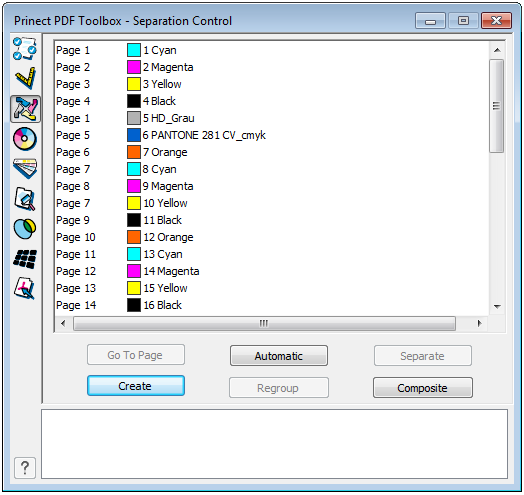
Click "Automatic". The following result displays:
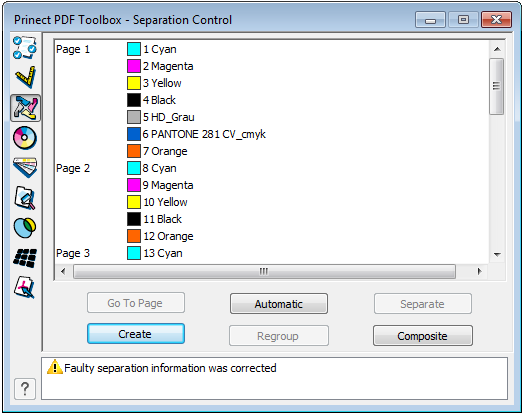
Edit color data of separations
The color reproduction of a separation or alternate color is only relevant for printing if no separations are to be generated but the PDF is to be included in a composite workflow, e.g. in Prinect Integration Manager.
Unknown colors, i.e. colors without an alternate color saved in the PDF are initially assigned a default green as the alternate color. As preparation for a composite workflow or in order to improve the color display, you can edit the “alternate color” CMYK components.
You can edit both the color name and the color information.

Note: These changes apply to all colors with the same name following in the list but not for colors preceding in the list. To apply such a change to all colors of the same name you must highlight the first occurrence of the color in the list.
1.Double-click the color to be edited.
The "Edit Color" window appears.

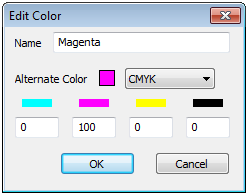
2.Edit the color name in the relevant text box if applicable.
3.To correct the color definition, edit the percentage values for Cyan, Magenta, Yellow or Black in the respective text boxes.
4.Click "OK". The edited color is saved in the separation information.
Tip: You can also use the Prinect Color Editor (in “Settings > Spot Colors”) to assign suitable colors from color tables and thus apply the correct CMYK alternate colors to an entire document if the document contains spot colors without an alternate color, the names of which, however, are correctly specified e.g. Pantone® or HKS® colors.
Create missing separation information
You can create separation information if it is not available or only partially available in an already separated PDF file.
This requires an equal number of separations per document page because the separations are consecutively grouped according to pages and assigned appropriate separation information.
You can generate separation information when (in rare cases) not all pages come with a complete set of separations; in this case, however, you must subsequently edit the grouping.
1.Launch Separation Control as described before.
2.Click "Create". The “Create Separation Information” window opens.

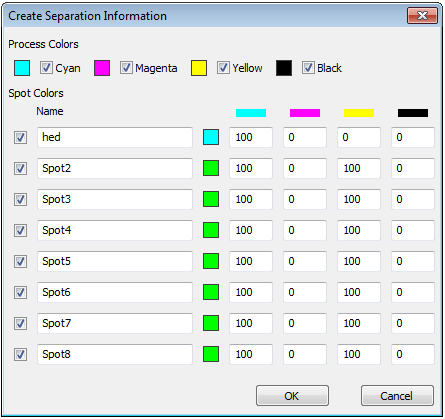
The process color options are enabled in the “Process Colors” area.
You need not make any changes here unless not all CMYK colors were used.
3.In this case you must disable the option in question.
4.Enable an option for each spot color in the “Spot Colors” area if your PDF file contains spot color separations.
5.Type the spot color name and the color definition in each of the text boxes.
6.Finally, click "OK".
The separation information is generated and appears in the Separation Control window.

Note: At least one of the separations also contains color if the message “The document uses other colors than DeviceGray” displays. As separations normally should use gray only, this may cause output issues.

Note: This function overwrites any existing separation information.
You can create a pseudo composite once the separation information is correct and complete. During this process the grouped separations are placed on top of each other in overprinting mode.
You can use this pseudo composite to verify whether or not separations belonging together have been grouped. You can, however, also save the file in this format – it still contains all the separation information but can be used for a composite workflow as well.
1.First save the PDF file with the corrected separation information.
2.Click “Composite”. A PDF file with a pseudo composite is created.
3.Check the pseudo composite.
4.Save the file if you wish to use it in a composite workflow.
5.You can change this pseudo composite PDF file back into a separated file.

Note: Color Management or trapping is not possible for pseudo composite files.
6.Click "Separate".
