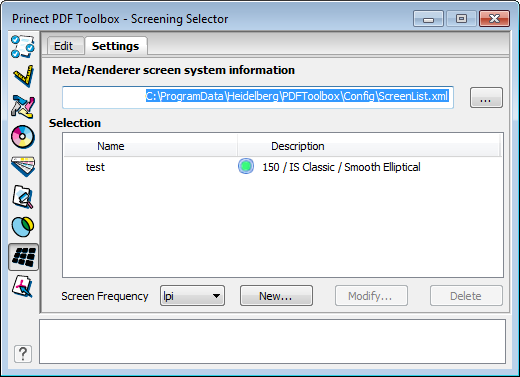
MetaDimension/Renderer screen system information
This is where you can browse to the screen list.
Selection
Modify...
Select the setting you want and click "Modify...". The "Settings" dialog displays. You cannot change settings that are used in the PDF document.
Delete
Select the setting you want and click "Delete". The setting is deleted without any alert message. You cannot delete settings that are used in the PDF document.
New
1.Click "New...". You must first select an existing setting if you wish to use it as a preference. The "Settings" dialog displays.
|
|
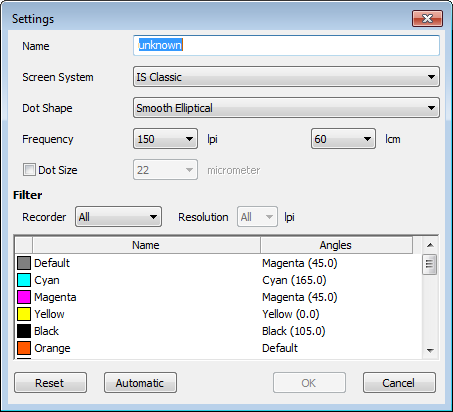
This is where you can select the parameters that you need for screening. |
2.Start by giving your "Setting" a suitable name in the top box.
Filter
3.If you want, you can now select the recorder and perhaps its resolution. This confines the selection of screen systems, frequencies and dot sizes to those available for the recorder you selected. Other options are filtered out.
If you set a certain resolution in "Resolution", only the frequencies for this resolution will be available for the recorder you selected. All the screen frequencies for the recorder are shown if you set "All".
4.Then select the screen system and the dot shape. Whether or not you can select just the screen frequency, dot shape or both depends on the screen system you selected.
AM screen (amplitude modified) = only frequency
FM screen (frequency modulated) = only dot size
Hybrid screening = frequency and dot size
IS Classic = frequency + dot size (Prinect MetaDimension as of version 7.0)
You can choose between "lpi" and "lpcm" for the frequency.

Note: Heidelberg screen settings (i.e. those created at a different workstation with Prinect PDF Toolbox) are automatically created if these settings come with the PDF document and they are not on the current workstation in the Prinect PDF Toolbox. These settings are read-only. You cannot change or delete them.
Non-Heidelberg screen settings are automatically removed when the Prinect PDF Toolbox starts. This is indicated in the status panel.
You can find more details about screening:
•on the Prinect MetaDimension DVD > Work with MetaDimension > Prinect MetaDimension Screen Frequencies
•if Prinect MetaDimension is installed, in > Heidelberg Prinect MetaDimension > Books Online > Prinect MetaDimension Screen Frequencies
Angles
5.This shows the screen angles for each separation color. You can edit these angles if needed.
The CMYK colors and "Default" are always listed. Spot colors in the PDF document are also listed. They always have the angle as shown for "Default", e.g. Magenta (45.0°).
You can change the angles in two ways:
1.Select a color in the list box and then a new angle. For spot colors, you cannot select the color that is set above in "Default", in this case, for example, Magenta (45.0°). You must select a new angle for "Default" if you wish to change all the colors with a "Default" angle.
2.With the "Automatic" button. For spot colors, the angles are assigned based on a certain order.

Note: You cannot change angles in FM (frequency modulated) screening.
You can reset any changes you made with "Reset".
3.Close the dialog with "OK". The settings are now saved.
The list in "Settings" then shows the name and the parameters you set. You can view the screen frequency in "lpi" or "lpcm". Explanation of the symbols:
|
|

|
No angle changed |
|
|

|
Angle changed |
|
|

|
No angle change possible |