
Plate Pilot
The "Plate Pilot" widget shows all available presses and their current status. The automatically generated plate stacks of the print operations of a press display. The plate stacks are piled in the order they display.
Available tiles:
Configuration and tile
A Prinect Integration System and the "Prinect Production Manager".
The widget can be seen only with the "Show Plate Pilot" user permission.
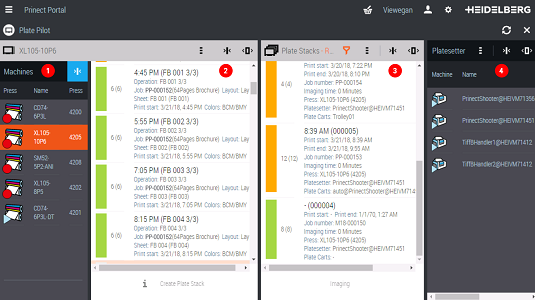
Display after selection
•The list (1) shows all available presses and their current status. When a press is selected, the related print operations display in the list (2). To save space, you can collapse the list of presses, with the name of the selected machine still displaying above the list of operations. The press last selected is automatically selected again when you next start the widget.
·All the print operations of the selected press display in the list (2). The sorting order is defined by the print start time. You can see from the status bar which plates in the operation already have TIFF-Bs.
·The list (3) shows all the print operations related to one plate stack on a press. The plates of the plate stack can be imaged. They are piled in this order on a plate cart. The status bar shows how many plates are already imaged.
·The list (4) shows all available output devices to which the plates of the plate stack can be imaged. The processing status of the press displays.
You can resort the order of the operations. This is helpful if, for example, the press sheets (TIFF-B) for operations are not ready for imaging (contents not available or released).
You resort the order of the operations by drag-and-drop. As a result, the start times of other print operations are changed (they go to the end of the list). It is possible to reschedule operations only for one press.
Rescheduling operations for other presses is possible only with the Prinect Scheduler. See the Online Help of the Cockpit for more details.
TIFF-B availability
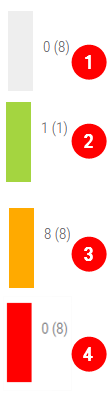
Status of TIFF-B availability
•1 white: There are no TIFF-Bs. The planned print start is not at risk.
•2 green: There are TIFF-Bs. The planned print start is not at risk.
•3 yellow: There are TIFF-Bs. The planned print time cannot be met (imaging time or operations brought forward exceed the planned time).
•4 red: There are no TIFF-Bs. The planned print start cannot be met.
Plate stacks
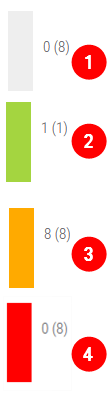
Status of plate availability
•1 white: There are no plates (imaged). The planned print start is not at risk.
•2 green: There are plates. The planned print start is not at risk.
•3 yellow: There are plates. The planned print time cannot be met (imaging time or operations brought forward exceed the planned time).
•4 red: There are no plates (imaged). The planned print start cannot be met. (Imaging time exceeds the planned time.)
You can image an unimaged plate stack in the list of plate stacks:
1.Mark the plate stack you want.
2.Click "Imaging".
3.The window that then display shows you the following data:
stack ID, number of plates to be imaged, print start and print end.
4.Select a platesetter and a plate cart.
5.If you cannot select the plate cart you want, you can open plate cart administration by clicking the button on the right.
You can create a plate stack manually for a sequence of operations. This is done by selecting print operations whose press date comes next. This means that you must always select the first (topmost) operation when selecting operations to create a plate stack.
A plate stack cannot be created if the start of printing is not set in the topmost operation or if not all TIFF-Bs are available.
1.Mark the pending operations that already have TIFF-Bs.
2.Click "Create Plate Stack".
3.In the window that opens, click "OK" to create a plate stack. The plate stack displays automatically in the list of plate stacks.
If you have to reschedule at short notice between presses and/or imagesetters, it may be necessary to recreate the TIFF-B for the new schedule.
1.Mark the operation you want (you can also select several, if required).
2.Click "Resample".
3.In the window that opens, select the matching ImpositionOutput sequence for recalculation.
4.The TIFF-B is recalculated.