Print/Reprint Pallet Sheets
On the dashboard, the pallet sheet widget shows details about the operation currently running if an operation is active. You can view details about operations that have finished running by clicking the widget.
Note: The details on the dashboard are refreshed only after you click the Refresh icon at the top right of the dashboard or press "F5". The details within the widget are refreshed automatically.
Proceed as follows to print/reprint on the Wallscreen XL:
1.Go to "myPrinect".
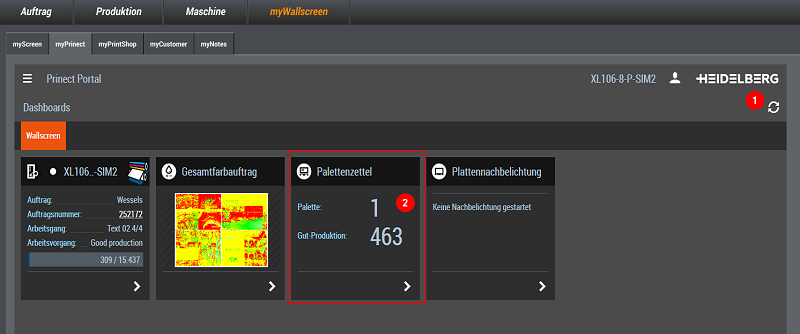
2.Click the Refresh icon (1) to refresh the dashboard.
The pallet number and good production number display when pallet sheet printing is ready for the current operation (2):
·Pallet:
Shows the number of the next pallet sheet. Counting starts automatically at "1" for every operation and is incremented each time a pallet sheet is printed. You can edit it before printing.
·Good production:
Shows the number of printed good sheets after the last pallet sheet printing run. The number is reset to '0' after every pallet sheet printing run. You can edit the number before printing.
3.Click the widget.
The details view opens.
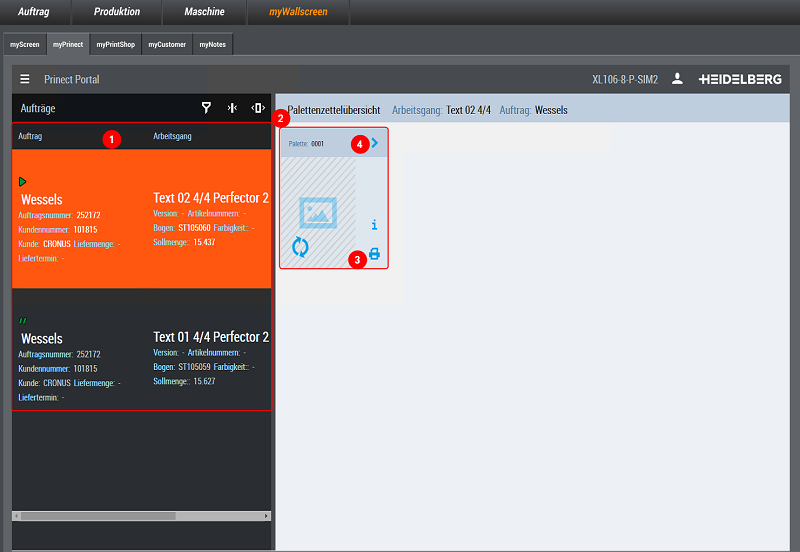
The operation currently running (if any) displays at the top of the list of operations (1). The list also shows all finished and suspended jobs that ran on the machine (see the table below for an explanation of the icons). Pallet sheets that are older than five days are no longer available.
|
Status icon |
Explanation |
|---|---|

|
Operation on the machine active |

|
Operation finished |

|
Operation interrupted |

|
Operation is ready on the machine (default data are loaded and the plates were imaged) |
Status icons in the list of operations
4.Click the operation for which you would like to print a pallet sheet (1).
The document view shows a placeholder for a new pallet sheet (2) and previews of already printed pallet sheets for reprinting (if any).
5.Click the print icon to use the quick print function (3). This brings you directly to the Print dialog (skipping the pallet sheet preview and editing option).
(6).Go to the pallet sheet preview (4) if you wish to check and edit the data once again. This function is available only when printing the pallet sheet for the first time.
The "Pallet Sheet Preview" dialog displays.

7.If necessary, edit the pallet number and good production number using the edit icon (1).
The system automatically makes a note of the new pallet number and increments as of this number. By contrast, the new good production number is ignored with pending pallet sheets.
8.Click "Print Accompanying Paper" (2).
The following dialog displays:

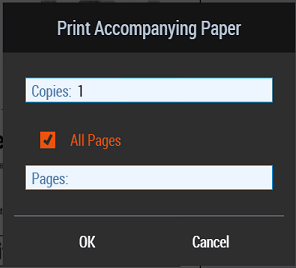
9.Set the number of copies and the pages you wish to output.
The page information is helpful mainly for multiple-page pallet sheets.
10.Click "OK".
The pallet sheet is printed to the connected network printer.
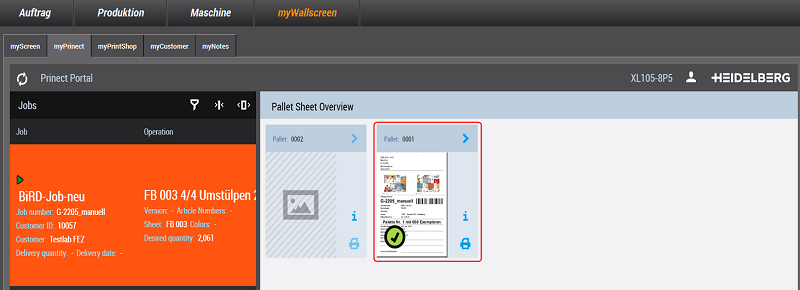
It displays as a preview with a green checkmark after it is printed.