Operation in the Prinect Prepress Manager
Example for the interactive start of the Prinect Signa Station from the Prinect Prepress Manager:
•Changes to the sheets are possible right up to just before the final output.
•The pages were already assigned in the Prinect Prepress Manager. You can change fast to the Prinect Signa Station if you now wish to add blank pages.
•Most of the pages in a job are assigned in the Prinect Prepress Manager, but the job also has pages that have to be assigned in the Prinect Signa Station because of their special properties.
•The sheets or marks must be changed after page assignment.
•A different plate template to the one defined in the layout must be used for imaging.
•For reasons of space, you have to output an imposition proof without a plate template.
After you installed the Prinect Prepress Manager Cockpit software and the Prinect Signa Station software on a workstation computer, you must enable the license key for the interactive Prinect Signa Station ("Interactive Impositioning") in the Prinect Prepress Manager License Manager.
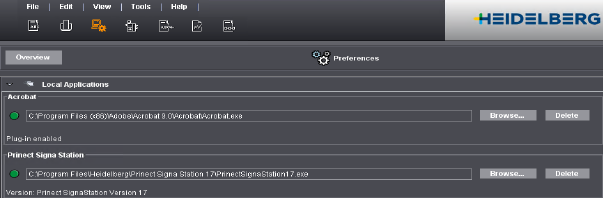
Afterwards, you must set the installation path to Prinect Signa Station in the Cockpit:
Go to "Administration > Local Settings" and click "Browse" in the "Prinect Signa Station" section. Select the Prinect Signa Station installation path in the browser dialog. A round green symbol appears beside the path when the Prinect Signa Station program file, "Prinect Signa Station.exe", is entered in this box. The interactive connection to the Prinect Signa Station is now set up and ready.
You can only configure Prinect Signa Station.

Note: The most suitable instance of the configured Prinect Signa Stations starts automatically when you load a layout in the job with "Open" or "Open as copy" for editing in the interactive Prinect Signa Station.
The procedure is basically the same on the Macintosh as well. The Cockpit and the Prinect Signa Station software must be installed on the same Macintosh computer.
Launching Prinect Signa Station from the Cockpit
After you set the preferences for the interactive launching of the Prinect Signa Station, you can start the Prinect Signa Station from an open job in the "Elements" tab.
Go to the "Layouts" section and mark an item in the list for a complete sheet layout. The "Open" button in the context-sensitive menu is enabled if you can edit this item with the Prinect Signa Station.
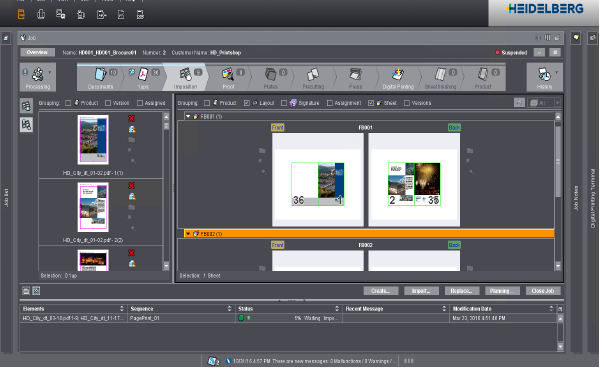
The "Waiting for imposition software" window appears and the Prinect Signa Station starts when you click "Open", and the marked layout displays for editing. The job is flagged as "(interactive job)".
Save the layout in Prinect Signa Station after editing. The job closes in Prinect Signa Station and the changes can be seen in the layout in the Prinect Prepress Manager.
When you use the "Open" button, you must not have several Cockpits simultaneously open a Prinect Prepress Manager job with an identical layout and return it for overwriting. Otherwise the layout saved last would be used.
The "New Layout" dialog displays when you click the "New" button.
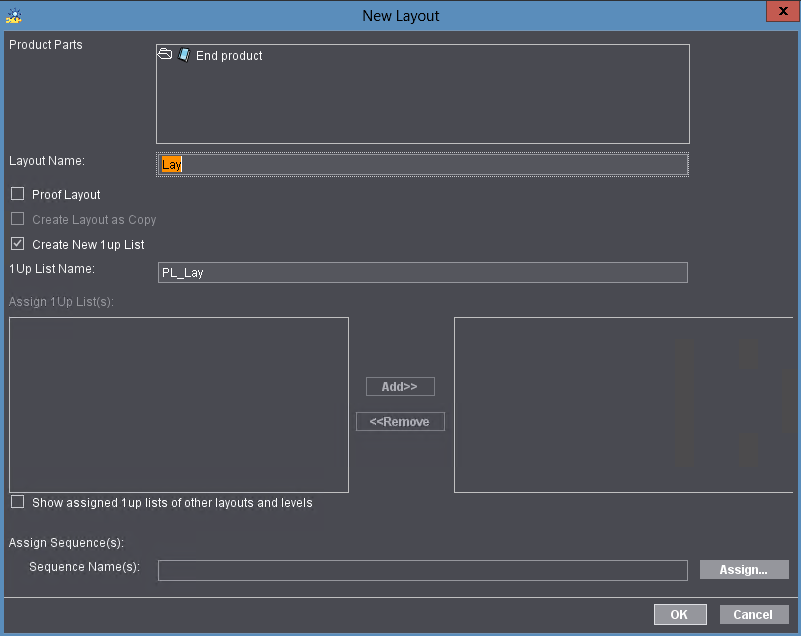
Enter a name for the new layout in "Layout Name".
You must select the layout and then click "New" if you work with the MIS. The "Layout Name" and "Page List Name" boxes are dimmed. These names are set by the MIS.
In the interactive Prinect Signa Station, the workflow bar has defaults from the MIS data (StrippingParams). If these MIS data (StrippingParams) are incomplete/unsuitable, they are rejected with the message "Import failed!" and the interactive Prinect Signa Station canceled.
The new layout is created as a proof layout if you select the "Proof Layout" option.

Note: A proof layout doesn't display in the sheet view mode screen and separation view mode screen. Other than this, a proof layout is like a normal layout. This is feasible, for example for reader's spread layouts.
Check "Replace Layout(s)" to replace the existing layout with the new one (you can only select this function if you have a layout and it is selected).
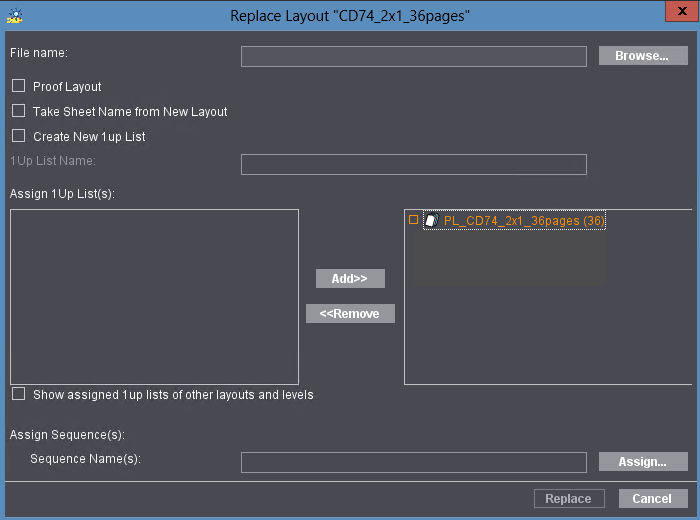
Check “Create New Page List” to specify that the new layout is to automatically be assigned a new page list after interaction in the Prinect Prepress Manager job.
"Create New Page List" enabled: The new layout is assigned a page list in any case.
"Create New Page List" disabled: The new layout does not contain a page list when the signature is not assigned pages in Prinect Signa Station; a page list is automatically created nevertheless if pages were assigned to the signature.
The new page list is assigned to the layout if the layout is overwritten in the Prinect Prepress Manager job.
In "Assign Sequence(s)", you can assign one or more sequences to the new layout.
The Prinect Signa Station software starts when you confirm the dialog with "OK" and you can begin to create the new sheet layout. The job is flagged as "(interactive job)". Only this job will write back to the Prinect Prepress Manager.