Prerequisites for Installation
What are the Prinect system requirements for Smart BI?
For the "Production" module:
•Prinect Workflow as of version 19 with either Prinect Production Manager or Prinect Integration Manager.
•At least the Prinect Pressroom Manager must be licensed.
For Suprasetter, operational data are recorded via the Prinect Prepress Manager, for Heidelberg presses via the Prinect Pressroom Manager and for Heidelberg finishing machines that can be networked online via the Prinect Postpress Manager.
For the "Business" module:
•Prinect Business Manager as of version 7.18 must be installed on a Prinect Common Database (CMD).
For both modules:
•Prinect BU Snapshot (backup) must be set up and run daily. At least one Common Database Backup must be set up.
Are there any other requirements?
You need:
•A Microsoft Power BI Pro license whose access data you provide us with
•Another Microsoft Power BI Pro license for the administrator. We need the user name of the account for installation.
•An Internet connection and a common browser (latest version).
The following browsers are recommended: Microsoft Edge, Microsoft Internet Explorer, Google Chrome, Apple Safari.
Mozilla Firefox can also be used. However, some of the fonts used in Smart BI reports could be modified by Firefox.
Please note that only browsers with the latest version are supported.
Prinect Smart BI can be used on the Macintosh/PC, tablet and smartphone. Because it runs in the cloud, there is no minimum hardware requirement. However, we recommend the following properties for a smooth process:
•Available Memory (RAM): 1 GB or more
•Display: At least 1440x900 or 1600x900 (especially for editing reports)
Why do Power BI Pro accounts need access data?
A service account is needed to publish reports within an organization. The customer must create this account himself/herself and provide Heidelberg with the access data (user name and password) so that we can access this account.
We recommend that this account be set up exclusively for Heidelberg. This allows us to change the password and protect the account after the first login.
Are other Power BI accounts needed in addition to the service account?
In addition to the service account, you will need at least one other account that will have administrator permissions. Please let us know the user name of the admin account. The administrator can manage the permissions of other users (for example, which employee is to have access to which report).
How many Microsoft Power BI Pro licenses are required?
You need at least two Power Bi licenses: One for the service account and one for the administrator.
If you want to work with a number of persons in Smart BI, you also need a Power BI Pro license for each active user.
What is the cost of licenses for Microsoft Power BI Pro?
The Power BI Pro licenses are not included in the Prinect Smart BI subscription.
Therefore, you must purchase the licenses from Microsoft on your own. The current price is US$ 9.99 per user per month (as of December 2019).
You may also receive a free trial license from Microsoft that is valid for 60 days and is not automatically renewed.
More information can be found on the Power BI homepage.*
* We cannot assume any liability for the accuracy, completeness or up-to-dateness of the information provided by external partners.
How do I purchase a Microsoft Power BI Pro license?
When you log in to Power BI for the first time, you usually have the option of trying Power BI Pro for a limited time, free of charge.
After the trial period expires, you can upgrade your account to continue accessing Smart BI reports. Of course, you can also purchase a Power BI Pro license for a fee. To do this, open the Office Portal and log in with your Power BI access data or with your Office 365 data.
If you do not have an Office 365 account yet, it will be created automatically when you first log in to Power BI.
For a detailed description of how to purchase Power BI Pro in Office 365, click here:
Microsoft: Purchase and assign Power BI Pro user licenses
It is important that you have administrator permissions for the Office Portal. If necessary, contact the person in charge in your company who can assign you admin permissions or purchase the license for you. Typically, the first person to receive an Office account is automatically a Portal administrator.
Do you need an Office 365 account to use Power BI?
Even if you do not use Office 365 products (e.g. Word, Excel, etc.) and therefore do not have an Office 365 license, you can log in to Power BI. In this case, an Office 365 account is automatically created when you log in to Power BI. If you already have Office 365 products, Power BI will be added to your Office 365 account.
The difference between account and license: An Office 365 account is practically only access to the Office environment. It is used to manage access to Power BI and other services and is in itself free of charge. However, in order to use the services, you must purchase the appropriate licenses.
Why does Smart BI sometimes have different languages?
Currently, Smart BI is available in English only. That is, the values, dimensions, and data you see in Smart BI always display in English.*
If you have set Microsoft Power BI to a language other than English for the user interface, phrases can appear on the report pages in a mixture of these two languages.
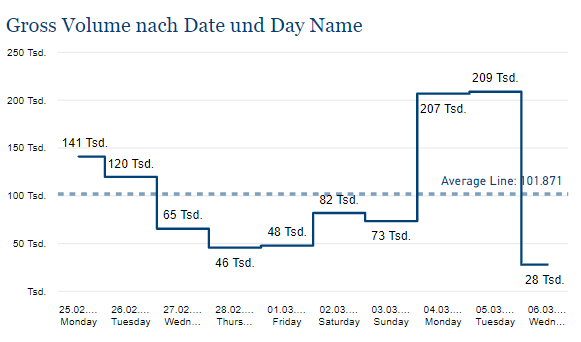
For example, if you set your Power BI to German, Power BI generated titles and information will display in German, while the data will remain in English.
As shown in the screenshot below, a title will appear as "Gross Volume by Date and Day Name", for example. The words that come from the database are in English and the words that Power BI generates in German.
* For data that you enter yourself in Prinect (e.g. names of materials, activities, etc.), you can of course choose any language as it is data you enter freely.
Is it possible to display in other languages?
Only English names are available for the data from the Smart BI database. Therefore, these display only in English in the reports (regardless of the Microsoft Power BI language settings).
Language setting in Power BI
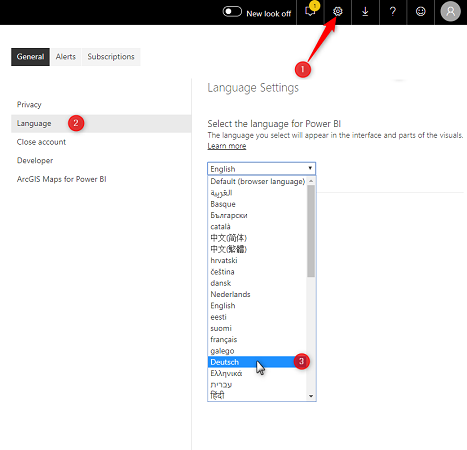
You can choose between different languages for the Power BI user interface. This also displays automatically generated titles and expressions in the selected language, with all terms from the Smart BI database still in English.
You can set the language in the Power BI Settings:
Automatic translation by the browser
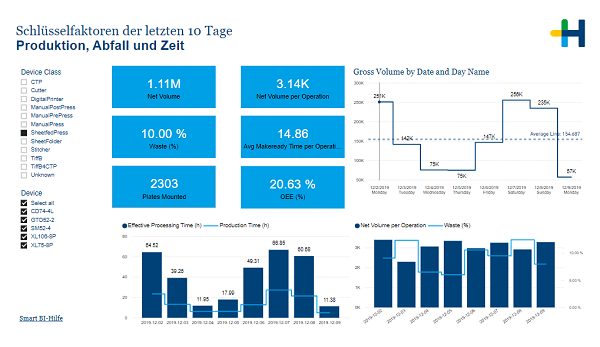
There is also the option of using the automatic translation of your browser. However, the result is not always accurate and does not affect all elements of the report, as you can see in the following screenshot of an automatic translation:
Online Help
If you do not understand a term in a Smart BI standard report, you can also refer to the Online Help. In it, you will find descriptions of each report page and each graphic in English and in German:*
1.Click the "Smart BI Help" link in the bottom left corner of the report. The Online Help opens automatically on the description of the displayed report page.

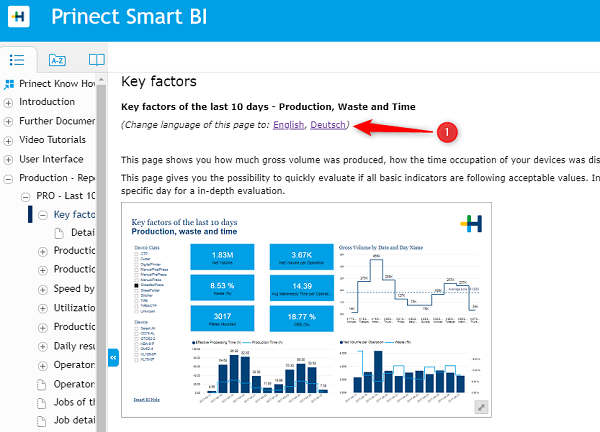
1.Click "German" below the title. You will now see a description of the report page in German.

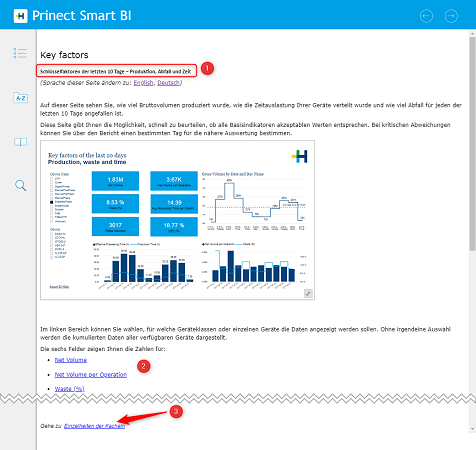
Below the English title there is an additional line [1] that translates the title and subtitle of the report page.
There are links to the facts and dimensions used on the page that lead to their explanation.
2.Click the "Tile Details" link at the bottom of the report page. A view with descriptions of each tile opens.
* Detailed descriptions are currently only available for the "Business" module and the "Last 10 days control" production report.
Does Smart BI support the translation of facts and dimensions?
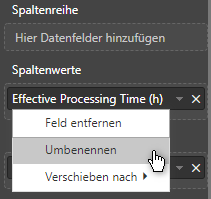
If you want to translate a specific page or report yourself, you can do it in the Smart BI edit mode.
1.Click "Edit Report" in the menu.
2.Click the visualization that contains the value you want to translate.
3.Right-click the value and select "Rename".
4.Enter the name you want and confirm with "Enter".

How can I organize teamwork in Smart BI?
If several persons work with Smart BI, they probably have different tasks and therefore need different permissions.
We recommend that you create different workspaces for the different user groups. For example, you can create one workspace for the "Business" module, another for production managers, and another for employees. You can select reports for each workspace and set the filters so that everyone has access only to the data that is relevant to them. You then add the users concerned to each workspace.
For a description of how to create workspaces in Power BI, see: Microsoft: Create the new workspaces in Power BI
The Microsoft Help page provides instructions on how to add users to workspaces: Microsoft: Give access to your workspace
What are the different roles in Power BI workspaces?
If you created a workspace, you are the administrator for that workspace. You can add people who have different roles and select whether they can only view the reports or also modify them. A description of the different roles of the workspaces can be found at the following link: Microsoft: Organize work in the new Power BI workspaces.