Check Properties of Characteristic Curve
It is sometimes necessary to check the properties of an existing characteristic curve, for example if you want to know the jobs used to calculate the characteristic curve or the measured values for each of the colors. In addition, there is much more information you can view.
Proceed as follows to check the properties of a characteristic curve:
1.Go to the Characteristic Curve Editor.
2.Click "Characteristic Curves".
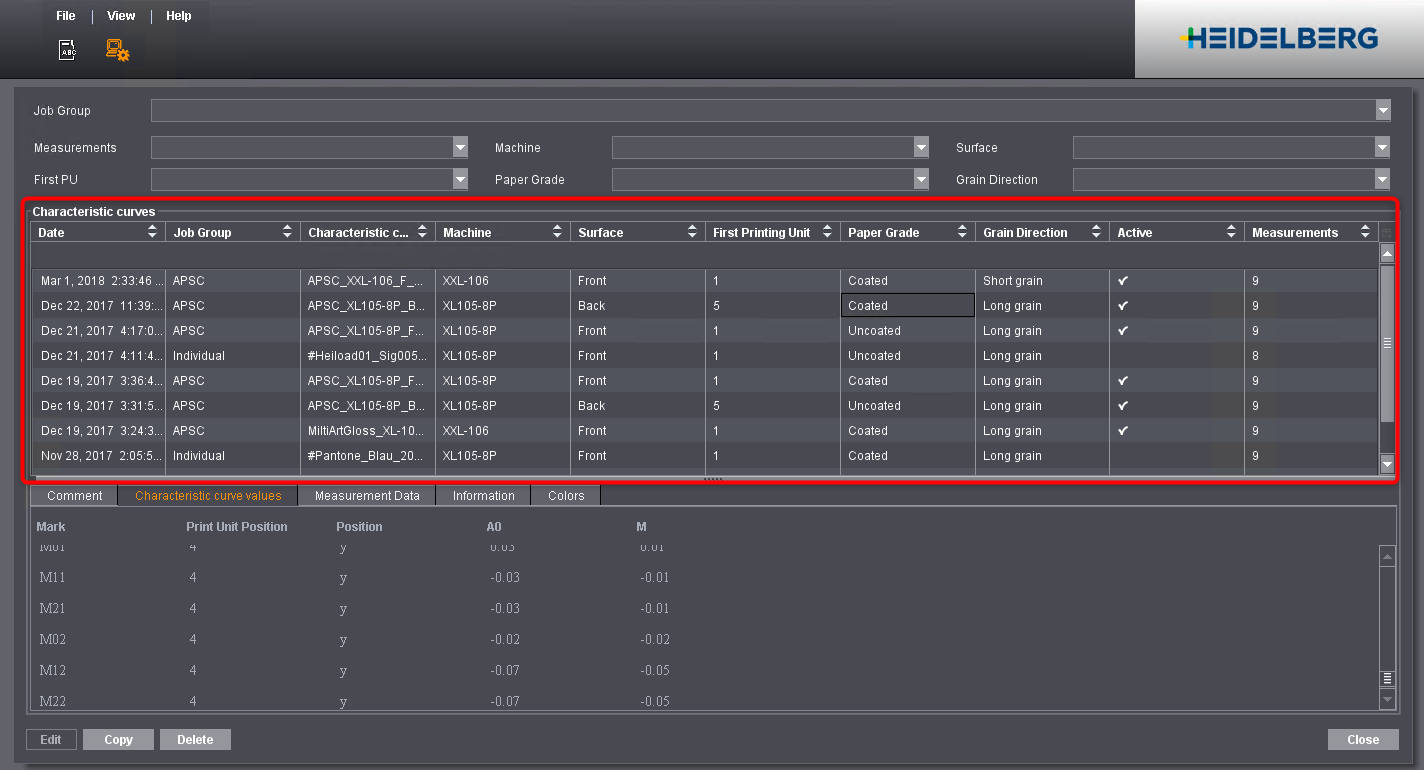
A list with all saved characteristic curves opens.
The columns already contain a great amount of information. For example:
•"Characteristic curve"
Name of the characteristic curve. A hash character "#" preceding the name indicates an individual compensation.
•"Active"
A checkmark in this column indicates that this characteristic curve is used for compensation. Characteristic curves without checkmark are not used. Click in the "Active" column to enable/disable the characteristic curve.
•Paper parameters of the characteristic curve
The other columns display important paper parameters of the characteristic curve (Grain Direction, Paper Grade, Surface, etc.)
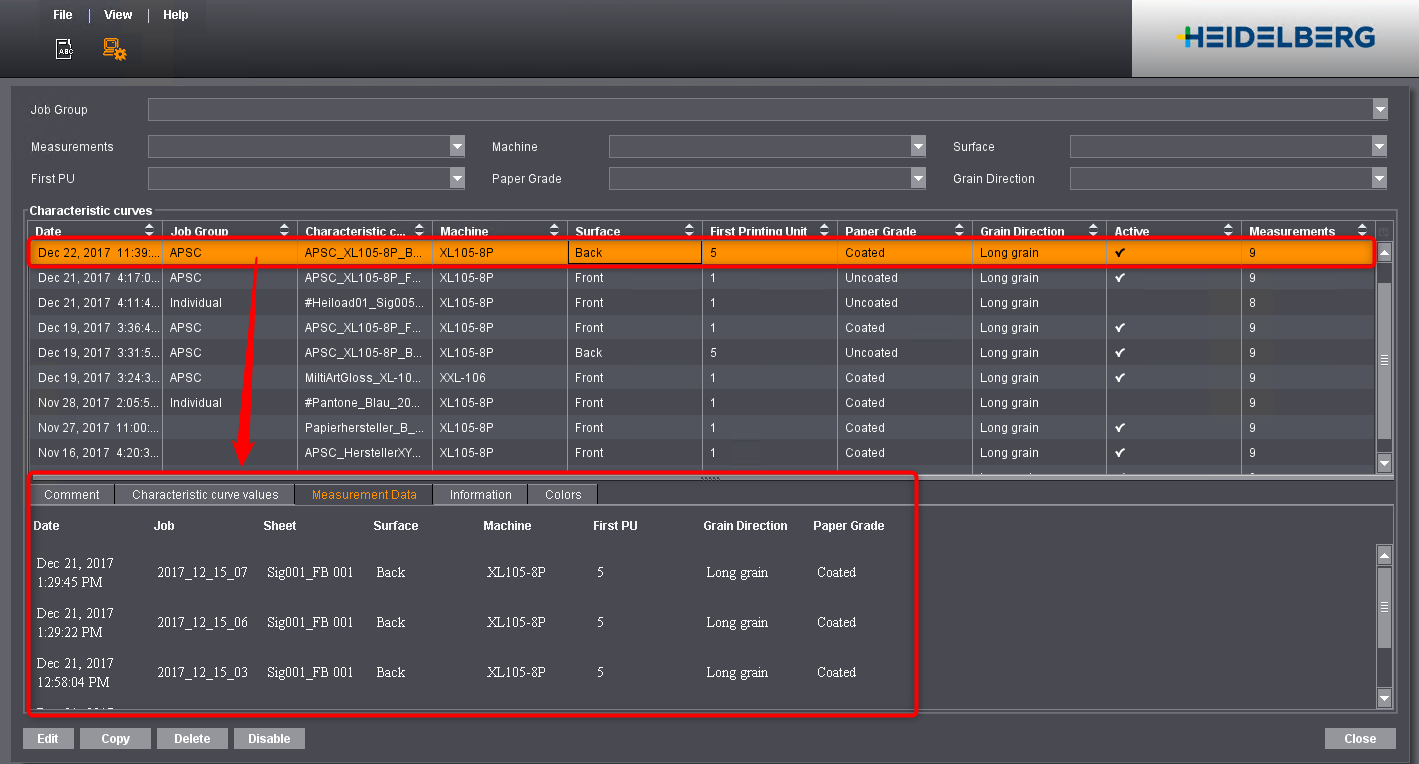
3.Select a characteristic curve to view further properties.
The tabs below show many more details.
"Comment" tab
Displays the comments that were added when the characteristic curve was created. You can add a comment with "Edit".
"Characteristic curve values" tab
Displays the misregistration measured for each print unit (each color). You can edit the measurement values at a later time in the Measurement Editor if you want to (provided the measurement data set and the job are still available).
"Measurement Data" tab
Displays the jobs that were used to create the characteristic curve. You can add or remove jobs at a later time. See Edit Characteristic Curve.
"Information" tab
Displays the parameters that were used to create the characteristic curve.
"Colors" tab
In the case of an individual characteristic curve, the colors used are specified in this tab. This lets you check at a later stage which colors and which print order the job had.