
 Prerequisite: Counter boxes are used for presses that are connected to the Prinect workflow via a Data Terminal.
A counter box records the totalizer readings of as many as 12 connected presses and transfers them to the Data Terminals of the presses through the network (TCP/IP Ethernet). This means that the quantities produced do not have to be recorded manually at the Data Terminal; instead, the quantities are calculated automatically on the basis of the counter statuses and forwarded to Prinect Production.
The following screenshot shows an example of such a configuration.
The counter box must be set up in Prinect Production in order for Prinect Production to receive the produced quantity correctly. In addition, the channels must be assigned to the devices as shown in the wiring diagram. See Create a New Counter Box.
 Note: A detailed description of the installation and replacement of a counter box is enclosed with the counter box. Go to the document using the following link: Installation and Replacement of the Counter Box
To set up a new counter box in Prinect, the following necessary text parts are provided below.
Prerequisite: To ensure accessibility in the network, the counter box must be assigned a valid IP address.
1.In Cockpit, go to "Administration > Device configuration > Counter Box".
2.Click "Create".
A dialog opens where you can configure the Counter Box:

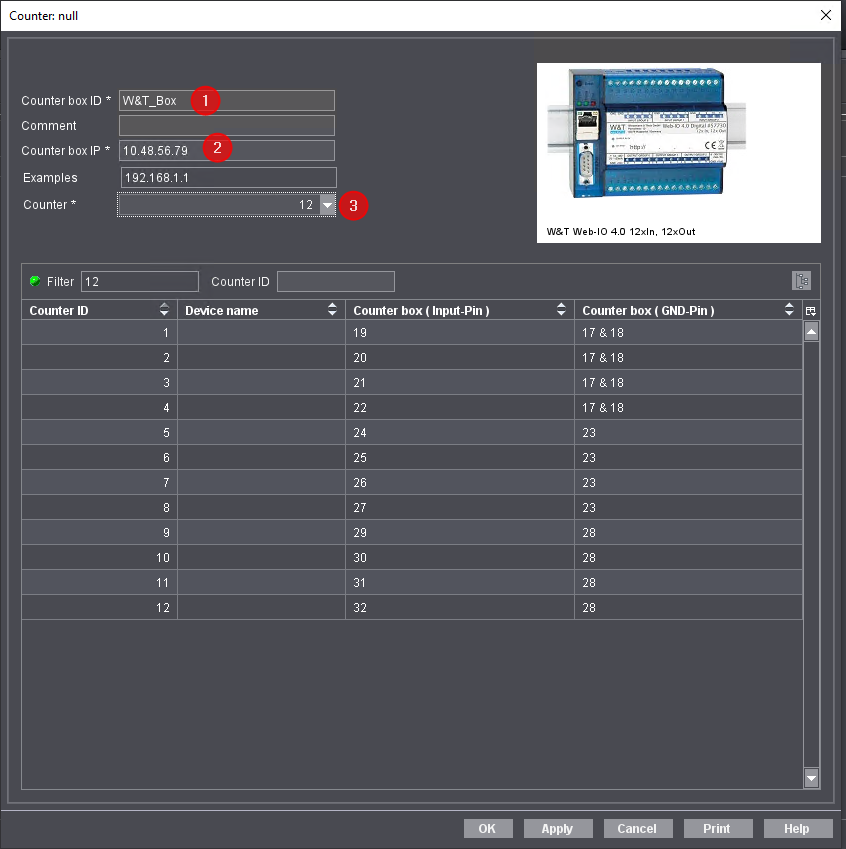
3.Type a unique name in "Counter Box ID" (1).
This name is displayed in the Central Device Manager (CDM) when setting up a Counter Box.
4.Enter the IP address assigned to the Counter Box (2).
5.Select the number of channels in the "Counter" list box (3).
•12 = New counter box
•6 = Old counter box
In the example below, you can see a connection variant as is used for voltage signals. As each press has its own ground line for connecting a Counter Box and the Counter Box box uses a common ground for 4 channels, the voltage signal must be shifted in the respective ground block as follows. This means:
Device 1 to channel 1-4
Device 2 to channel 5-8 and
device 3 to channel 9-12
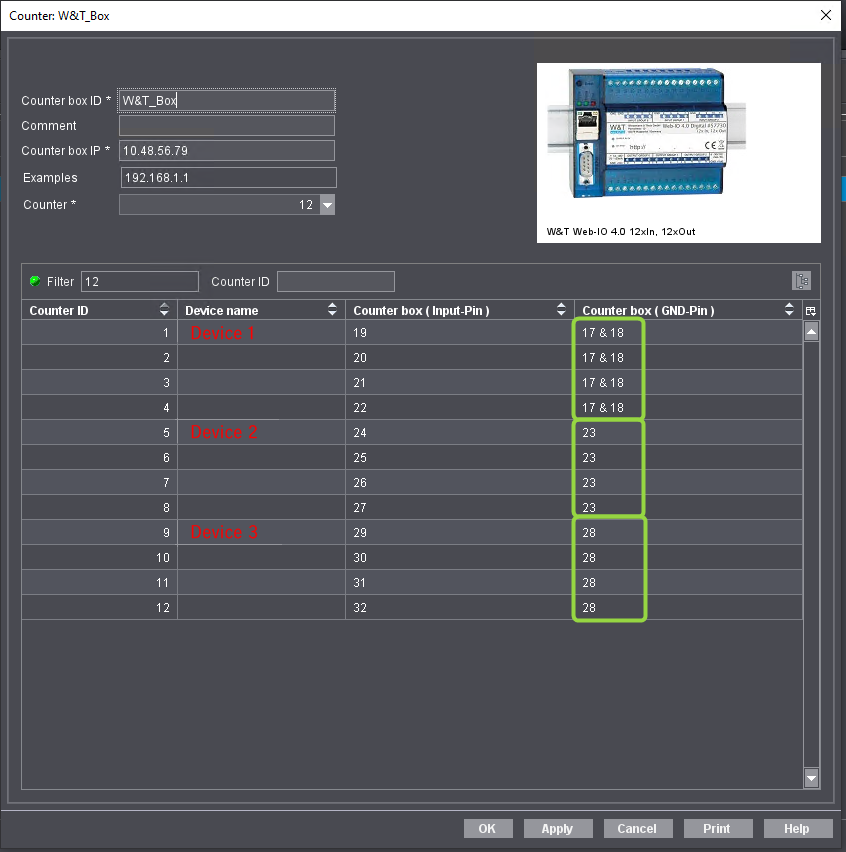
6.Make a note of the channels for each device or use the "Print" button to print the dialog.
7.Click "OK" to save your settings.
In the next step, you assign a channel to the devices.
Assign a channel to the devices
Once the Counter Box has been created, the devices (e.g. presses) must each be assigned an associated Counter Box channel. This assignment is made in the Central Device Manager (CDM).
Prerequisite: For the steps described below, we assume that the devices (presses) are already set up in Central Device Manager(CDM). You can find the CDM in Cockpit in "Administration > System". See Overview.
Proceed as follows to assign a channel to the device:
1.In the Prinect Cockpit, go to "Administration > System".
2.Open the "CDM" item in the following branch " [name of Prinect Server]".
3.Select the device (machine) you want to import.
4.Select "Edit" in the context menu.
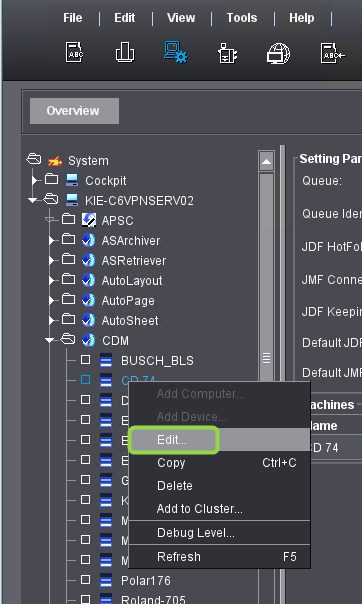
The device assistant appears:
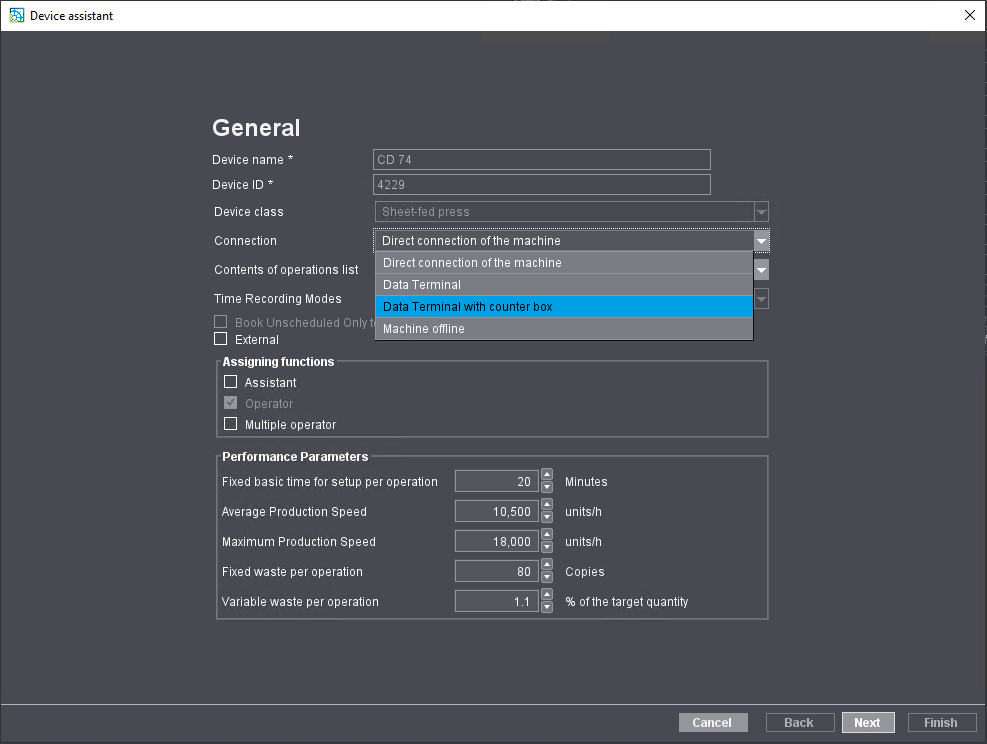
5.Select the "Data Terminal with Counter Box" list entry in the "Connection" list box.
6.Click "Next" until you are at "Counter box configuration".
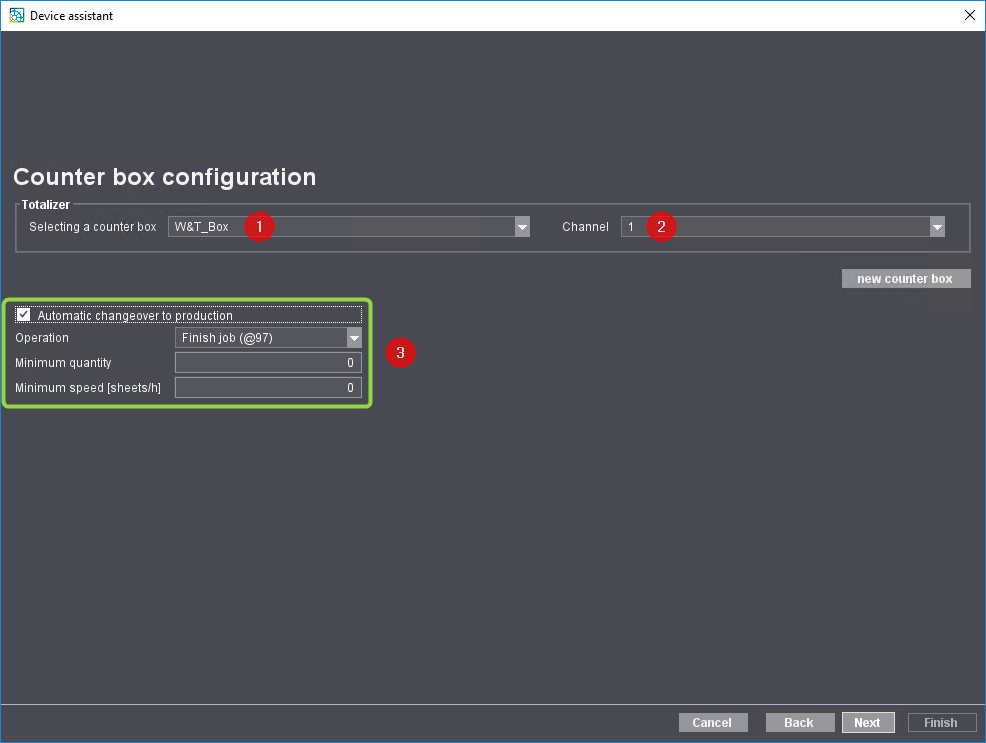
7.Select the counter box you set up beforehand (1).
8.Assign the channel to the device (2).
In this example, we assign channel 1 to "Device" 1.
(9)As an option, you can enable "Automatic changeover to production". In the "Operation" list box, you can select the operation that is to be carried out automatically once the values "Minimum quantity" and "Minimum speed [sheets/h]" have been reached (3).
10.Click "Next".
11.Complete the settings with "Finish".
12.If applicable, repeat these steps to set up more devices for Counter Box operation.
13.Restart Prinect Cockpit when you have completed the parameter setup. This is necessary so that the device names are displayed correctly in the device configuration.
Afterwards, check whether you assigned the channels correctly. To do this, go again to "Administration > Device configuration > Counter box" and open the counter box you want to check.
The devices should now be assigned to the correct channels:
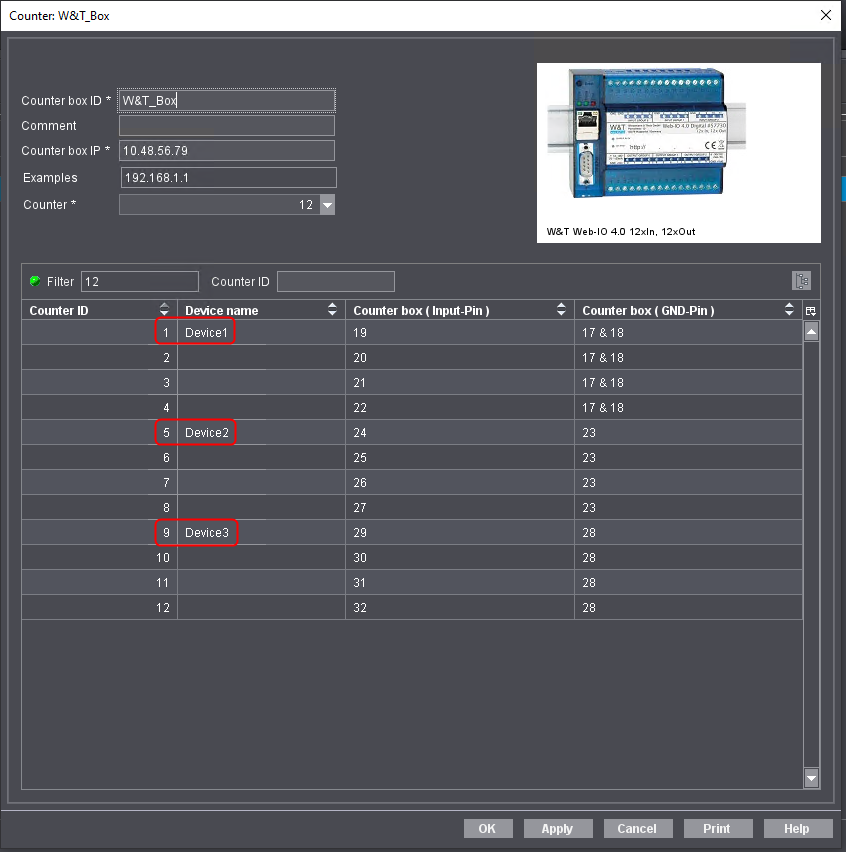
You can print the graphic to wire the machine.
Privacy Policy | Imprint | Prinect Know How | Prinect Release Notes