
Configure JDF communication in Prinect Manager
Configure JDF import settings in Cockpit: go to "Administration > JDF Import". See also JDF Import. This configuration process is described below.
List box "Currently Used JDF Level"
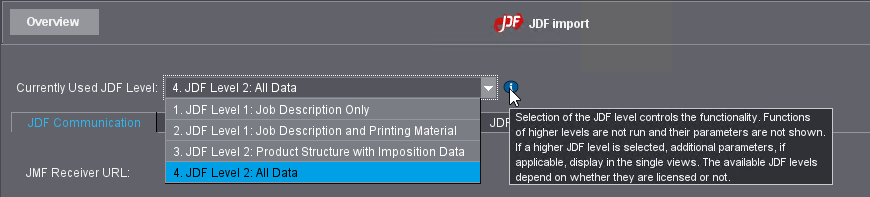
By selecting the JDF level, you define the amount of data that will be imported from the MIS or a WEB Shop. In this way, you can restrict the number of imported data types and prevent faulty data from being imported into Prinect Manager. Depending on the selected level, the JDF Import tabs display more or less options. In this example, all available options are described according to the top JDF level (4).
You can select one or more "workflow profiles" in the "Folder Structure", "Master data" and "JDF Data Additions" tabs. For the active profile, you can choose a configuration that differs from that of the standard profile. The connection to an MIS is enabled by default and cannot be disabled. Therefore, this profile does not appear in this list.
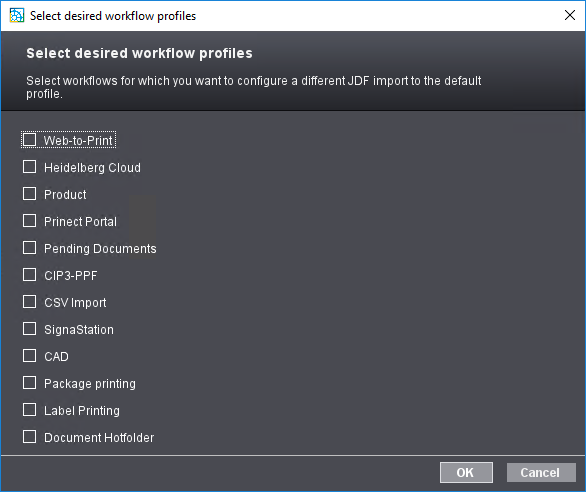
By selecting a "profile", you activate an individual configuration for data exchange between Prinect Manager and another JDF-compatible workflow component. This data exchange refers to the functions of the "Job Definition Format (JDF)". If a profile is not enabled, the standard JDF import profile will be used. You can configure the following profiles:
•MIS (Standard)
The "MIS workflow, i.e. the connection of Prinect Manager to an MIS (Management Information System) via the JDF Import function, is enabled by default as soon as JDF Import has been enabled and configured. Therefore, this profile does not appear in the list. The MIS import profile is the standard JDF import profile; it is used whenever any of the other profiles do not have any different settings.
•Web-to-Print:
When selecting this profile, you configure the JDF connection to a Web-to-Print application in your system environment.
•HEIDELBERG Cloud
This profile represents the JDF connection to HEIDELBERG Cloud or the HEIDELBERG Customer Portal. You should always configure this profile when using the HEIDELBERG Cloud or the HEIDELBERG Customer Portal because the job data generated in the HEIDELBERG Cloud apps are submitted to the Prinect workflow via the JDF import process.
•Product
When selecting this profile, you can enable and configure the JDF Import connection for products. See also Product Types.
•Prinect Portal
This profile represents the JDF connection with the Prinect Portal. As the Prinect Portal is a central element of Prinect Production, you should always enable this profile for a custom configuration.
•Pending Documents
This profile is intended for documents pending in Prinect Portal for new print jobs each of which is to be used as a gang job source.
This profile should be activated whenever "pending documents" in Prinect Portal "are to be used as a gang job source. In such cases, you should make the following settings after activating the profile:
•Disable the layout completion function:
"Complete layout" option: -> "Never".
•Disable automatic planning:
"Automatic Job Planning" option: ->"None".
Reason: If this profile is not activated, the automatic creation of a layout and automatic planning with the Planning Assistant is activated for all jobs created in Prinect Portal. This can lead to an individual layout being created for each individual job and to the printing plate exposure being automatically activated for these individual jobs with a newly created imposition output sequence.
However, as only the gang layout is to be output, this automatic process generates unnecessary plate exposures or leads to the unwanted recording of unused exposed area for the calculation in connection with a subscription contract.
If the “Pending documents” profile is activated, the “Complete layout” and “Automatic job planning” options can be set individually or deactivated for gang jobs.
•CIP3-PPF
With this profile you configure the connection of an external prepress system that supplies job data compliant with CIP3-PPF. See also Configuring and operating the "PPF Handler".
•CSV Import
Certain data such as addresses for mail merge can be provided in "CSV tables" (Character Separated Values). This profile configures the JDF support for CSV data import.
•Signa Station
When selecting this profile, you can enable and configure the JDF Import connection of Prinect Signa Station. We recommend that you use this profile if a Prinect Signa Station is present in the system environment.
•CAD
This profile is intended for the case that the generation of CAD data for packaging printing has been defined in Prinect Business and that the CAD data is then generated via JDF instruction in the Prinect Integration workflow with Prinect Package Designer. The CAD files are written to a special folder in the job list of Prinect Cockpit.
•Packaging printing
With this profile, you configure a "JDF import packaging printing workflow". This means, if special packaging printing settings were made in Prinect Business, these will be submitted to Prinect Manager via JDF import.
•Label printing
With this profile, you configure a "JDF import label printing workflow". This means, if special label printing settings were made in Prinect Business these will be submitted to Prinect Manager via JDF import.
•Document hotfolder
This profile is exclusively intended for imported documents in the context of JDF Data Additions. This is why this profile only affects the "JDF Data Additions" tab in the JDF import settings. See "JDF Data Additions" Tab.
 Note: The "Document Hotfolder" profile is not related to any of the general hotfolders that you define in "Administration > Hotfolder" or set up in the Hotfolder settings of the Qualify sequences. See Hotfolder.
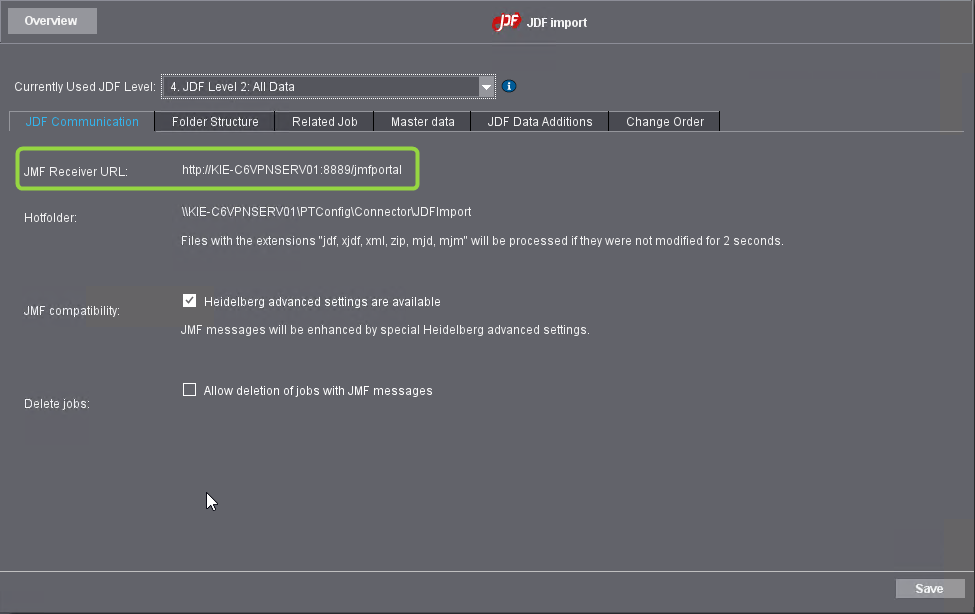
This tab has the following parameters:
•JMF Receiver URL: This URL can be used to access the JMF reception in Prinect Manager, e.g. from the MIS.
The default definition of this URL is: "http://[Prinect server name]:8889/jmfportal". In this context, the port number is "8889", and the target is "jmfportal".
You cannot edit this data. If the JMF sender of your MIS is set to a different target URL, you must change this on your MIS.
•Hotfolder: This is the input folder for incoming JDF files. Only JDF information written to this folder is processed automatically. The standard UNC path of the hotfolder is: "\\[Prinect Server name]\PTConfig\Connector\JDFImport".
The JDF Import function can process input files of the "jdf", "xjdf", "xml", "zip", "mjd", and "mjm" types. Files written to the hotfolder will be processed with a delay of 2 seconds.
•JMF compatibility: Enabling the option "Heidelberg advanced settings are available" will add HEIDELBERG-specific extensions to incoming messages in the JMF (Job Messaging Format). You should enable this option if the upstream system(s) (MIS, WEB Shop) is a HEIDELBERG product/are HEIDELBERG products. If not, disable this option to ensure the compatibility of the JMF format.
•Delete jobs: You can delete corresponding jobs in Prinect Production if you enable the option "Allow deletion of jobs with JMF messages". You cannot delete such jobs in Prinect Manager without this option being enabled.
Confirm your settings with "Save". See also "JDF Communication" tab.
The Management Information System (MIS) must be configured appropriately so that Prinect Manager can communicate with it. You must edit your configuration accordingly if your MIS was configured to store the JDF information in a folder different from the one shown here.
For more information, please refer to the documentation of your MIS (Online Help) or contact your local Prinect Service if applicable.
Privacy Policy | Imprint | Prinect Know How | Prinect Release Notes