
Privacy Policy | Imprint | Prinect Know How | Prinect Release Notes
You can use "Find" in the context menu or the key shortcut "Command + F" to open a browse dialog where you can look for a certain job.
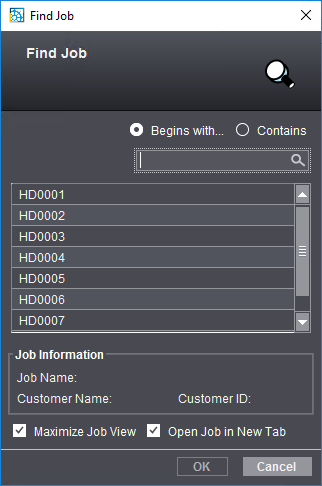
In the Find function, the job number is always used to identify a job. You can enter a known part of the job number in the "Job Number" box. You can define whether the job number starts with the part you entered or whether the part is found somewhere in the job number.
1.We recommend that you first enable the "Contains" option.
2.Now type in characters that could be part of the job number into "Job Number".
3.The order numbers of the found jobs display immediately in the list below the "Job number" box.
4.You can confine your selection, if necessary, by typing in more characters or by switching to "Begins with" (if the beginning of the job number is known to you).
Details about the first job found display in "Job Information".
5.The "Job Information" box displays information such as customer name and customer number for a job highlighted in the list.
You can use the search function, for example, if you wish to open a particular job that currently does not display in the job list because it was filtered out of the list or because it is in the recycle bin.
 Note: This search function also includes jobs that are in the recycle bin. If the job list is filtered, a job does not have to display in the job list to be able to be found. This lets you also find jobs that do not meet the current filter criteria. Only a part of the job number must be known to find the jobs.
"Maximize Job View" option
When you enable this option, the "Job" view is maximized when you open a selected job.
"Open Job in New Tab" option
When this option is enabled, the job found will be opened in a new tab.
Privacy Policy | Imprint | Prinect Know How | Prinect Release Notes