
Privacy Policy | Imprint | Prinect Know How | Prinect Release Notes
Add the non-versioned separations of the base version to the versioned sheets in versioned jobs
If print jobs are to be output versioned, it may happen, for example, that the versioned contents (texts) of versions 2, 3, etc. occur exclusively in the black separations, and that the other colors — e.g. the separations C, M,Y — are contained only in base version 1.
In this case, the external prepress system generates a PPF file for the base version only, which contains the C, M, Y color separations in addition to the black separation. For the other versioned sheets, the prepress system generates separate PPF files containing only the black separation. To output the complete sheets of these versions, the black separations of the versioned sheets must each be combined with the C, M, Y separations of the base version.
Edit first version: Create the entire sheet of the first version
All separations of the first version are available. The front and back sides of the first version must be combined.
1.If necessary, use the search function to find the job you want to edit in the PPF list. See Search function. This also ensures that only the PPF files belonging to one job are displayed and that the PPF files match each other. Now click the PPF file of the front side of the target version. This is necessary because the PPF file selected first determines the job number and the sheet name of the processing result. Then click on the plus icon in this row of the PPF list to select the PPF file for combining. The contents of the PPF file display in the preview window:

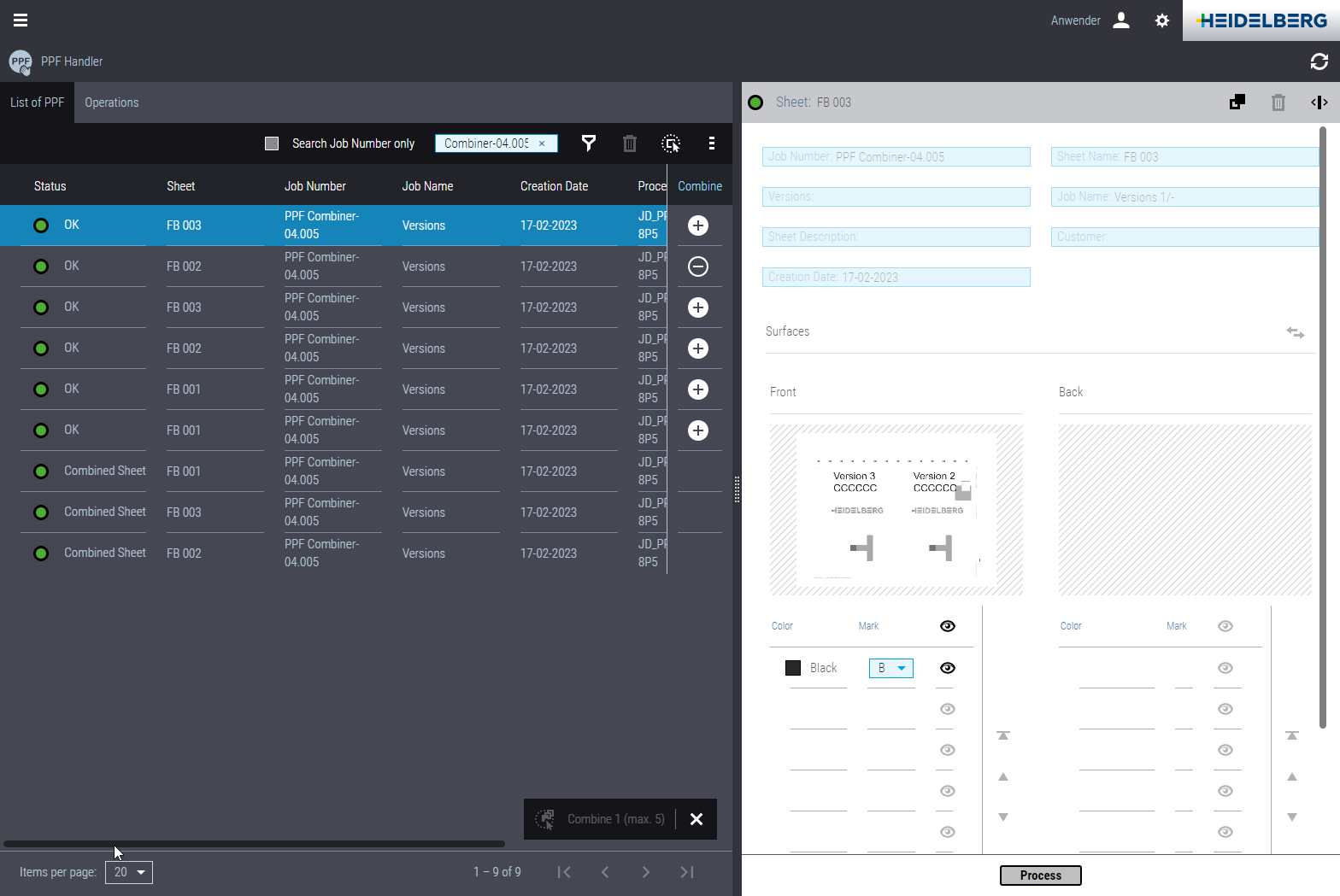
Here you can see that the PPF file contains the black separation side of the first versions and the color separations of the press sheet.
2.Then, in the PPF list, click the PPF file that contains the back side of the base version. In the preview window you can see that you have selected the back side of the first version.
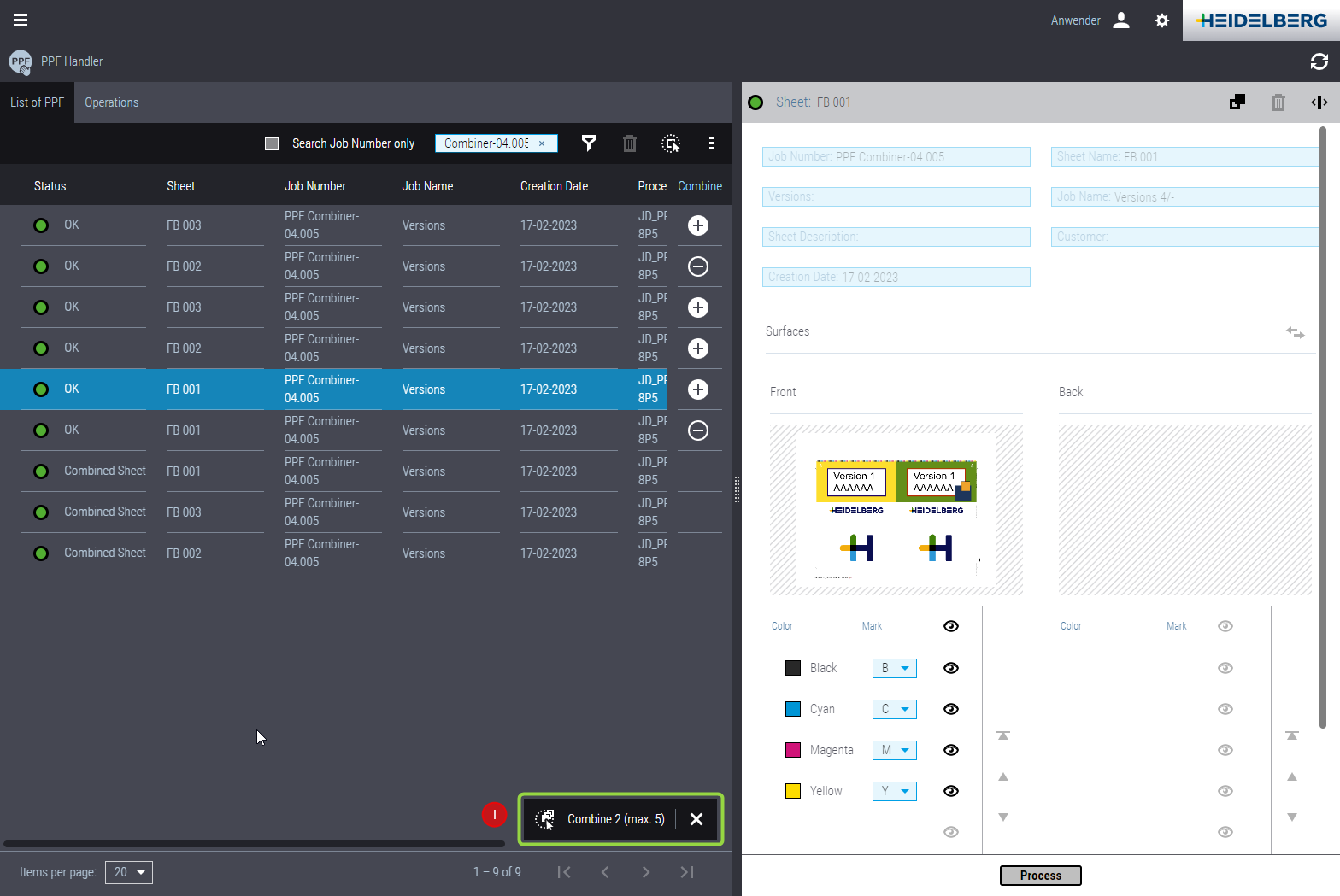
3.Then click on the plus icon in this row of the PPF list to select the PPF file for combining. At least two PPF files have been selected for combining now, and the "Combine" button (1) becomes operable.
4.Click the "Combine" button (1). Click "Process" in the "Combine" window. The combined sheet for the base version is being created.
Edit second version: Replace the black separation of the base version with the black separation of the second version.
1.Click the plus icon ("Combine") for each of the following items in the PPF list:
•The PPF file of the front side of the second version (target version first)
•The PPF file of the front side of the base version.
•The PPF file of the back side of the base version
•The PPF file of the front side of the second version
•The PPF file of the back side of the second version.
2.Finally, click the "Combine" button (1). The "Combine" window opens:
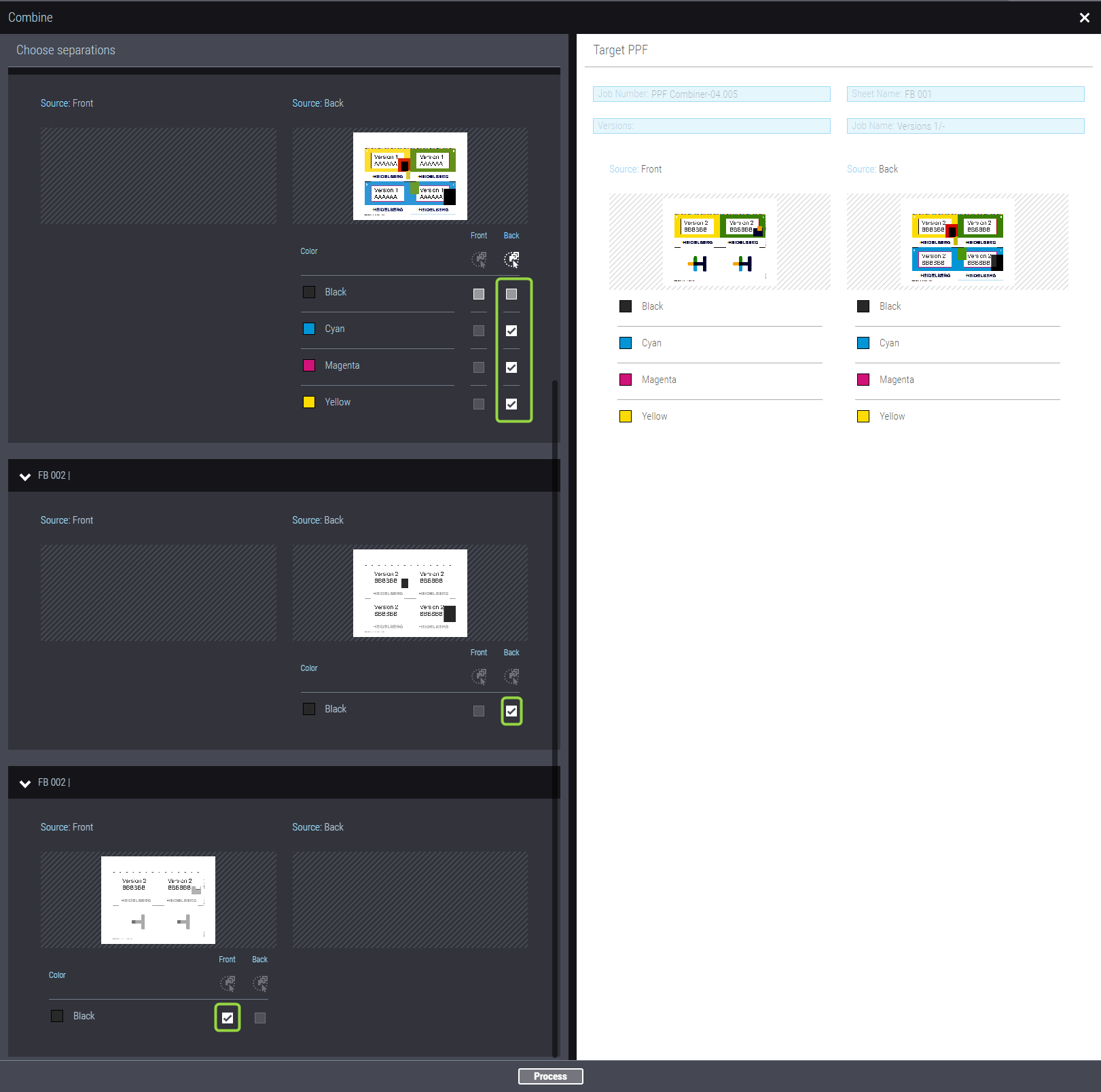
3.Uncheck the black separations for the separations of the front and back sides of the first version (master version).
4.In the left part of the window, check the black separations each for the front and back sides of the second version.
5.Click "Process" to create the combined sheet for the second version.
6.In the job list, a new print job for the combined sheet has been created, which is forwarded to Press Center.
Create combined sheets for further versions.
Repeat steps 1 - 6 accordingly for each additional version.
 Note: After each successful combining process, triggered by clicking "Process", another entry is created in the PPF list for the combined sheet. This PPF file is only used for preview in PPF Handler and does not affect the printing process at the press.
Privacy Policy | Imprint | Prinect Know How | Prinect Release Notes