
Privacy Policy | Imprint | Prinect Know How | Prinect Release Notes
When you click a computer with reachable Supervisor in the navigation pane, the detail area displays the list of all Prinect components controlled by the Supervisor.
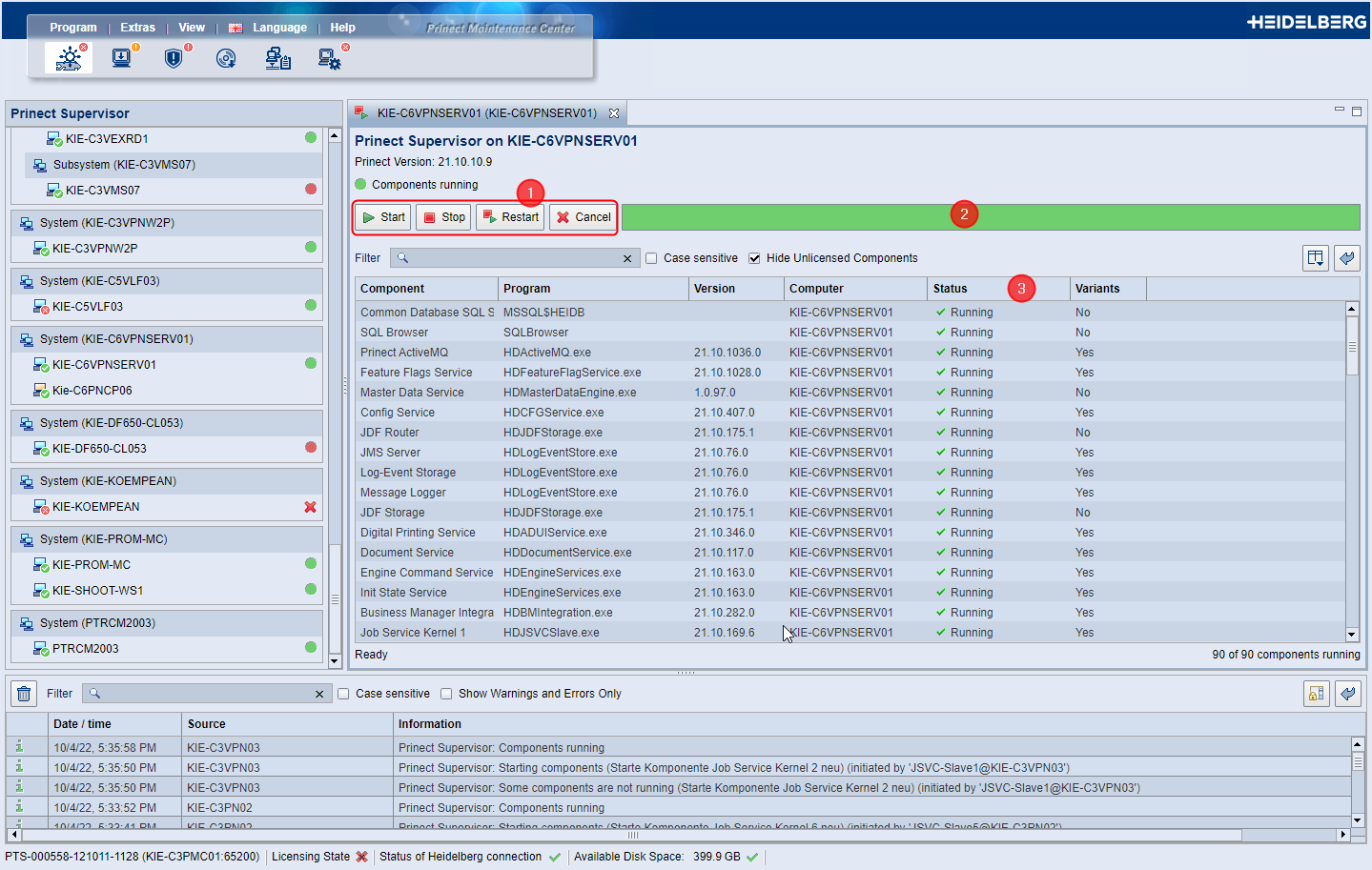
Stop, start, restart all Prinect components
You can use the action buttons in Supervisor to perform the following actions with the Prinect components of the respective Supervisor:
| Start The system is started. |
| Stop The system is stopped. |
| Restart The system is restarted. |
| Cancel The current action (start, stop) is canceled. |
These actions always affect all components of the selected computer.
 Note: Only licensed components can be started automatically or manually. Therefore, check the License Manager for a valid license if a component cannot be started.
Context Menu Commands For Individual Components in the Component List
The table lists the context menu commands that can be launched for each component.
Stop Component | The component is stopped. |
Restart Component | The component is restarted. |
The "Properties" window opens:
See also "Properties" window. | |
For Continuous Deployment, i.e. the continuous updating and extension of Prinect product functions, update packages are installed in the background, i.e. without user interaction. In this case, background installations may be the reason why more than one version of a Prinect component is installed on a computer. Normally, the newest version is enabled. Use this context menu command to enable an older version of the component if the new component is not running correctly, for example. See Multiple versions of components. |
The status bar indicates the startup state of the system. For components that have successfully started, the status bar is displayed in green. For components not currently started, the status bar is displayed in red.
In addition to the status bar, the table shows the current operating state for each component in the "Status" column.
May components be stopped at any time?
It may happen that a component must not be stopped because it is in the process of executing an operation and stopping it would be detrimental to the operation — up to damage to a currently running device, such as a CTP device. Therefore, it is always checked whether all components intended for stopping may be stopped safely. If this is not the case, an appropriate message appears, indicating the components that prevent stopping and consequently rebooting.
Multiple versions of components
The background installation allows multiple versions of a Prinect product and its components to be installed on one computer at the same time. However, you cannot run multiple versions of a component simultaneously. See also Background installation without limiting system availability. In the components table, the currently active version of the component is displayed in the "Version" column.
Information regarding the version status of the current Prinect version
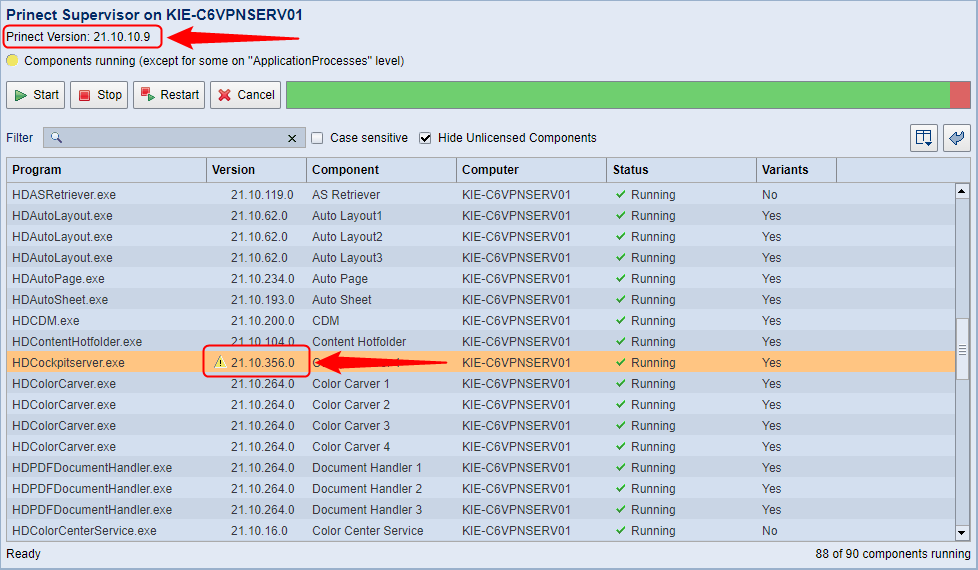
The version status of the currently installed Prinect version or the version of the last installed cumulative update is displayed below the "Prinect Supervisor on [Prinect Computer]" label. This lets you quickly find out if the version of a running component matches the current Prinect version. In the table of components, a warning icon displays in front of the component in question if these versions do not match.
Note: If you activate the "Variants" column in the components table (this is not the default), you can quickly see whether the respective component supports several versions and thus background installation. See Select Columns. This information is also available in the component properties.
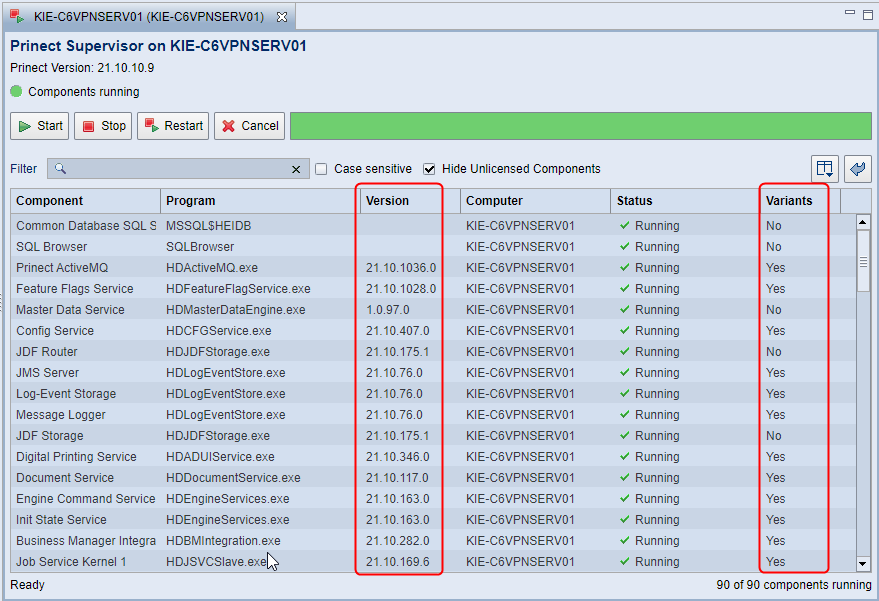
Note on the difference between the variant's version and the Prinect version
If a variant has been chosen whose version does not match the current Prinect version, this is indicated by a warning symbol in the "Version" column.
You can open the "Properties" dialog for the component by double clicking a component or using the "Properties" context menu command:
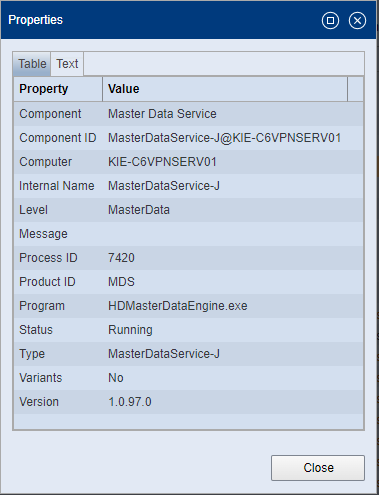
Here you can quickly see whether variants are installed on the computer and which version of the variant for the currently running component is active.
The properties are displayed as text in the "Text" tab. Here you can copy the text and paste it into a text editor, for example.
Switch between different versions of a component
Switching between versions is useful, for example, if a newer installed version is buggy and you want to enable the previous version for this reason.
If multiple versions of a component are installed, you can select the component in the table and use the context menu command "Enable Other Version". The windows "Enable Other Version" opens:
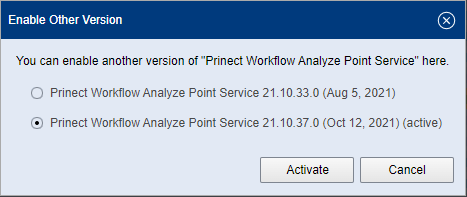
All installed versions of the component are listed here. The currently running version is marked with "(active)". The installation date is also indicated. This window offers only those versions to be activated that are installed on all computers controlled by the Supervisor in question. Versions installed on only a few, but not all, computers controlled by the Supervisor will not be offered.
When you click "Activate", the product to which the selected component belongs is stopped and restarted on that computer. The component switched to is now active.
Note: There are components that do not support background installation. You cannot switch between versions of these components. An appropriate message is displayed if you use the "Enable Other Version" context menu command.
You can use the filter function to quickly find specific components. Enter the desired expression (any character or number string) in the search field. Then all the components containing the expression occurs are filtered out.
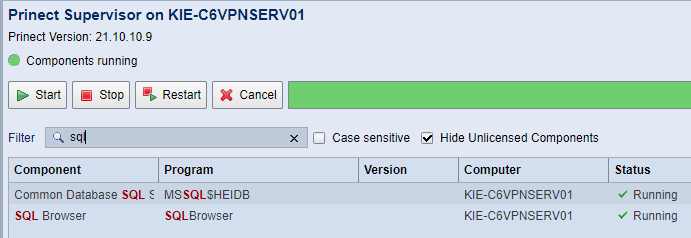
Note: The text elements that match the filter expression are displayed in dark red.
Clicking the "x" in the search field deletes the search string and returns the component list to its unfiltered status.
"Case sensitive" option
If this option is enabled, filtering only applies to components whose texts match the search string exactly with respect to the upper or lower case.
If this option is not enabled, the case is not important.
Option "Hide Unlicensed Components"
If you enable this option, only those components are displayed that are licensed or whose license has been verified. This option is enabled by default.
 Prerequisite: This option is visible only if the Supervisor of the selected computer supports the maintenance mode.
If this option is not enabled, the Prinect components are automatically restarted after the computer reboots. Multiple reboots that occur, for example during operating system updates, may cause significant delays.
If this option is enabled, Prinect components do not start automatically after computer reboots; instead, they must be started manually in the PMC after the respective update operations have been completed.
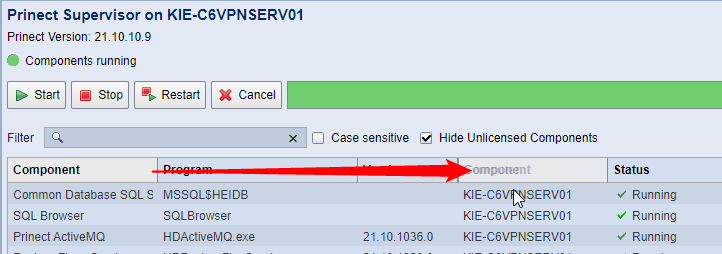
You can change the order of the table columns by clicking the header of the column you want to move, holding down the left mouse button, and moving the column horizontally to the desired position.
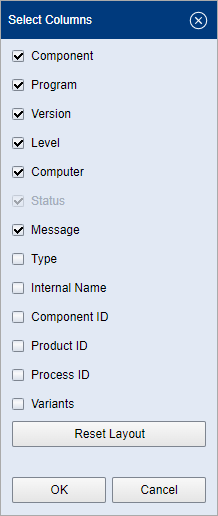
| Press the button "Select Columns" to open the "Select Columns" dialog. Here, you can select which of the columns available in the table are displayed and which are not. |
"Reset Layout" button
If the order of the columns or the selection of the displayed columns in the table has been changed, you can use the "Reset Layout" button to reset the table to the original column arrangement and selection at the time of the new installation.
Select the columns you want and confirm the selection by pressing "OK".
"Reset Layout" button
Apart from in the "Select Columns" dialog, you can also reset the layout with the following button:
| If the order of the columns or the selection of the displayed columns in the table has been changed, you can use the "Reset Layout" button to reset the table to the original column arrangement and selection in force at the time of the new installation. |
Privacy Policy | Imprint | Prinect Know How | Prinect Release Notes


