
Click the icon shown in the menu bar or select "Plug-Ins > Prinect 2019 > PDF Toolbox" and a tool.
The Prinect PDF Toolbox window of the tool you selected opens.
Invoke the Prinect PDF Toolbox
You have two ways of invoking the Prinect PDF Toolbox:
|
|
Click the icon shown in the menu bar or select "Plug-Ins > Prinect 2019 > PDF Toolbox" and a tool. The Prinect PDF Toolbox window of the tool you selected opens. |
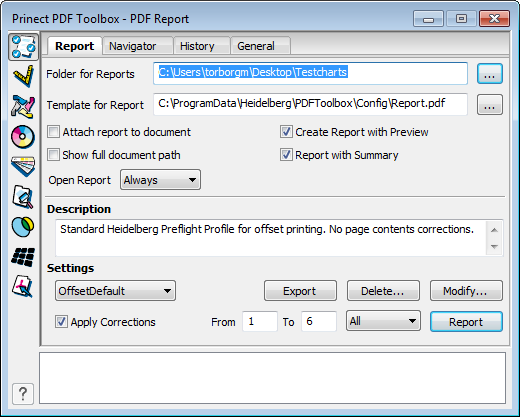
There are also different way to invoke each of the tools:
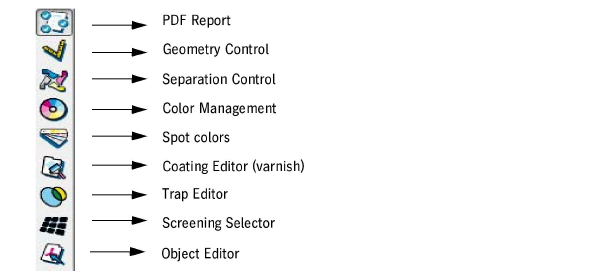
•Select the icon of the tool you wish to work with in the Prinect PDF Toolbox:
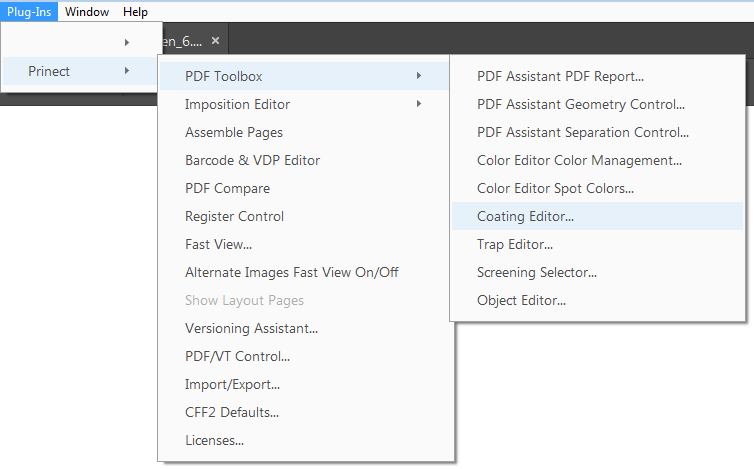
•Or you use the items in the menu bar; select "Plug-Ins > Prinect 2019 > PDF Toolbox > ...".

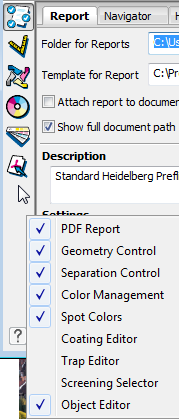
•You can hide a tool on the left in the Prinect Toolbox if desired by right-clicking it and deselecting this tool.

In addition to the tools named so far, there are other tools that you can invoke in two different ways:
•You will find the icons listed below in the command bar.
If this is not the case, you can (in Acrobat) right-click the command bar and open the context-sensitive menu where you can add the icons with "Quick Tools...".

1 PDF Toolbox
7 Fast View - Alternate Images ON/OFF
8 Wireframe View On/Off (part of the Object Editor)

|
Note: If you installed several versions of Prinect PDF Toolbox, you must customize the quick tools to the version you want. |
•Or go to the menu bar and select, for example, "Plug-Ins > Prinect 2019 > Assemble Pages". In addition to the icons, you can also select "Import/Export..." and "Licenses...".
All the parameter sets of the Prinect PDF Toolbox (even custom ones) can be imported or exported. More details can be found in Import / Export.