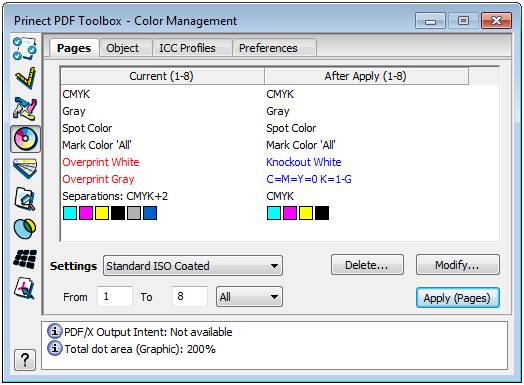
The entire "color content" of the PDF displays in the view panel.
All the color spaces, special colors and separations found in the PDF file are displayed.
The colors below the "After Apply" column indicate what type of conversion is needed:
|
Black |
No conversion necessary (e.g. "CMYK" to "CMYK"). |
|---|---|
|
Green |
Conversion with HEIDELBERG CMM (e.g. "CIE L*a*b" to "CMYK"). |
|
Blue |
Conversion without HEIDELBERG CMM (e.g. "CalRGB" to "DeviceRGB"). |
|
Red |
Requires your attention (e.g. missing target profile in RGB image). |
The analysis shows you at once what color data are in the PDF file.
"Current" (column on the left) shows the color spaces, ICC profiles, special colors and separations present in the current pages. "After Apply" (column on the right) shows the types of conversion suggested for the current pages.
Settings
This is where you select parameter sets for conversion.
"Setting" is the "core" of Color Management. All conversions are based on the sets defined here. You can edit each of the parameters separately after you click "Modify...". See Setting the parameters.
Delete...
All selected "settings" will be deleted.
You will find a more detailed description in Setting the parameters.
From ... To .../ Apply (Pages)
The page range lets you restrict the pages of a PDF file to those you wish to analyze and convert.

|
Note: When you open a PDF file, the page range always defaults to the last setting made when the application was exited. |
Apply (Pages)
You start the conversion with "Apply (Pages)". The settings are applied to all the objects in the page range. You can select several documents for this process with "Shift + click". See Apply settings to several documents.