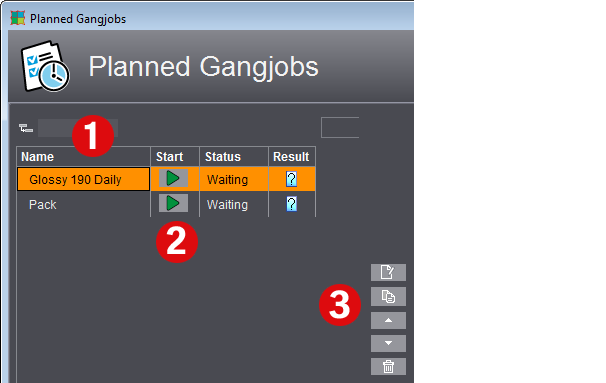
This is where you create and manage the tasks for automated processing of gang jobs with the Prinect Signa Station Server. This requires the "Gang & Sheet Optimizer" license in addition to the Prinect Signa Station Server.
In the time-controlled automated processing, the set gang pool is scanned for certain criteria (e.g. paper, delivery date) and if paper utilization is satisfactory and production costs are low, the Prinect Signa Station Gang Server automatically creates a gang run form.
The defined tasks (1) are started either automatically at the set time or manually using the button in the "Start" column (2).
In the "Status" column, you can see whether a planned task is currently being processed, waiting to be started, disabled or was started manually.
Use these buttons (3) to create a new task (see Create or edit a task), open the marked task for editing, duplicate tasks, move them up or down in the table or delete them.
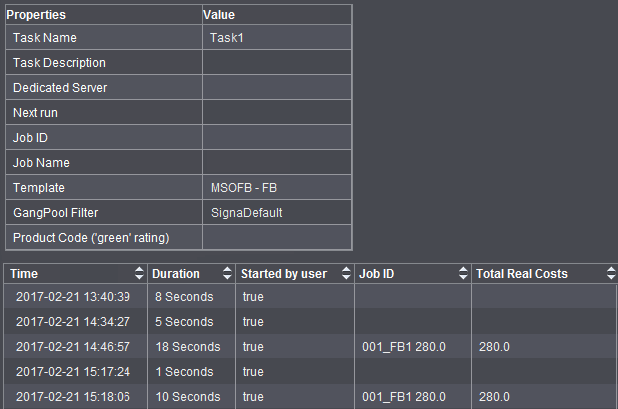
You will find details about the currently selected task on the right. Below that, attributes for the last runs are listed in a table. For example, you can view the date of the run, the gang pool used, the results of ganging optimization and an icon for opening the PDF report.
A warning or error icon also displays if there were issues when the gang job was being created. Click the icon to display the error message.

|
Field Name |
Description |
|---|---|
|
Name |
Freely selectable designation of the task; recommended: processing like time control, criteria, product part template, etc. should be seen in the name. |
|
Status |
Enabled: the task starts at the set time |
|
Job ID / Job Name |
Number and name of the job as will be created in the Prinect Cockpit. The following differentiation is possible with the "SerialNo" placeholder: For example, if a task processed on day X is restarted manually on the same day, the data are written to a new job with the serial number placeholder. If a serial number placeholder is not used, a second job is not created and the data of the second run are added to the existing job. The "next run" resulting from these settings then displays in the properties list and is always up-to-date for each task in the "Planned Tasks" window. |
|
Template |
This is where you select the "Ganging Optimization" product part template defined for this task from the resources. The product part template also controls what optimization does, the rating criteria (via an appropriately defined sheet optimization setup) and, if necessary, output (via the plate template). |
|
GangPool Filter |
This is where you select the filter criteria by which the gang pool folder will be scanned. You define the filters in the "Job Import from Gang Pool" dialog (see Filters). |
|
Product Code |
You can use these boxes to define product codes based on which the gang jobs will either be automatically processed further by the Prinect Cockpit ("green" rating) or stopped for manual correction ("yellow" rating). The product codes you set in these boxes are entered in the layout JDF. Nothing is entered in the layout JDF if a product code is not defined. The "'green' rating" product code is entered if the "'yellow' rating" product code is not defined. |
|
Execution time |
First of all, enter a date as the starting time as of when the new task will be processed and the time when the task will automatically be started also on the repeat days. You can set an end time but it is not absolutely necessary. Select either specific days in the week when the task will run or "daily" if the task is to run all seven days in the week. You can add other execution times by clicking the plus sign beside the time to start a task several times a day. |