Automarks set groups
You can also work with automarks set groups instead of a specific automarks set. An automarks set group is a resource folder containing multiple automarks sets (see also Example 3: Use of Multiple Automarks Sets).
This means that not only a standard automarks set is used when creating new jobs but that all automarks sets saved in this group are also included in the job.
This gives you automatic control if different variants of a marks type are to be used, for example, different kinds of cut marks for customer A than for customer B.
 Note: In addition to the "Imposition" mode, the use of multiple automarks sets is also possible in the "Montage" and "Packaging" modes. When using this function, make sure to clearly name the shape or specify suitable criteria to restrict the marks selection.
When automarks sets are imported from the selected resource group, only those automark sets whose type matches the current working mode are imported.
The use of automarks set groups can be enabled in two places:
•in "Preferences" -> "Resources" -> "Default for Automatically Placed Print Control Marks" (this then applies to all newly created jobs), and
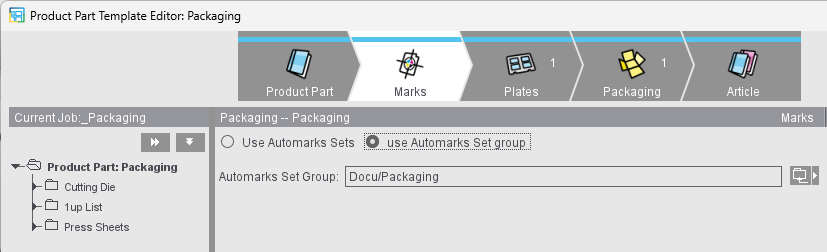
•in the "Marks" tab of the Product Part Template Editor, "Use automarks set group" option (applies to the job when selecting the product part template).
In both cases, this loads the automarks sets into the job.
If a different folder is set as the automarks set group in the product part template than in the Preferences, the automarks set group defined there is used when the product part template is loaded. If a specific automarks set is specified in the product part template, the automarks sets defined in the Preferences are also ignored, and only the automarks set from the product part template is used.
Using automarks set groups makes it easier to update product part templates regarding the usage of marks, especially when dealing with a large number of them: a new automarks set is simply added to the automarks set group and is thus available in all corresponding product part templates.
This is particularly important when automarks sets need to be adapted to new circumstances (e.g., when a new press is added). Whenever circumstances changed in the past, all relevant product part templates had to be updated because they contained specific automarks sets. The option to specify an automarks set group instead of specific automarks sets eliminates the time-consuming and error-prone editing of product part templates. The automarks sets in the group are only transferred to the job from the resources in their current state when the product part templates are used.
For existing jobs that use this automarks sets in the group, you will be prompted when opening the job to choose whether to update the resource or keep the settings existing in the job.
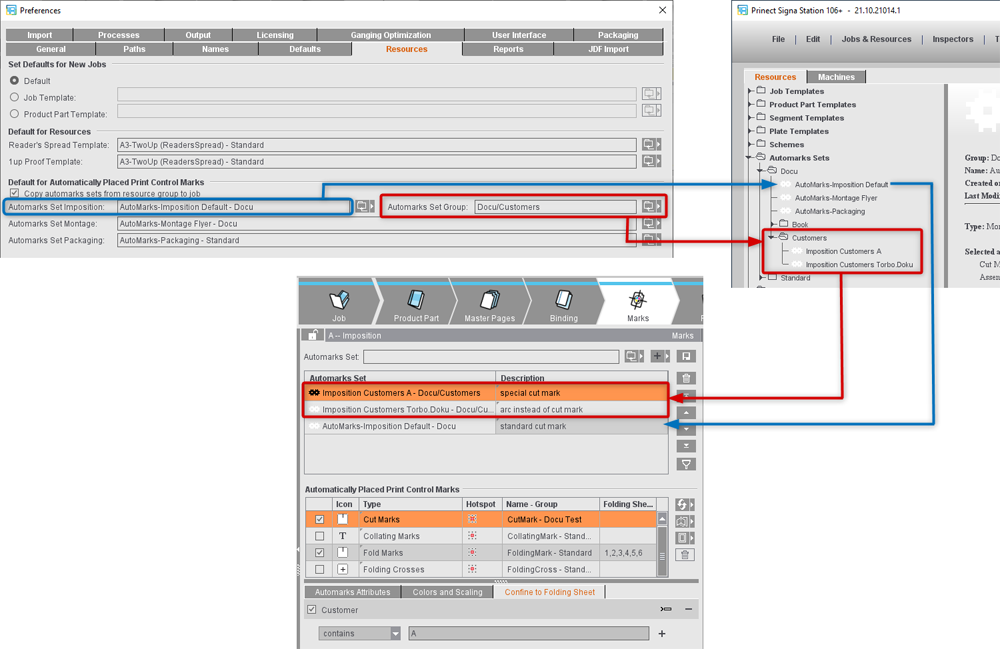
The example image shows what happens when you configure an automarks set group in the Preferences. For a new job, all the automarks sets are first copied from the automarks set group to the job and the default automarks set is added to the end of the list.
Signa Station processes this list of automarks sets one by one: If a mark is found in the first automarks set (= mark is enabled in the automarks set and is not excluded by a rule for this job/folding sheet), the mark is placed accordingly and the other automarks sets in the list related to this mark are ignored.
Note: Labels are an exception: These are always taken from all the automarks sets if they were not explicitly excluded by a rule.
Note: When automarks sets are imported from the selected resource group, only those automark sets whose type matches the current working mode are imported.