You define the workflow in the output parameter set in the "General" tab > "Workflow > Device and Variant". You select the workflow in the list box in "Device". Then only the outputs possible in combination with the device are shown in the list box in "Variant".
The workflows that are available in the list box will be explained in the sections below.
•Input: The Signa Station works with the PDF input format.
•Internal processing: All the data are processed internally by Signa Station as PDF data.
•Output: Signa Station supports the PDF, Adobe Portable Job Ticket-Format (PJTF) and JDF output formats.
One or More Output Files (Job Granularity)
You define the job granularity in the Output Parameter Set Editor in the "Options" tab > "Output":
•"All in one job": All the press sheets are output in one job. There is only one output file.
•"One job per press sheet or web": One job per front and back printing or per web is output. There are as many output files as press sheets or webs.
•"One job per surface": A job is output for every front and every back (i.e. for every surface). There are as many output files as surfaces.
In the text below, we will be talking about several output files.
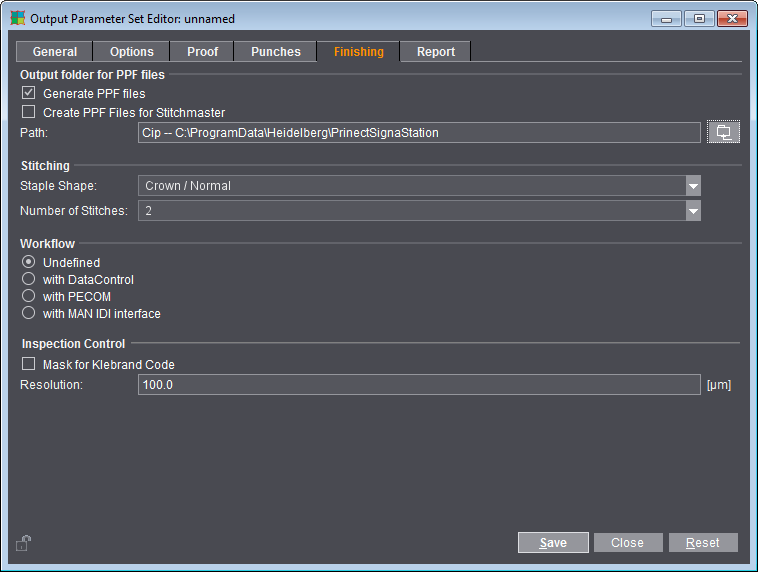
In the "Finishing" tab, you set whether or not a PPF file will be generated. Basically, this is possible for every workflow.
The "Finishing" tab only displays if you enabled the "Presetting" option at the startup of the Signa Station.
1.Check whether the "Presetting" option is enabled in "File > Preferences > License and Option Chooser".
2.You will find the "Cip" folder that is created automatically for the PPF files in "File > Preferences > Paths > Workspace".
The PPF files are generated as follows (see "Output Parameter Set Editor > Options > Output"), depending on your output mode (see the One or More Output Files (Job Granularity) ):
•"All in one job" and "One job per press sheet or web":
A PPF file will be generated per press sheet or per web.
•"One job per surface":
A PPF file will be generated per surface.
Workflow: Other Device with PDF Output
PDF files will be output.
Generally, this workflow is used when you are working with third-party devices. As a result, the devices used in finishing (e.g. RIP) are unknown.
The workflow is characterized by the following features:
•Third-party imagesetters are usually used. You then also have no "IPR/Qry" files with the machine data of an imagesetter.
You must select "Manual" in "Mode for Imagesetter Definition" if you wish to create an imagesetter data set with the Filmsetter or Platesetter Editor. Then type in the machine data.
•Output Parameter Set Editor > "Options" tab > "Orientation": The orientation is saved in the PDF output file.
•Output Parameter Set Editor > "Options" tab > "OPP and OPC parameter sets" / "Process calibration": These boxes are dimmed.
•Output Parameter Set Editor > "Punches" tab: You cannot select this tab.
•PPF data: The PDF file contains a PPF data entry that can only be used internally.
Workflow: Other Device with JDF
The output files with the user data are in JDF format. The JDF has references to the PDF files.
Workflow: Prinergy (via JobTicket)
The output files with the user data are in PDF format. In addition, there are files in the Adobe Portable Job Ticket-Format (PJTF) that contain the control data. The job ticket files have references to the PDF files.
The workflow is characterized by the following features:
•Output Parameter Set Editor > "General" tab > "Material": The material must always be set up at Prinergy. Any material settings you make in this tab are not accepted by Prinergy.
However, the plate template can have geometry data about the imaging window. These are accepted by Prinergy.
•Output Parameter Set Editor > "Options" tab > "Orientation": The orientation is not evaluated at Prinergy.
•Output Parameter Set Editor > "Options" tab > "OPP and OPC parameter sets" / "Process calibration": These boxes are dimmed.
•Output Parameter Set Editor > "Punches" tab: Only the settings in "Mode" are used from this tab. They deal with the rotation of the tiles during tiling.
Punch data are not accepted by Prinergy.
•PPF data: PPF data are written automatically to the job ticket file.
•There is no interactive mode.
•Prinergy only accepts unpopulated layouts and creates populated ones itself.
Workflow: Prinergy 4.1 and higher (via JDF)
The output files with the user data are in JDF format. The JDF has references to the PDF files.
Workflow: Nexpress (via Job Ticket)
The output files with the user data are in PDF format. In addition, there are files in the Adobe Portable Job Ticket-Format (PJTF) that contain the control data. The job ticket files have references to the PDF files.
The workflow is characterized by the following features:
•Output Parameter Set Editor > "General" tab > "Material": The material must always be set up at Nexpress. However, the geometric dimensions of the material are accepted by Nexpress.
•Output Parameter Set Editor > "Options" tab > "Orientation": The orientation is evaluated at Nexpress and not changed in this tab.
•Output Parameter Set Editor > "Options" tab > "OPP and OPC parameter sets" / "Process calibration": These boxes are dimmed.
•Output Parameter Set Editor > "Punches" tab: You cannot select this tab.
•Tiling does not bring you any benefits.
•PPF data: PPF data are written automatically to the job ticket file.
Workflow: Prinect Renderer (via JDF)
The "Prinect Renderer (via JDF)" workflow replaces the old MetaDimension workflow. Specify the identifier of an output parameter template, the so-called "Product Code", as the "Output Type". This controls the type of output in the Prinect Renderer (comparable with the previous "Output Plan" in MetaDimension).
In other words, a group template with a product code (e.g. Qualify ImpositionOutput) must have been created first in Cockpit. This product code is then entered in the output parameters in Signa Station as the "Output Type" for the Renderer.
Signa Station then creates a populated layout using this code. A job is then created automatically in Cockpit, the layout imported, the group template belonging to the product code added for processing and processing initiated with the input PDFs.
A JDF layout is then written to the set output folder and a folder named "<outputname>.content" created parallel to this, to which the PDF documents used in the Signa Station job and the marks layer PDF will be copied. In contrast to the standard Cockpit output, all color settings of Signa Station are written to the Renderer JDF.
Workflows Grouped by Direct Output and Layout Generation
The Signa Station has a direct link to the RIP and imagesetter in a direct output.
Workflows for direct output:
•"PDF"
•"Prinect Renderer (via JDF)"
•"Nexpress (via Job Ticket)"
Signa Station does not have a direct link to the RIP and imagesetter for layout generation.
Workflows for layout generation:
•"Prinect Cockpit (via JDF)"
•"Prinect (via Prinect Business Manager)"
•"Prinergy (via JobTicket) (via JDF)"
•"Other device (via JDF)"