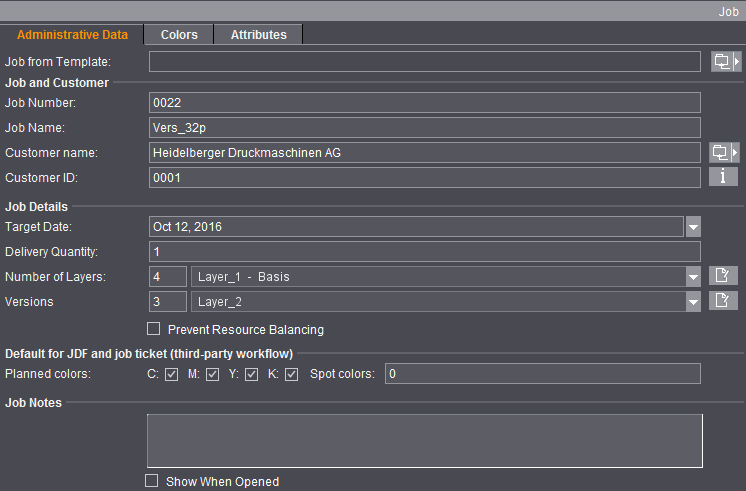
In a simple example, we are going to show you how to set up a versioning job:
A 32-page document is to be printed in English, German and Spanish. The document pages in all the languages are identical, i.e. all versions have the same page count, and the images in the three versions are all in the same positions. As smaller amount of the Spanish version and a larger amount of English version is required.
1.Click the "New" button or select "File > New" and enter the usual administration data like job number, customer name, etc. in the "Job" step.
2.For "Number of Layers", enter "4" (= 3 files with language-specific text contents, and one file with image data), and "3" for "Versions".
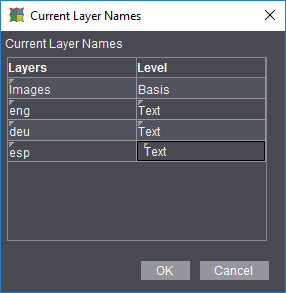
(3).Click the folder button to the right of "Layers" to launch the "Current Layer Names" dialog where you can customize the names imported from the Preferences according to the job (the names appear on the press sheets in the Graphic Window).
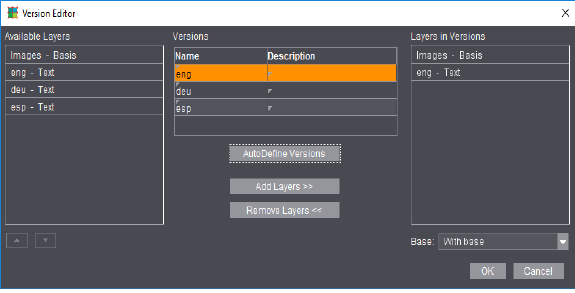
(4).Click the folder button to the right of "Versions" to launch the "Version Editor": Click "AutoDefine Versions"; the three versions are compiled automatically, each of them comprising the base and one of the layers. In this Editor, you can edit the versions: remove or add layers, or change version names and descriptions.
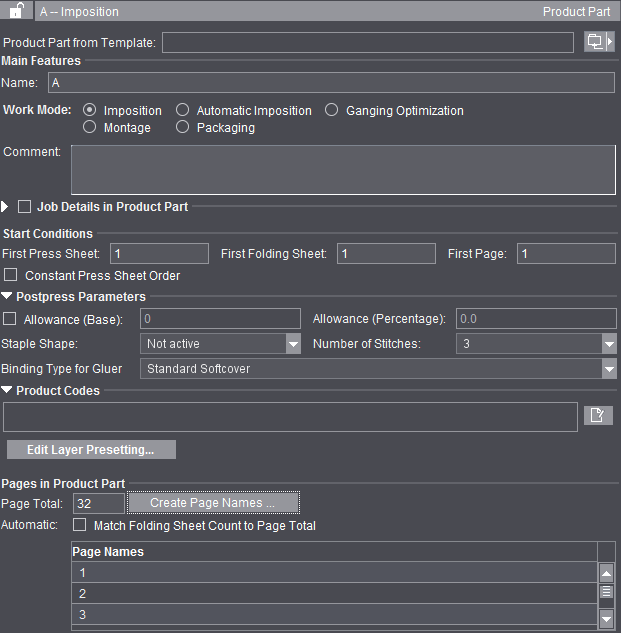
5.Go to the "Product Part" step and select the "Imposition" work mode and specify "32" for "Page Total".
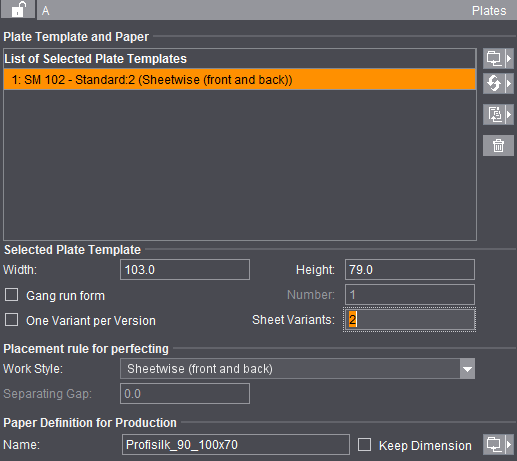
6.Select the plate template (in our example "SM102") in the "Plates" step.
7.Choose a "Paper Definition" and "Sheetwise (front and back)" as Placement Rule.
8.Type in the number of "Sheet Variants" (in this case "2").
9.Select the folding scheme (in our example "F4_01_ui_2x1") in the "Schemes" step.

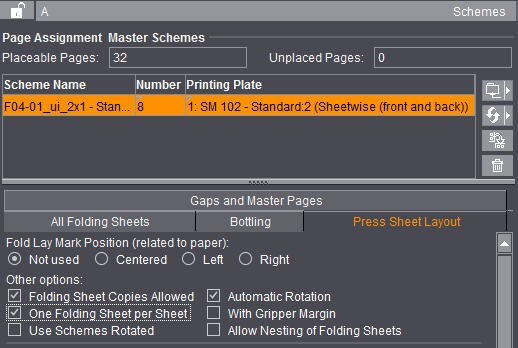
10.If applicable, enable the option "One Folding Sheet per Sheet".
You must now decide whether "simple" versioning with one product part is enough for your work (see Example of Simple Versioning (One Product Part)) or whether you need different product parts for the versions, in other words, a version cluster (see Example of a Version Cluster (Several Product Parts)).
Example of Simple Versioning
(One Product Part)
If all the versions have identical pages (i.e. page sizes and page total are the same in all the versions), you can process the version job with one product part.

Note: You can edit the details regarding layers and versions in the "Job" step, and the press sheet variants in the "Plates" step.
11.Open the "Press Sheet List" tab in the graphic window.
The Press Sheet List displays both press sheet variants side by side:
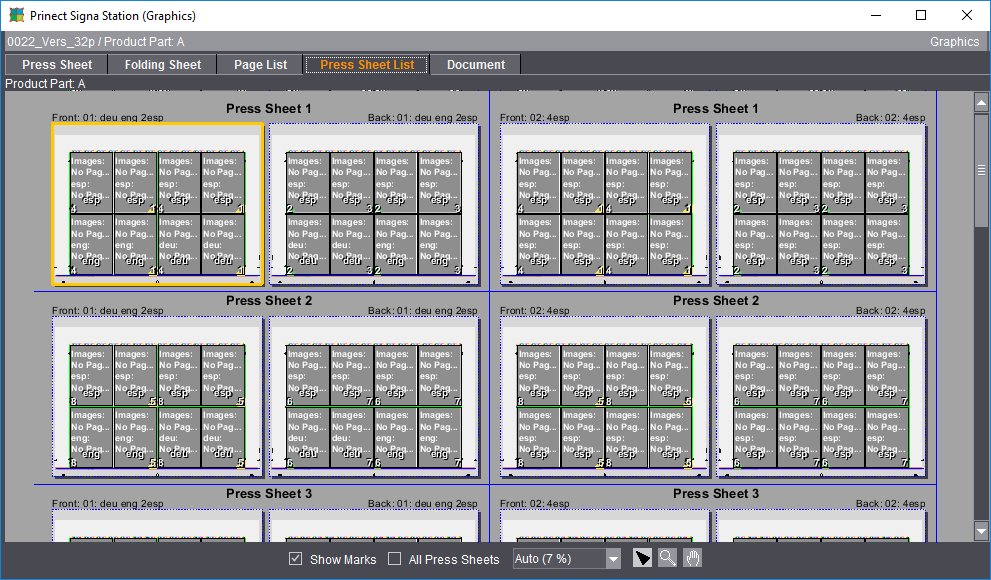
The Press Sheets Parameters dialog indicates how many copies of which versions are arranged on the respective press sheet.
12.Go to the Press Sheet Inspector. The "Folding Sheet List" displays the folding sheets of both press sheets with the respectively allocated versions (the base layer is present on all folding sheets by default).
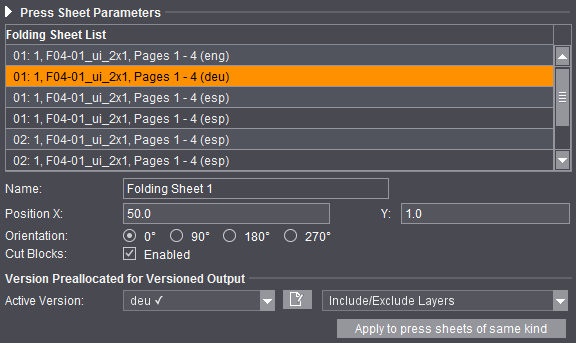
13.You can now mark a folding sheet either in the folding sheet list or in the graphic window and assign it a different version by toggling "Active Version".
An easier way to do this is by clicking the button after "Active Version". The "Assign Versions..." Editor window opens where you can also assign versions you want to the folding sheets. The advantage of the Editor window is that it lets you select several folding sheets at a time, making it possible to change the assignment for several folding sheets in a single step.
In addition, you can include/exclude layers in the folding sheets. The setting displays at once in the graphic window.
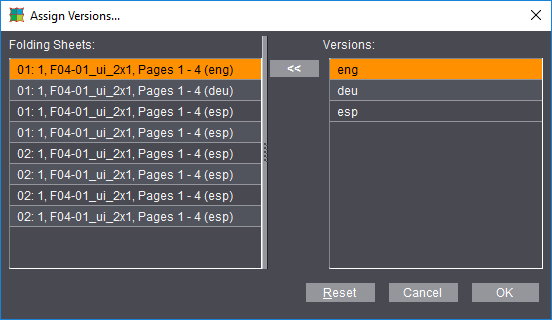
You can control the quantity of the respective language versions to a certain extent by assigning folding sheets to the versions, for example by assigning 5 folding sheets to English, 2 to German, and 1 to Spanish.
14.Click "Apply to press sheets of same kind" when you are finished. This will apply the assignment changes on press sheet 1 to the other press sheets.
15.In a last step, you must add the respective documents to the layers in the "Contents" step and execute the "Assign Pages" function for each document (the order is of no importance).
The result in our example is a total of 16 press sheets (2 variants per press sheet). The first variant comprises four English versions, the second variant one English version, two German versions, and one Spanish version, each combined with the images.
Working with a Version Cluster
However, in the following cases layers and versions are not enough for processing the versions, or it makes time-consuming manual intervention necessary:
•The page total of the versions is different (typical example: the English version has less pages than the German or French version)
•One or more versions have a different page size
•The versions of a specific folding sheet are to be assigned to several press sheets, but without working with variants
Behind this lies the fact that you need different product parts for the different versions in these cases. By turning a "simple" versioned job that you created as usual into a version cluster, you can duplicate the product part used and edit each of these duplicated product parts separately. After that you assign each version to the product part with which it is to be processed.
These different product parts are bracketed together in a version cluster. A version cluster consists of the product parts described above and a list of press sheets. The folding sheets are placed on the press sheets created here. Only the press sheets in the version cluster are included during output (to Prepress Manager or to a PDF).
Basic procedure:
•Select the product part of the versioned job and turn it into a version cluster with the command in the context menu. The result is a version cluster with a product part that is applicable for all versions.
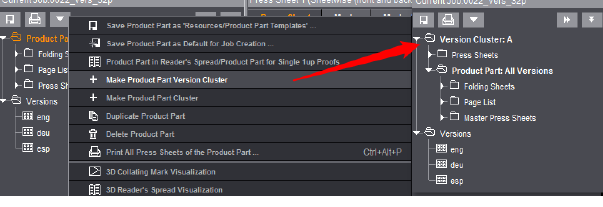
•Duplicate the product part: The result is a second product part that still has no version assigned to it:
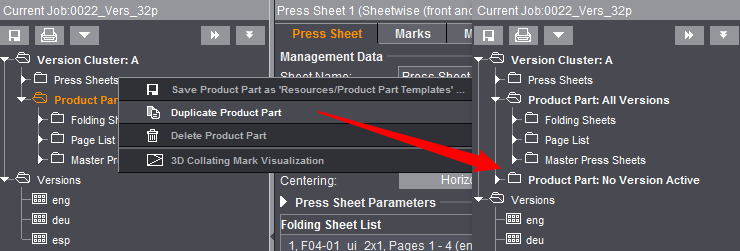
•Double-click the duplicated product part and assign the appropriate versions to the edited product part.
Example of a Version Cluster (Several Product Parts)
Creation of a version cluster lets you create and edit versioned jobs with different page totals or sizes and place versions of a folding sheet on several press sheets, even without variants.
1.Go to the Browser window and select "Make Product Part Version Cluster" in the context menu of the product part.
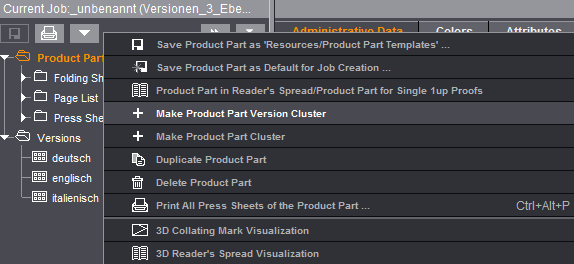
A version cluster is generated from the product part. By default, the version cluster first only has one product part that contains all versions. In principle, this is still exactly the same state that existed before conversion of the product part to a version cluster. In "Press Sheets" you will find the press sheets to be output.
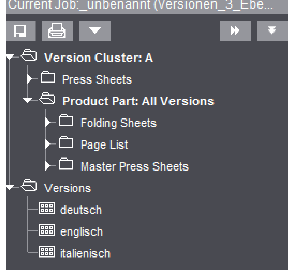
To be able to process the versions further in different ways, you must first create the required number of copies of the product part and then assign the versions to be processed to these different product parts.
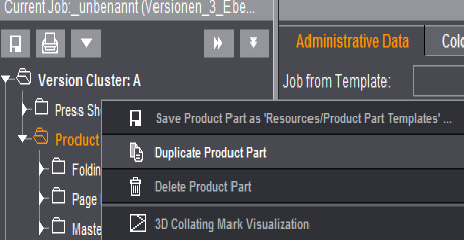
2.Highlight the product part and select "Duplicate Product Part" in the context menu. A copy of the product part is created and there are no versions assigned to it.
3.Invoke the step for the duplicated product part and edit the product part to suit your needs, e.g. by entering a different page total.
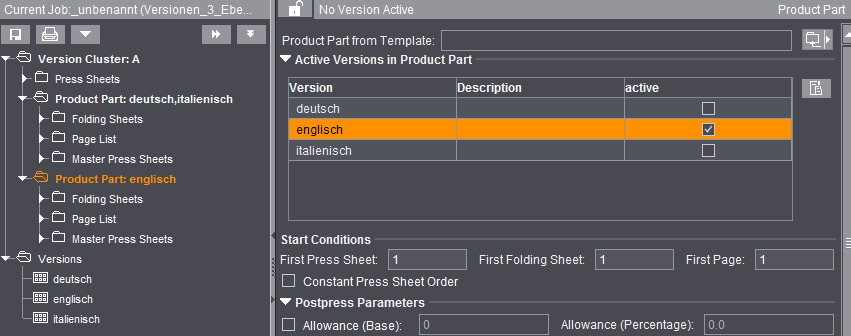
4.Assign the edited product part the versions to be processed with it. To do this, set a checkmark for the appropriate version in the "Active Versions in Product Part" table. The version is automatically disabled in "All Versions".
Each version is assigned to exactly one version element (= product part).
5.Go to the "Versioning" step after you edited the single product parts and assigned the versions to the product parts.
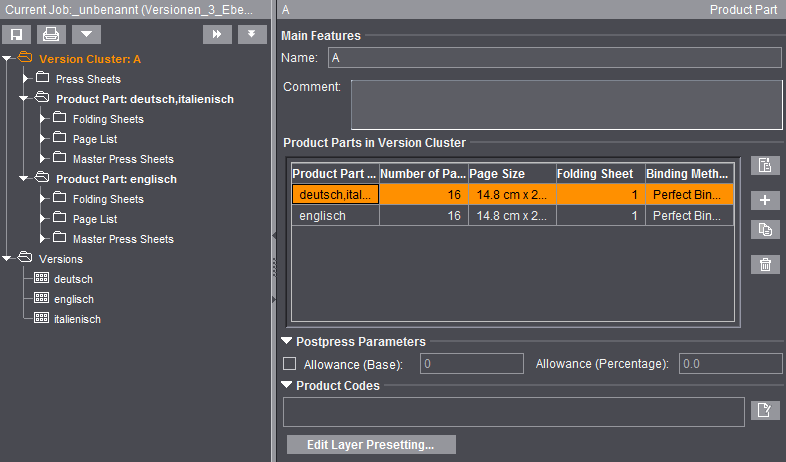
6.You create and edit the press sheets in the "Versioning > Press Sheet" step:
•You control the "Create press sheets" function using the "Automatic Rules" option.

Note: Creating variants is also possible for jobs with several product parts, but only within the respective product part.
•"Create press sheets" deletes all existing press sheets and creates the required number of new press sheets. This process incorporates the folding sheet list and version list of the version element with the greatest number of assigned versions. After this, all the folding sheets and versions of this version elements are assigned.
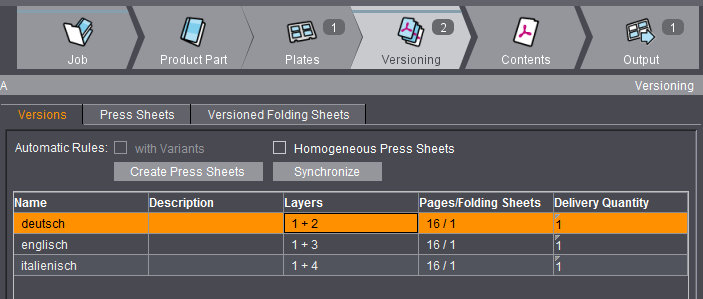
•You have to assign the folding sheets of the remaining version elements manually.
The name of the version cluster is red if you made a change in one of the product parts. This means that you must first synchronize the version cluster (Browser window and context menu).
You can go directly from the version cluster to the relevant product part and back again by double-clicking an item in the list.
You can edit the single settings in the list. For example, you can edit the required quantity directly in the list.
When versioned JDFs are imported from the MIS, the job is reviewed to see whether one of the requirements applies that make a version cluster necessary. If this is so, a version cluster is generated automatically from the product part. As of version 2019, the different product parts that are needed for version clusters are created automatically and the press sheets are created in the cluster based on the data from the JDF. In other words, it is no longer necessary to manually create the deviating product parts for the other versions.
Please remember: Certain press sheet variants are not possible if several product parts are needed for a version cluster! This is always the case when a folding sheet on a press sheet with variants is to be assigned versions from different product parts. In such cases, the JDF is rejected. The error message informs you that in the Business Manager the "Split press sheet" function (i.e. use several press sheets) is to be used instead of "Split print form" (create press sheet variants).