
Privacy Policy | Imprint | Prinect Know How | Prinect Release Notes
Measure Colors With a Colorimeter
In the "Measurement Service" tab of the "Properties" view, you can — as an alternative to manually typing color parameters — measure colors with a colorimeter and assign the values to a new color.
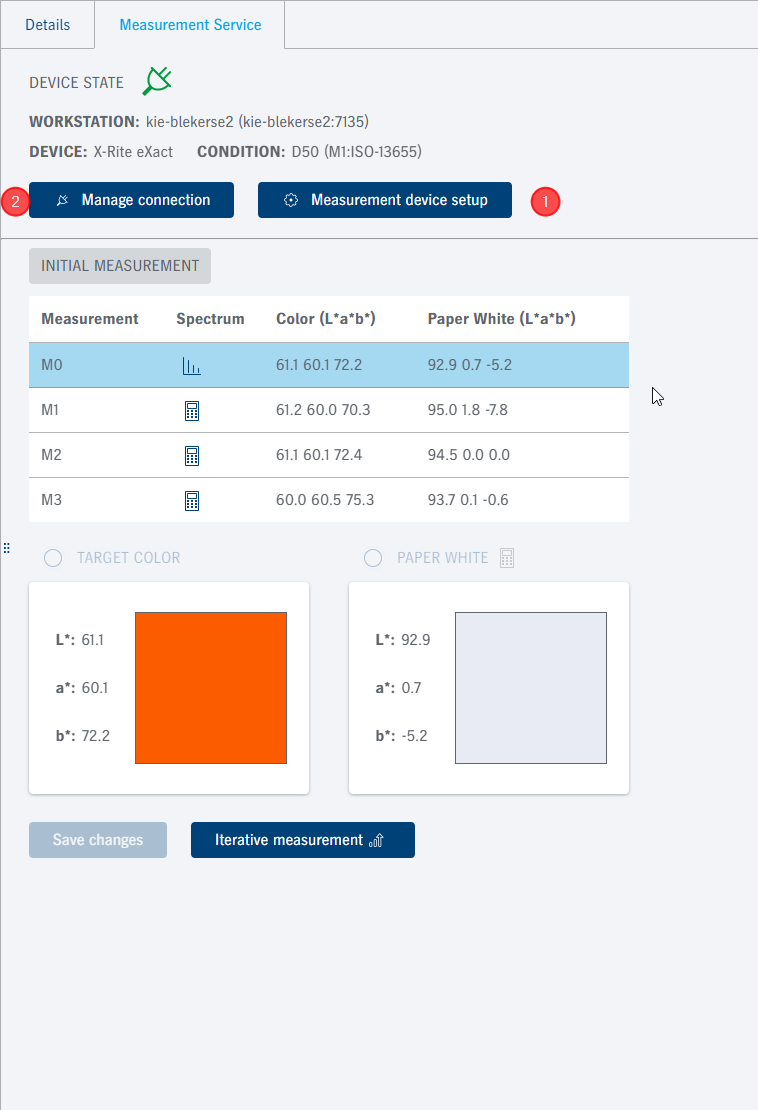
 Prerequisite: A computer with a connected colorimeter must be accessible in the Prinect network environment. Before you start measuring, the colorimeter must be connected to the computer on which you will perform the measurement, and it must be operational. The "Prinect Measurement Service" software must be installed on this computer. You can download this software from the Prinect Maintenance Center in the "Product Installations" view and install it on the computer. You should operate the "X-Rite eXact" colorimeter in Bluetooth mode (using the supplied Bluetooth dongle if applicable). Probes with the target color and the color you wish to measure must be at hand. This function is available only on Windows PCs.
Proceed as follows to measure the color on a printed test chart:
1.Click "Manage connection" to check if the connection to the measuring device functions correctly. The "Add workstation" dialog opens:

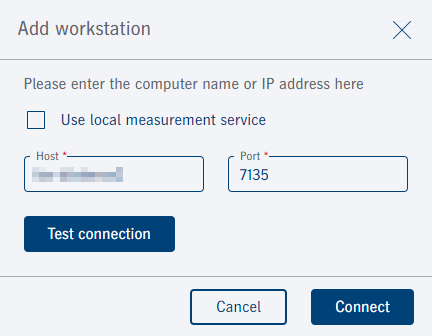
2.If you enable the "Use local measurement service" option, a measuring device connected to the local computer, i.e. the computer on which you operate the Prinect Portal, is set up for the measurement. Otherwise, you can enter the computer name of the computer to which the measuring device is connected in the "Host" field. Do not edit the port address.
3.Click "Test connection". The connection to the measuring device is tested. Click "Connect" if the test is successful. The connection to the measuring device is set up. The "Add workstation" dialog closes.
4.Click "Measurement device setup" (1). The "Measurement device setup" dialog opens:
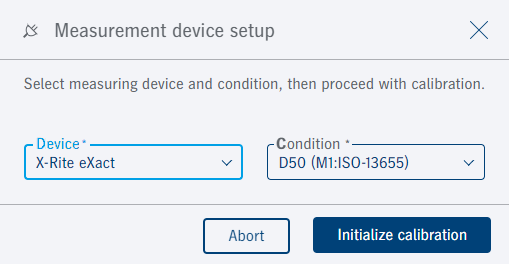
5.Select the connected measuring device in the "Device" list box. The following measuring devices are supported:
•"Konica Minolta CM-26d",
•"X-Rite i1Pro (2/3) (spot)",
•"X-Rite i1Pro (2/3) (scan)",
•"X-Rite eXact", and
•"X-Rite i1iSis (1/2).
6.Choose the measuring condition in the "Condition" list box. See Measurement conditions.
•None (M0:ISO-13665)
•D50 (M1:ISO-13665)
•UV (M2:ISO-13665)
•M3 (not used)
 Note: The measuring condition must be set just before measurement. It is not possible to change the setting after measurement.
7.Click "Start Calibration" to initialize the colorimeter. Measuring device calibration starts.
An error message displays if the device is not connected or the driver not installed.
8.When close loop calibration is finished, enable "Measure Target Color" in "Measurement" and position the sensor of the colorimeter on the probe with the target color. Now press the button on the left side of the colorimeter until the measured color displays in the "Target Color" box, showing its L*a*b* values.
9.After that, position the sensor of the colorimeter on the item with the color you will measure. Now press the button on the left side of the colorimeter until the measured color displays in the "Printed Color" box, showing its L*a*b* values.
In "Measuring result" two options are available for applying the measurement result:
•"New Target Color": The measured value of the target color is used as the measurement result.
•"Differential Target Color": The differential color is used as the measurement result. The differential target color is determined as follows:
CD = L*a*b*T + (L*a*b*T - L*a*b*P)
with CD = differential target color, L*a*b*T = target color and L*a*b*P = printed color.
10.Click "Apply". The L*a*b* values of the measured color are applied to the new or selected color item in the table and the "Color measuring" dialog closes.
Click "Close" to close the "Color measuring" dialog without making any changes to the color items.
Privacy Policy | Imprint | Prinect Know How | Prinect Release Notes