
Creating a Data Terminal device in the Cockpit device administration
Regardless of the device type, each device connected to a Data Terminal must be created using the Device Assistant in the Cockpit device administration. Proceed as follows:
1.Start the Prinect Cockpit.
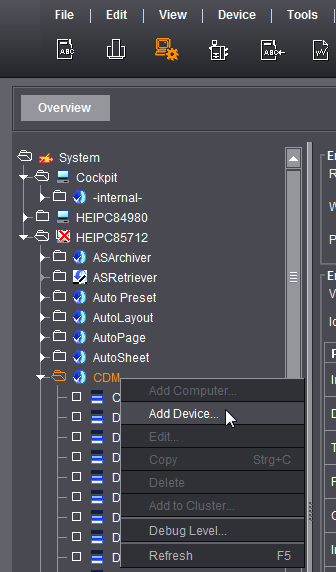
2.Go to "Administration > Settings > System" and click on the name of the Prinect server in the left-hand tree structure to open the substructure.
3.Select "CDM" and select "Add Device" in the context menu. The Device Assistant appears.

"Device class" list box
Select the type of machine that you want to connect to the Data Terminal. You can find information about device classes at the following point: Device class (3).
"Connection" list box
Select one of the following options
•Data Terminal
You use this connection type for machines and manual workstations that cannot be connected online.
•Data Terminal with counter box
You use this connection type for machines that transmit the totalizer reading to the Data Terminal using a counter box. In this case, it is not necessary to manually record the number of copies produced. You can connect up to six machines to each counter box.
You will find further information about this at the following point: Additional configuration options of the Data Terminal device with counter box.
•Data Terminal with machine direct
This connection type is only available for the "Cutter" device class. Cutters can be connected directly, but no production data are reported back. An additional Data Terminal is used to send PDC messages (operations) to the Prinect workflow.
Information about connecting a cutter can be found here: Connecting Polar cutters.
"Contents of operations list" selection box
Here you can specify whether the Data Terminal device is to list only operations that can be executed or also those that have already been scheduled for the device. See also Contents of operations list (5).
"Time Recording Modes" list box
•Start stop absolute quantity
Select this time recording mode if you wish to record production times in "real time" while processing a job. In this case, an operation, e.g. "Setup", begins at the moment the operation (the PDC message) is triggered. When the subsequent operation is started, e.g. a "Folding" operation, the "Setup" operation is ended.
The time elapsing between the start of the "Setup" operation and the start of the "Folding" operation is captured as "setup time".
•Time
In this time recording mode, only the processing time of an operation is recorded, i.e. the entire time required for an operation is recorded. The data are only recorded when the operation has been completed.
"[DataCapture app]" option
 Prerequisite: This option is only available for the following device classes: "Prepress, miscellaneous", "Digital printing", "Printing, miscellaneous", "Cutter", "Folder", "Saddlestitcher", "Collator".
This option makes the machine available for the new DataCapture app. In the app, operators and assistants can log in to multiple machines at the same time. The role of multiple operator is not required to be able to do this. In principle, only the user who is responsible for processing the operations and sending the PDC messages can log on to the machine. An assistant can send PDC messages if they are the only operator logged on to the machine for prepared operations.
"Book Unscheduled Only to Jobs" option
You can enable this option for Data Terminal devices, for example, whose operations you do not wish to plan in the Scheduler. If this option is enabled, only unscheduled jobs are displayed in the "Jobs" column in the Data Terminal.
As in the case of a direct connection, several functions can be assigned to a Data Terminal device.
The assignment of functions defines which user functions can log on to the machine. The "Operator" function is activated by default and cannot be deactivated.
Activate the "Assistant" function if assistants work on the machine in addition to the operator.
Activate the "Multiple operator" function if an employee is working on the machine who is also logged on to another machine at the same time. The "Multiple operator" function is not normally used on presses, but rather on finishing machines.
You can find detailed information about the functions here: "Assigning functions" Group (9).
 Note: The booked times appear as overlapping production in the time sheet and in Analyze Point. In Prinect Business, these times are indicated as "open entries".
Privacy Policy | Imprint | Prinect Know How | Prinect Release Notes