
Privacy Policy | Imprint | Prinect Know How | Prinect Release Notes
Assign Procedure Instructions to a Print Job
The procedure instructions defined in "Administration > Instructions" are first of all templates that the Prinect system makes available generally. Concrete instructions are generated from these templates when one or more templates are assigned to a print job.
The product code is the key to assigning procedure instructions to a print job. A product code can already be present in a job before it is submitted to Prinect Production (for example, from a web shop or from Prinect Signa Station) or it can be defined or edited in the job settings in the "Product Description" parameters of Prinect Cockpit. See Product Code.
An instruction template has an identifier so that a procedure instruction can be assigned to a job. This is a string that is entered in "Identifier in the product code". This identifier must be part of the product code. Then the procedure instruction identified in this way is assigned to the relevant job.
 Note: You can subsequently edit the product code of a job already present in Prinect Production in "Product Description" to be able to assign one or more procedure instructions to the job by inserting the appropriate identifier(s).
If the product code of a job has the identifiers of several procedure instructions, you can control selection of the instructions to be applied to the job in different ways:
•by selecting one of the options for "This instruction is used if"
•by grouping instructions and their order of priority within a group.
"This instruction is used if"
Selection of this option is designed for the case that several elements (e.g. segments) with different product codes are found on one press sheet.
•If "at least one product code contains the identifier" is selected, the instruction is assigned to the whole sheet if at least one product code contains the identifier of the instruction.
•If "all product codes contain the identifier" is enabled, the instruction is assigned to the whole sheet if all the product codes on the sheet contain the identifier of the instruction.
This selection does not affect application of the instruction if the sheets do not have any elements with different product codes.
You can define a group of instructions with the "New Group" button. In a group, you can combine several instructions of the same type and with the same machine response.

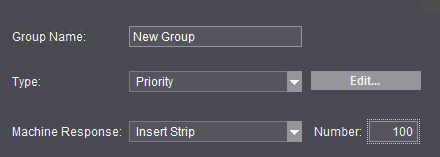
1.Give the group an informative, unique name.
2.Select the type for the instructions within the group (or define a new type).
3.Select the machine response. No machine response will be defined if you select "None". If you select "Insert Strip", you must specify in "Number" after how many printed sheets a strip will be inserted. For example, a strip will be inserted after every 100 sheets if you enter "100".
Note: The "Type" and "Machine Response" parameters are applied to all instruction templates that are assigned to this group. That is why these parameters are dimmed in the settings for the instructions within a group.
4.Confirm definition of the group by clicking "Save".
Add a procedure instruction to a group
You can add a procedure instruction to a group in the following way:
•In the list of instructions, mark the group to which the new instruction will be added and click "New Instruction". The following dialog displays:
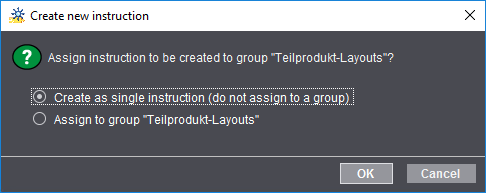
Select "Assign to group '...' " and confirm with "OK".
The "Type" and "Machine Response" options cannot be used in the settings of the new instruction because these parameters are taken from the group settings.
•If no group is marked in the list of instructions when you click "New Instruction", you can assign the new instruction subsequently to a group by selecting the group you want in the "Group" list box. The following dialog displays if the "Type" and/or "Machine Response" parameters have different data to the group settings:
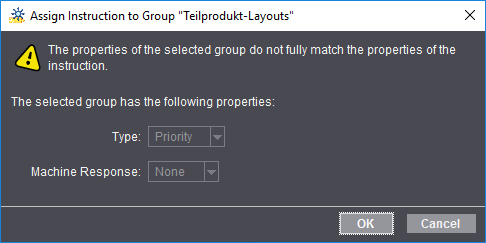
When you confirm with "OK", these parameters are taken from the group settings and the new procedure instruction is assigned to the selected group.
Move a procedure instruction to another group
•If several groups are defined, you can move procedure instructions to a different group by selecting the new group in the "Group" list box. The following dialog displays if the "Type" and/or "Machine Response" parameters have different data to the settings of the previous group:
Order of priority within a group
You can apply only one procedure instruction within a group of procedure instructions to a job. If the product code of a job has the identifiers of several instructions belonging to one joint group, you must decide on which instruction will be assigned to the job. This selection is made by the order of priority of the instructions within a group.
The higher up an instruction is in the list, the higher its priority for being assigned to a job if there are several instruction identifiers in the product code of the job.
Example:
Three instructions are defined within the "Product Part Layouts" group:
•"Proof"
•"Next Day"
•"Complaint"
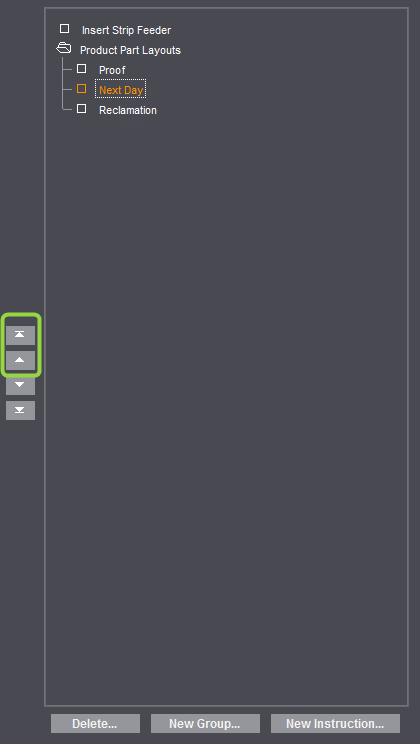
In this example, the "Proof" instruction would be given priority, then the "Next Day" instruction, etc.
Because "Next Day" is more urgent than the other instructions, it will have prior use. For this to happen, you must move it with the arrow buttons to the topmost position:
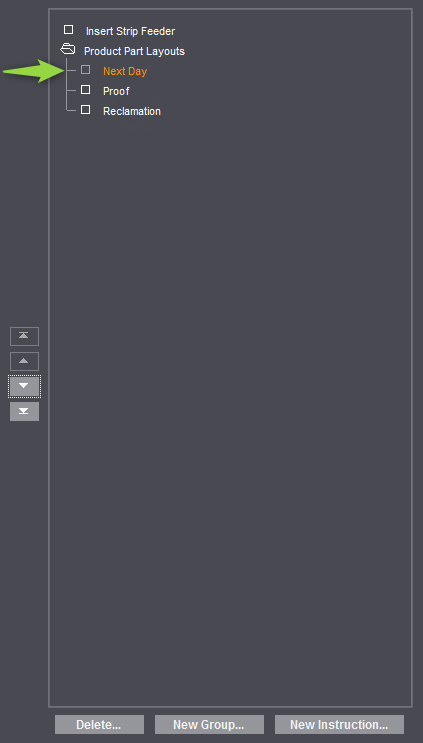
The other instructions in the group will now only be used in a job if the product codes do not have the identifier of the "Next Day" instruction.
End the setup with "Save".
Note: Procedure instructions are generated automatically, based on the product code of the job during an MIS import and when rescheduling with the Planning Assistant.
If the product code is changed in the job settings after the import, the procedure instructions and their assignment to the operations are recalculated. The currently defined procedure instructions templates are used for this.
Delete Instruction Templates or Groups
You can delete instruction templates or groups by marking the relevant element in the list and clicking "Delete".
Privacy Policy | Imprint | Prinect Know How | Prinect Release Notes