
Privacy Policy | Imprint | Prinect Know How | Prinect Release Notes
Systems, Subsystems and Groups
What is a "system"?
If additional computers with Prinect workflow applications such as computers with Prinect Renderer engines are installed in addition to a Prinect Production Server, and these applications are logged in to the Prinect server, all these computers form a system. In other words: the type of Prinect product and the way you log in to a Prinect Production server determine whether or not a computer is part of a system. Logging in to a Prinect Production Server is possible in the following ways:
•During installation:
You are requested to specify the name of the Prinect Server during installation of Prinect Engines (for example Prinect Renderer). With this information, the installer logs the engine software on to the Prinect Production Server.
•During registration at Prinect Cockpit
The name of the Prinect Production Server is always specified in the log-in dialog for Prinect Cockpit. This logs Cockpit in at the respective Prinect Production Server. If there are several Prinect Production Servers in the system environment, you can log in at another Prinect Production Server by entering the name of another Prinect Production Server in the log-in dialog (if the required authorization is present).
•In the Prinect Shooter 2 user interface
A Prinect Shooter 2 workstation is connected to a Prinect Production Server in the Prinect Shooter UI. You set up this connection in the "Administration > JDF Portal" view. You will find more details about this in the Online Help of Prinect Shooter 2.
•Logging a "local application" in at Cockpit:
Prinect Signa Station or Prinect Signa Station Server software is logged in at Prinect Cockpit in "Administration > Preferences" as "Local Application". The Cockpit operator must do this manually. You can find details about this in the Online Help of Prinect Cockpit, "Administration – Preferences".
The computers belonging to one system are updated together. This is necessary so that the versions of the Prinect software updates always match with each other. As a result, computers bound to a system cannot be moved from a system.
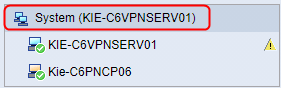
Computers permanently bound to a system are identified by computer icons with a blue monitor.
Movable computers in a system
In addition, you can add movable computers to a system using the context menu command "Add movable computers from". Cockpit clients, Prinect Signa Station installations, or Supervisor installations, for example, can be present on movable computers. These Supervisors, however, do not have any interdependencies with other Supervisors,. In other words: these computers can be updated independently of the other computers. When you add movable computers to a system or a custom group, those computers are updated along with the other computers in the system or group. See also What are movable computers?.
 Note: This does not apply to the "Computer" group. This group is installed by default and serves as a "pool" for movable computers that are not assigned to a system or a custom group. The computers included here are updated independently of each other.
The navigation pane of the PMC displays "System" in front of the "system computer" name.
Within a system or subsystem, the Supervisors are organized hierarchically in a client/server structure. The Supervisor of a Prinect Production Server, for example, is the Supervisor Master in every Prinect Workflow system, whereas the Supervisor instances running on other computers of the system represent the Supervisor Clients. Prinect computers controlling production machines such as CTP systems or digital presses contain Supervisor Master services and form subsystems within a Prinect Production system. The supervisor structure within a system reflects the update structure of a system in the following ways:
•If the Supervisor master stops the components of "its" computer because new updates are to be installed for example, the system's Supervisor clients and, if applicable, also the subsystems are instructed to stop their components.
•The same applies to other Supervisor actions, such as starting or restarting the components or rebooting the operating system.
This means that all update and Supervisor actions within a system are performed together.
What is a subsystem?
If a Prinect Production Server is present in a Prinect workflow, the Supervisor of this Production server is the Master Supervisor of the system. If a computer controlling a production machine (digital press, CTP device) and therefore also containing a Master Supervisor - such as a computer with installed Prinect Digital software or a Prinect Shooter 2 computer - is installed in a Prinect system configuration, each of these computers form a subsystem. In other words: If another computer with a connected production machine that also contains a Master Supervisor is installed in a Prinect workflow with a Prinect Production Server (Master Supervisor) and logged in at the Prinect Production Server, this additional computer — with additional client computers, if applicable — represents a subsystem.
Note: For information on how to log in a Prinect computer to a Prinect Production Server, refer to: What is a "system"?.
As a result of this function, Prinect installations that control production machines such as digital presses or CTP devices are equipped with a Master Supervisor and each represent a subsystem if they are logged in to a Prinect Production Server.
The Supervisor of a Prinect Production Server always represents the top Supervisor hierarchy level within a system, which by default makes this server the system server.
The type of Prinect software installed on each computer determines whether the associated Supervisor is a system master or subsystem master Supervisor:
•System Master Supervisor:
Prinect Production Server
•Subsystem Master Supervisor:
Prinect computers that control production machines (digital presses, CTP systems, etc.).
In the navigation pane of the PMC within the main system, "subsystem" precedes the name of the "subsystem computer" to identify a subsystem (in the "Supervisor" and "Software Update" views).
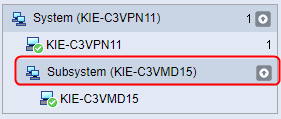
Note: Note that the main system must always be updated first, i.e. the subsystems must always be updated to the version installed on the main system later.
The (master) Supervisor of a subsystem computer can be connected to other computers with slave Supervisor instances, for example Prinect Renderer computers. These computers also belong to the subsystem and are updated together with the subsystem master.
What are the advantages of the subsystem concept?
When a system is updated, all computers belonging to the system are usually updated at the same time. Similarly, the master Supervisor controls the server's Prinect components and controls the client Supervisors to stop or start their components at the same time when an update or upgrade is installed.
If production devices such as digital presses or CTP devices are connected to computers in the workflow system, the connected production devices would need to be stopped or powered off throughout the system until all the updating processes are complete each time the system is updated, because the components of the computers that drive those devices must be stopped during the update process. This may lead to production interruptions while update processes are running.
If the device-controlling computers within a system are defined as subsystems, they are not updated together with the other computers in the system, but they can be updated separately at any other time. This does not require the production devices or machines to be stopped while the other computers on the system are being updated. Instead, they can be updated at a time when there is no production.
Dissolve or restore subsystems
The type of installed Prinect software determines whether or not a computer represents a subsystem. This property is defined in the Prinect system configuration and cannot be changed in the PMC. Subsystem computers with Master Supervisors are usually computers to which production machines such as digital presses, CTP devices, proofers, etc. are connected. The purpose of the "Subsystem" property is that these computers can be updated independently of the main system (Prinect Production Server) so that the connected machines do not have to stop at unfavorable times.
Dissolve Subsystem
If you want to ensure that the subsystem computers and, if necessary, their client computers within a system are always updated together with the main system, you can dissolve the subsystem. To do this, click on the entry of the respective subsystem in the Navigation pane of the "Software Update" view and choose the context menu command "Dissolve Subsystem". After that you must confirm a safety query:

Then the subsystem master computer and the associated client computers — if any — are treated and displayed as "normal" computers bound to the system, i.e. these computers are updated as clients along with the entire system.
Note: The context menu item "Dissolve Subsystem" is available only in the navigation pane of the "Software Update" view, but not in the "Supervisor" view.
The subsystem computers retain their "subsystem" property in the internal system registry of the Prinect workflow even if a subsystem has been dissolved. The client computers of the subsystem master also retain this property internally.
Restore Subsystems
If you want to restore the original subsystem structure in the PMC, select the system header (the name of the system server) in the navigation pane of the "Software Update" view and use the context menu command "Restore Subsystems". After that you must confirm a safety query:

The subsystem computers are then restored. The computers of the subsystem(s) can now be updated independently of the main system.
Privacy Policy | Imprint | Prinect Know How | Prinect Release Notes