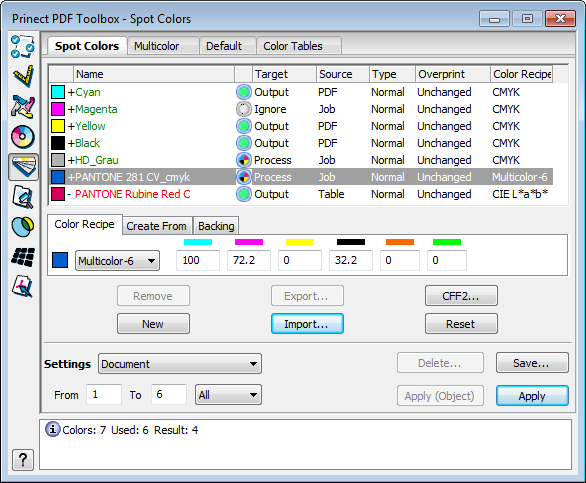
All the process and spot colors in the open PDF file display in a table in the top part of the window. In addition, all the spot colors saved in the set are displayed. If an existing color type is not known, it will be imported from the color tables.
The color names are used as follows:
|
+ (plus) |
The color is used in the set page range of the document. |
|
- (minus) |
The color is not used in the set page range of the document. |
|
Green |
After you click the "Apply" button, the color is in the page range. In other words, it can be output as a separate plate. |
|
Blue |
A color is no longer in the page range after you click the "Apply" button. The color was converted to "Process", set to "Ignore" or replaced by another color. |
|
Black |
The color is created in the PDF file but not in the current page range. |
|
Red |
User-defined color from the current set that is not in the PDF file and also not used otherwise (e.g. as an alias of another color). |
Select a spot color in the list. The settings in the "Recipe" group are enabled.
The values of a color are shown when you select a color in the list.
Select the spot color that you want to edit. You can only change the name of the spot color if the name is not in the document and also not used otherwise.
When you double-click the selected spot color, you have the option of editing the default name of "NewColor" (you can now edit the box).
This column shows the color space in which the alternate color of the spot color is created. The alternate color is required to display the color in Acrobat and is also needed for printing if the alternate color is used to print the color (e.g. in a proof).
Destination
Click a box in the "Target" column. You can change how the color will be output in the list box that appears.
The output behavior of the selected color is defined. All colors that are in the PDF or in the set are listed in addition to "Output", "Process" and "Ignore" (see below). In this way you can assign the selected color to any other color (alias).

|
Note: You can also create an alias for the process colors! |
•Output
The spot colors are retained and printed as additional colors. When printing a spot color, the color data do not influence the printed result, they are only used for simulation on the monitor and proofing.
•Process
The spot colors are converted to the alternate color space based on the process values (mainly CMYK).
•Ignore
The spot colors are removed from the PDF file.
Source
This is where you set where the color properties come from, for example, the alternate color.
•PDF
The color properties come from the color definition in the PDF document. You can only change the source to "PDF" if the color is also defined in the open document.
•Job
The color properties were defined by the user and are filed in the set. If you switch the source to "Job", the color definition is copied to the set, even colors from the currently open PDF document. These colors are then available in the set for other PDF documents.
•Table
The color properties come from one of the global color tables. You can only change the source to "Table" if the color is also defined in one of the active color tables.
•Alias
The selected color is described by another color and uses its properties. You cannot switch the "Defined" column to "Alias". "Alias" is applied automatically to all colors that are output by another color in the "Target" column.
Type
This setting forms the basis for further processing with Prinect Trap Editor.
Each spot color has different overprint properties:
•Standard
This property is assigned to spot colors that, similar to process colors, are translucent in printing.
•Transparent
This property is assigned to a spot color with a transparent varnish. Transparent colors do not have traps.

|
Note: The objects lying below transparent elements are trapped. |
•Opaque
This property is assigned to very opaque, contour-defining spot colors. They are treated as black and in the trap always pull the adjacent colors below it.
•Opaque & Ignore
This property is assigned to spot colors that are opaque but are not to be trapped (for example, for gold, silver or spot colors where undesirable combinations can occur in the trap).
•DieLine
This property is assigned to spot colors for packaging printing (hull).
If you wish to create a hull when in a PDF, set all the colors in the PDF to "Ignore". Only a "DieLine" color is left, and all frames with 0% fill are deleted automatically. Only the DieLine" color type and the register marks are left.
Shows the overprint status (default: as defined in the PDF file).
•Overprint
The selected spot color is set to "Overprint".
•Knockout
The selected spot color is set to "Knockout".
•Unchanged
The selected spot color keeps its defined status.
Does not display by default. When you right-click the row with "Name, Target, Source,...", a context menu displays where you can select "Rendering Intent".
You can find a description of the parameters in Rendering Intent.