"Optimization" Step
The "Optimization" step contains a great number of possible settings. As a basic principle, we recommend that you set known cost data once in the Preferences and apart from that try to find better placements only for a specific job, for example, using the slider. You can collapse the cost data for a better overview (with the triangle button).
You always work with sheet optimization when you are handling gang jobs.
The parameters that you can set differ slightly according to the type of sheet optimization.
You can type in the sheet optimization parameters for the job or load them using a selected parameter set ("Sheet Optimization Setup" button). You can also set certain parameters in the "Plate Template" and "Papers (Printing Materials)" resources and then import them from there ("Use Optimization Parameters from Plate Template" option). This option of combining data does away with creating great numbers of parameter sets and the cost and conditions for certain plates and papers are entered directly at the source.
Another benefit is that you can set up several plate templates in the job that are then all included in optimization. In this case, you should define the optimization parameters in the plate template. The plate template with the best optimization results is then used accordingly and displays in the "Results" step.
In the sections below, you will find a description of the functions in the "Optimization" step or notes on handling them:
Input List for Sheet Optimization (grouping table)
Import jobs into the gang job
Optimize
Sheet Optimization Setup
Advanced Settings for Sheet Optimization
Using the Optimization Settings
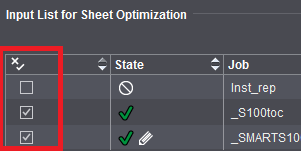
Input List for Sheet Optimization (grouping table)
List of the imported gang parts or PDFs with the option of sorting them.
Double-clicking the box in the "Delivery Quantity" column lets you specify a different delivery quantity for every gang part. Clicking the "Optimize" button again causes the screen contents in the graphic window to change accordingly and also the "Optimization Result" to be recalculated.
The columns that display in the table depend on the selected optimization mode (without layout default, with layout default, packaging).
All the columns whose values can be edited directly in the input list are tagged by a triangle in the top left corner.
In the "State" column, you can view the latest details about placement of all gang parts after each optimization run. As many as three icons per job display:
|
General Information
|
Additional Information
|
Special cases
|
|
The first icon indicates the general status of the job.
|
Additional information can indicate why the job was not placed or that it was edited manually.
|
At present, two special cases display: "Can" articles that were placed and "Must" articles that were not placed. This displays only if you are working with an enabled deadline.
|
|
|
The gang part is optimized and placed on one or more press sheets.
|
|
The job was edited afterwards. A part of the placed 1ups was removed manually in the graphic view.
|
|
"Can" article that was placed nevertheless.
The "Target Date" is further in the future than the set "Deadline"; the job was placed despite this through optimization.
|
|
|
The gang part was not placed on one of the press sheets.
|
|
The gang part was not placed because the rating of the press sheet would otherwise be below the set limit.
|
|
"Must" article that was not placed.
The data for the "Deadline" of the gang job and the "Target Date" of the gang part showed that the job ought to have been placed. However, the job was either removed manually or is no longer placed because of the poor press sheet rating.
|
|
Possible reasons for non-placed jobs: All placed 1ups removed manually, press sheet not utilized adequately, target date not reached (see additional information).
|
|
The job was edited afterwards. All placed 1ups were removed manually.
|
The icons for "Can" and "Must" articles display also in the "Target Date" column.
|
|
|
|
|
The gang part was not placed because the target date was not yet reached.
|
|
|
|
The gang part is not placed on one of the press sheets because it was set to "inactive".
|
|
|
|
|

Note: The icons in the "State" and, if applicable, "Target Date" columns also display in the optimization report.
You can disable gang parts from optimization and enable them again through the "Active" column.
"Process Order" column
The gang parts are sorted in the gang job in the order in which you selected them for import. The process order defines the order in which each of the gang parts will be submitted to the Optimizer after you click "Optimize".
In the field, the process order does not influence the optimization result or only negligibly especially where gang parts with different sizes and delivery quantities are concerned because other criteria like optimal utilization of plates and sheets are more important.
In the case of uniform jobs, on the other hand, the arrangement of the 1ups on the optimized sheets can differ, depending on the process order.
If the "Process Order" column is selected, you can move the gang part you just marked using the arrow buttons and, by doing so, change the process order.
Other functions:
•Using "Remove Gang Part from Gang Job" in the context menu, you can move gang parts or folding sheets back to the gang job folder (gang pool) again. For details, see the description in the header below or in Job Import from Gang Pool.
Note: The functions in the context menu like "Edit Delivery Quantity" or "Set Orientation to..." are available irrespective of the column in which the cursor is currently located.
•Double-click the delivery quantity to open a window where you can change the delivery quantity.
•The product code can be copied to the clipboard via the context menu.
•Drag-and-drop a gang part to the graphic window in the "Press Sheet" tab.
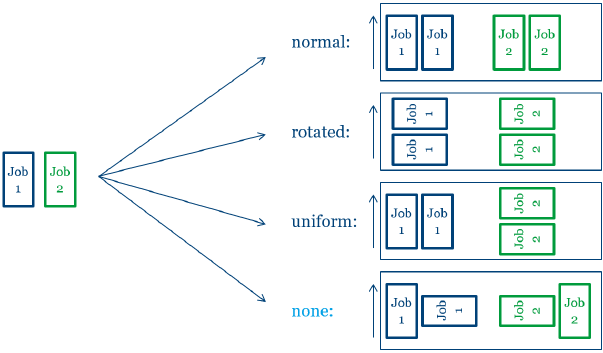
•When you double-click the "Orientation" column, a dialog opens where you can set the orientation to the paper grain for selected gang parts. You can choose between the following settings:
"normal": Folding sheet at 0° in relation to grain direction
"rotated": Folding sheet at 270 ° (in clockwise direction) in relation to grain direction
"uniform": Determine direction as best as possible (this direction is then applicable for all 1up copies)
"none": Determine direction as best as possible, with 1up copies possibly having different orientations
With "normal" and "rotated", you specify the orientation related to the paper for all 1up copies of this article. With "uniform", optimization determines the better of the two variants for utilization of the sheet. In this process, all 1up copies of the article have the same orientation; this means that either they are all rotated or none are rotated. If you select "none", orientation is ignored and only the best possible utilization of the sheet is considered. In this case, it is possible that some 1up copies of the article are rotated and some are not. This can be a good idea in the case of articles where the grain direction of the paper is irrelevant or for materials without grain direction.
The settings are interpreted as follows:
·For schemes with a folding rule: Back margin orientation
·For schemes without a folding rule: Page orientation
·For Montage: Page orientation
"as per placement": If "FromLayout" is entered in the gang part XML, this means that orientation is not defined in the gang part XML but is delegated to the Signa Station product part used. In this case, orientation is determined from placement in the product part. The grain direction of the paper of the product part is included when determining this value. The result determined is always "normal" or "rotated".
Procedure:
·To determine the orientation setting, the entry in the Gangpart XML is first checked: if it contains "Normal," "Rotated," "Unique"" or "None," this value is applied to the input list for sheet optimization when the Gangpart XML is imported.
·If none of these items or "FromLayout" is entered in the gang part XML, the setting of the product part in "Parameters for Ganging Optimization" is used: If "normal", "rotated", "uniform" or "none" is set there, this value is used in the input list for sheet optimization when importing the gang part XML.
Different rotations in the source layout
If the single job XML contains the "fromLayout" orientation and the "as per placement" orientation is specified in the parameters for ganging optimization in the product part template or the source job sdf, the actual rotation of the folding sheet is also evaluated, meaning rotations of 90 ° or 180 ° are also possible.
The folding sheet is placed in the gang job as in the source layout if the orientation relative to the paper grain direction allows it. However, if the paper grain direction differs from that in the source layout, placement according to the paper grain direction takes top priority.
"Short grain" is usually assumed Iif there is no paper grain direction in the source layout.
List of packaging jobs
In packaging jobs, the table also shows the assigned shape. A preceding "0" indicates that a cutting die with this shape is not loaded at present. When you press the Optimize button "General" in such a case, optimization is impossible with the current settings, and an error message appears.
Signa Station then offers the option of looking for a suitable cutting die. To do so, the folder selected last in the "Open Cutting Die" dialog is searched for an exactly matching cutting die. If the search is successful, optimization is run; if not, a note appears in the "Optimization Result" indicating that shapes are not assigned to all packaging articles.
You can perform the assignment using the context menu invoked on the table row in question when cutting dies are loaded, but some articles do not have an assignment.
You can change the order of the articles in the table using the buttons to the right of the table. The order of articles in the table determines how they are arranged on the press sheet. If you change the order of articles, you must run optimization after that for the change to be applied.
Import jobs into the gang job
Ganging...
You can use the "Ganging..." button to import customer jobs at any time from the gang pool. The window "Job Import from Gang Pool" opens (for a detailed description, see: Job Import from Gang Pool).
This window displays all jobs in the gang pool that have not yet been processed, possibly restricted by the filter criteria set on the left-hand side.
Note: Jobs that were removed from the press sheet in the grouping table (see above) automatically display again in the gang pool.
Select the jobs you want and click "Import" to add the jobs to the ganging optimization job. If jobs could not be imported, this is displayed in the log with details of the cause.
Working with multiple gang pools
When the "Job Import from Gang Pool" window opens, the contents of the gang pool are read and all individual jobs are displayed in the list. If the gang pool contains several thousand individual jobs, reading can take several minutes under unfavorable circumstances.
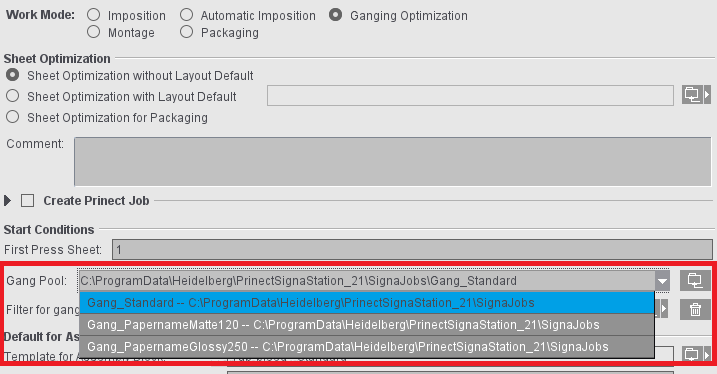
To remedy the issue, you can specify multiple gang pools. You can use these gang pools to pre-sort the jobs, for example by paper type.
When you open the window, only the jobs in the gang pool that is set in the respective job are displayed or, if no gang pool is currently open, only the jobs in the default gang pool.
1.Open the Preferences with "File > Preferences"
2.Go to "Ganging Optimization".
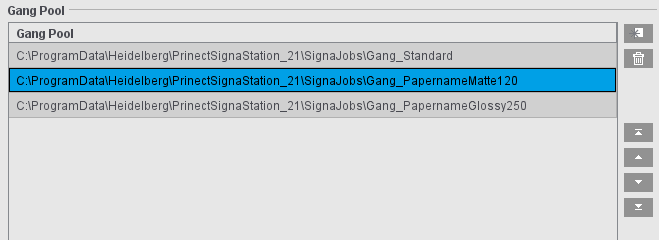
3.In "Gang Pool", click "New", to add more gang pools to the default gang pool list.
4.If necessary, change the order of gang pools in the list. The first gang pool in the list is important here, as this is used as the default setting when creating ganging optimization jobs.
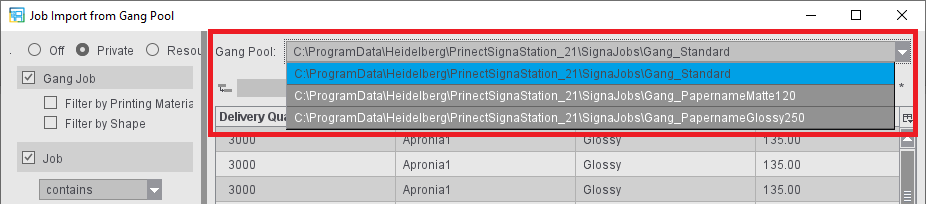
5.When the "Job Import from Gang Pool" window opens, it displays only the contents of the default gang pool or the gang pool used last. You now have the option of setting one of the other defined gang pools under "Gang Pool".
Prerequisite: There is no open ganging optimization job. The gang pool set in this job would then be displayed and could not be edited here in the window.
6.If the gang pool into which you want to import the individual jobs has already been created and opened, you can edit the desired gang pool in the job in the "Product Part" step under "Start conditions > Gang pool". The "Job Import from Gang Pool" display refreshes automatically; there is no need to close the window for this purpose.
Note: In the product part, you can simply select one of the gang pools defined in the default settings or set the desired gang pool by entering its path or selecting it via the file browser.
Gang Pool monitoring
The first time a gang pool is opened, the files and structure are read in. Automatic monitoring is then normally active, i.e. the display is automatically updated when changes are made in the gang pool. If too many monitoring processes are running on a computer, it is possible that not all the gang pools are updated automatically. In this case, you can press the F5 key to read in the contents of this gang pool again and update it manually.
Meaning of the status icons:
|
No icon
|
The gang pool has not yet been read.
|
|
|
The gang pool is being read.
|
|
|
The gang pool has been read. Automatic monitoring is active. Changes to the file system of the gang pool such as the filing of new individual jobs are displayed automatically.
|
|
|
The gang pool has been read. Automatic monitoring is not active. If changes are made to the file system of the gang pool, you must press F5 to read the contents in again.
|
Naming the folders of gang jobs
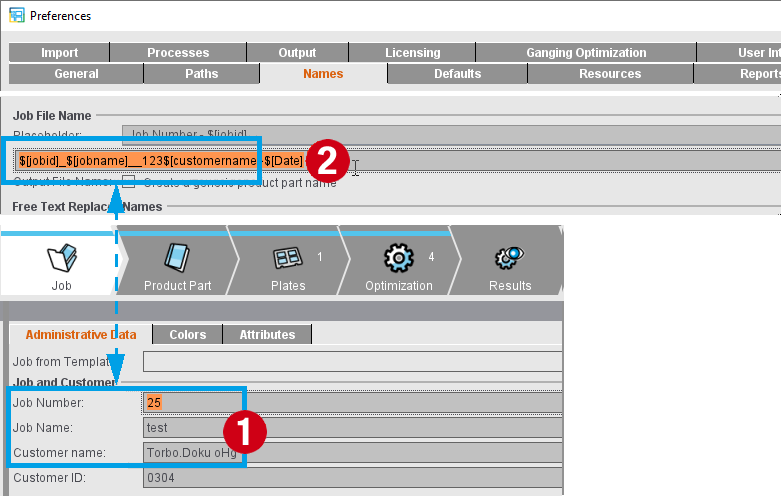
Jobs are automatically named in the way that you set this in the Preferences. In the "Names" tab, you can insert placeholders for this in "Job File Name" that are then filled with the data of the job for each job. The default entry is "$[jobid]_$[jobname]", this means that the job name is made up of the entries for job number and job name in the "Job" step (1). However, you can also set invariable data ("123") or insert other placeholders like the selected customer name or the current date (2).
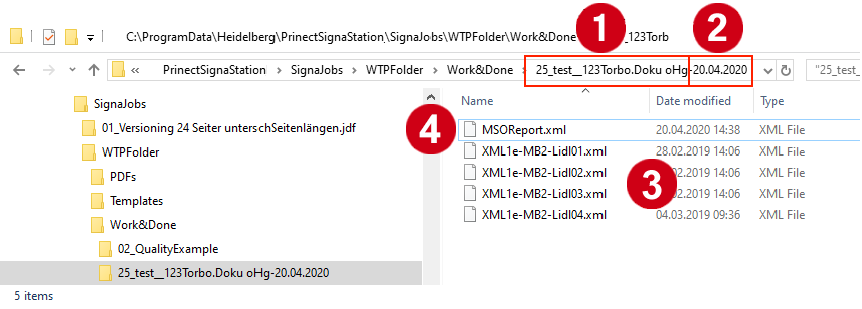
During ganging, a subfolder is created for each gang job in the pool for gang jobs in "Work&Done". The components of the job (3) are pooled in this subfolder and a report in XML format that can be evaluated on a machine is generated (4). This is valid for all forms of gang jobs except manual ganging using the "Import PDF" function.
This subfolder generated for every gang job is named automatically based on the same rules that you defined for the naming of jobs.
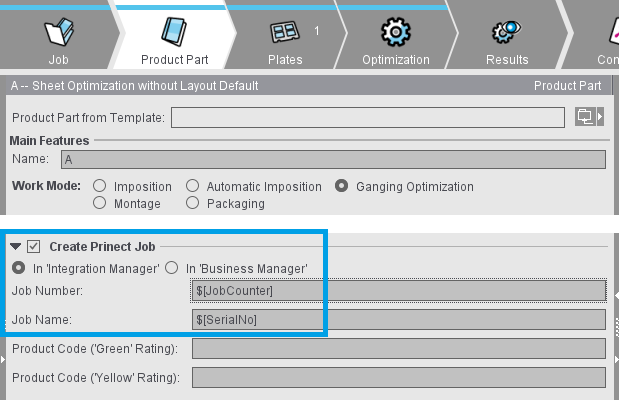
When creating a gang job manually using the "Ganging..." function, you set these data as usual in the "Job" step. When a job is generated automatically (when manually creating a gang run form and also during the automatic processing of gang tasks by the Signa Station Gang Server), the data for job number and job name are generated via the placeholders that you entered in the gang task in "Create Prinect Job" in the "Product Part" step.
The data generated in this way are then copied to the boxes in the "Job" step at the start of processing and used in the same way for naming the subfolder in "Work&Done".
Combi button: To import PDF/CSV/XML/CAD...
As an alternative to ganging with the gang pool, you can import files of different formats from other folders into the gang pool using the combination button.
Import PDF...
Select this option if you want to import PDF files to a gang job.
Import CAD...
Select this option if you want to import cutting dies to a gang job.
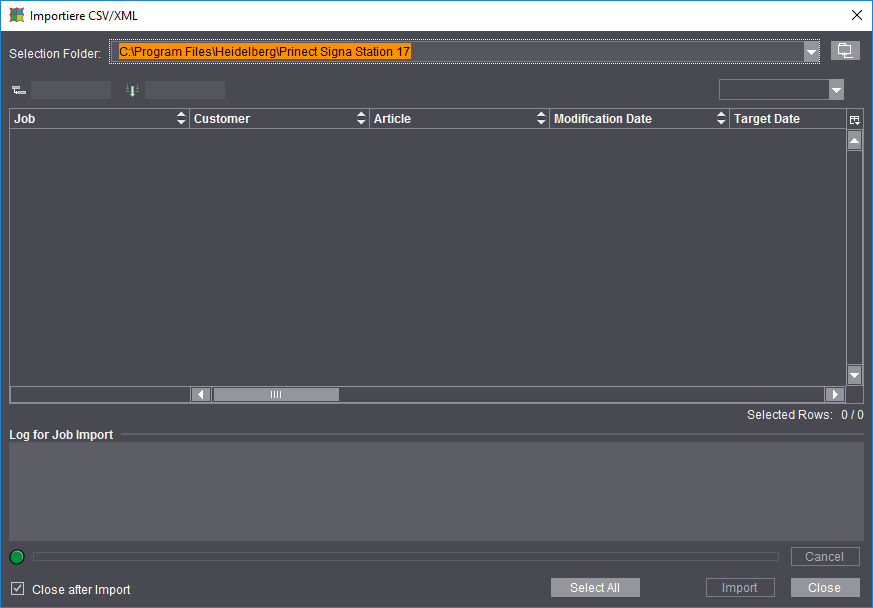
Import CSV/XML...
Job description files as CSV or XML files and content files (PDF files) in defined structures must be available in order to work with a hotfolder.
Normally, these data are generated and made available by the "MIS" or the Integration Manager.
Notes on CSV files
The CSV format offers a simplified form for the import of jobs. A subset of the attributes of the ganging XML data format is offered. The format is as follows:
•In the first row, the attribute names like in the ganging XML data format are specified. If a value in the first row cannot be assigned to any attribute, it is registered as a replacer.
•The second row defines a gang part with the values relating to the attribute in the first column.
•The header and data rows must have the same length.
•If a PDF is not defined, the "FinalDimension" must be set to be able to determine the trimmed size.
Supported attributes (if not specified, the values are written like in the XML format):
|
JobID
|
JobName
|
CustomerName
|
|
Amount
|
MediaName
|
Weight
|
|
ProductionType
|
ProductCode
|
FinalDimension: in the form [value1 unit of measure blank value2 unit of measure] e.g.: 21cm 29.7cm
|
|
DueDate
|
PrintDueDate
|
ContentData: Data of the PDFs like in the XML format
|
|
ColorsFront
|
ColorsBack
|
Overproduction
|
|
GrainRestriction
|
ShapeOrientation
|
ProductionJobID
|
|
SheetsInProductionJob
|
JobInfo
|
SheetSelection
|
|
nPages
|
SourceLayout
|
AssemblyIDs
|
|
Allowance
|
ArticleName
|
ArticleID
|
|
ShapeID
|
ShapeData
|
FoldingMode
|
All other strings are rated as replacers.
Example of a valid CSV:
Combi button: Create New ...
Define a new assembly block for the PDF import and import it.
Optimize
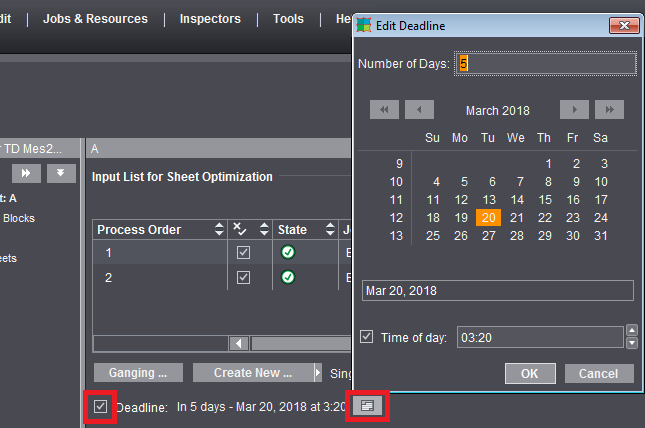
Edit Deadline
The deadline is included in optimization if the "Deadline" option is enabled. When the option is enabled, the currently used deadline is indicated beside it.
When the option is enabled, you can open the "Edit Deadline" dialog with the "Edit" button. Your input can be relative or absolute:
•In the "Number of Days" box, your input is relative to the current date. Positive values are for days in the future, negative values for days in the past.
•Use the calendar to select a specific data for an absolute input.
Both input variants influence each other mutually, with one variant always matched according to the input of the other variant.
The greatest value possible for days is 99 days or -99 days.
The set deadline is persistent relative to the current date. This means that when you enter a deadline of "in 2 days", for example, "2" is saved as the value. As a result, the deadline is pushed back accordingly if the job is used again at a later date.
If you enable "Time of day", you can specify a set time using the arrows or by entering the data directly. If "Time of day" is disabled, the last possible period in the selected day is set, this means 23:59:59 hrs.
Optimization Result
The preliminary results of optimization display without having to go to another step. Go to the "Results" step if you wish to view the full results.
"Optimize" button
Optimizes the press sheet(s) taking into account the assigned folding sheets/assembly blocks and the data set in the "Optimization" step.
Report (Optimization Result)
Display of the results of optimization. The optimization result is output as text in your default browser when you click "Report".
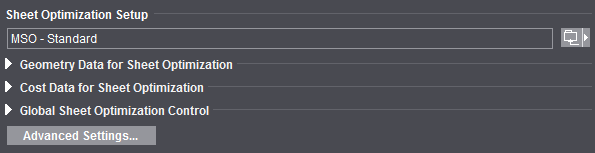
Sheet Optimization Setup
By default, the optimization set in the "Preferences" in "Default for Sheet Optimization" is used for all jobs. Use the combi button on the right to display predefined sheet optimization setups for use specifically on the job currently open.
The name of the selected setup displays in italics. In this way, you always know which resource is being used for optimization.
The key data are divided into the following groups:
•"Geometry Data" (margins)
•"Cost Data" (print preparation in general and per separation, cost per 1000 sheets)
•"Global Control" (slider "less plates" <> "less sheets")
In the "Preferences" in "User Interface", you can set whether the groups will display either closed or open by default. This is where you can also set whether one or more groups will be fully hidden.
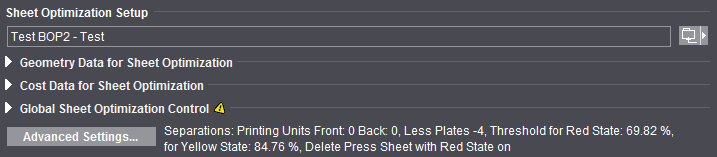
When a group is closed, a yellow warning triangle displays if the setup should deviate from the default.
In addition, all the parameters of the resource in use that deviate from the default display beside the "Advanced Settings..." button. The setup in italics becomes obsolete and no longer displays when you modify one of the boxes or change the position of the slider. The modified data are used for optimization for the active job and are retained.
More details about each of the data:
Geometry Data for Sheet Optimization
Cost Data for Sheet Optimization
Global Sheet Optimization Control (less plates/less sheets slider)
Advanced Settings for Sheet Optimization
Geometry Data for Sheet Optimization
Left Margin / Right Margin / Top Margin / Bottom Margin
By defining these margins, you create a bounding box within which the 1ups can be positioned. If you leave the default values of "0" as they are, the bounding box is the same size as the paper. By entering values for the margins, you shrink the size of the bounding box accordingly.
If you set marks at the left, right and top, you must set a margin for these marks.
Cost Data for Sheet Optimization
When you enter cost values, optimization will give you the most cost-effective result.
Example:
If the cost for print preparation (with setup of the press) is higher than comparable paper costs, then optimization provides a result with as few press sheets as possible but perhaps with more paper waste.
Fixed and variable costs can be taken into account with these parameters.
The values are to be entered by the user and can also have just material data. What is entered in this group can vary according to the economic philosophy of the company.
Note: These costs are not costs in a specific currency but only relative costs. In other words, it is not absolutely necessary that the values as such are correct but the relation of the values to one another.
Print Preparation (global)
The cost of a complete plate set should include the plate material, imaging and checking the plate as well as washing, loading and proof printing for print preparation.
Print Preparation (per separation)
At this point, the colors are not always known, and, consequently, a finer distinction of the cost is possible only through the operator.
Printing Material (per 1000 sheets)
The cost for 1000 unprinted sheets that have run through the press.
Global Sheet Optimization Control (less plates/less sheets slider)
The slider lets you weight the priority, in other words whether less plates or less press sheets will be used. The digits only portray the weighting for the algorithm and are not important otherwise.
Note: The slider does not necessarily improve optimization in every job. In some cases, the result is identical.
Advanced Settings for Sheet Optimization
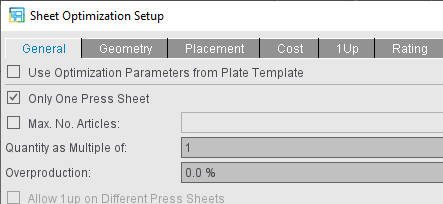
The "Advanced Settings" button lets you invoke all additional settings like the ones also available in the "Sheet Optimization Setup Editor" for creating templates. The "Sheet Optimization Setup" is divided into the "General", "Geometry", "Cost" and "Rating" tabs.
Changes in this dialog are implemented directly. In other words, the values entered are applied immediately without confirmation through the OK button. The dialog must be exited with "OK" if the values are to be kept. The changes are discarded if you exit the dialog with "Cancel" or with the "Close" icon.
"General" tab
Use Optimization Parameters from Plate Template
The optimization parameters from the "Plate Template" and "Papers (Printing Materials)" resources are used and display accordingly when you enable this option. If a number of plate templates or papers are set in your job, proceed as follows:
•Plate template
The values in each parameter are checked for validity in all plate templates defined in the job and compared with each other. If the values from all the plate templates are valid and identical, the same value displays in the relevant box.
If a value is invalid or different, the word "various" displays in the box instead of a value.
The tooltip of the box also shows all different values of the parameter.
You cannot edit the values.
The value from the job data displays if there are no plate templates.
This will be indicated with a gray square in check boxes that can only be enabled or disabled if multiple plate templates with different settings are loaded in the job:
•Papers
The values in each parameter are checked in all papers to see that they are available. If a value is set each paper, one of these values is used during optimization. To make this clear, the value in the box is blue. However, the value shown is not used for optimization.
If a value is missing in one or more papers, an existing value displays in the standard color in the box and is used if the paper provides the best optimization result.
The tooltip of the box also shows all different values of the parameter.
You can edit the values. Edited parameters are not kept in the paper entered in the plate template but in the job data.
Note: You can set the quality criteria in the "Rating" tab for a specific job even if the optimization parameters from the plate template are used and use them for optimization.
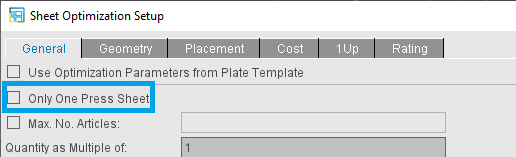
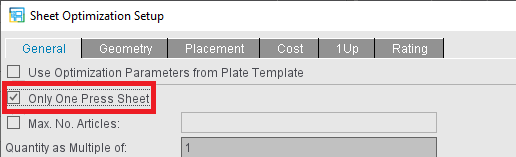
Only One Press Sheet
Exactly one good press sheet is generated during optimization. After you save your data, gang parts that are not placed are returned automatically to the pool for gang jobs.
Max. No. Articles
The "Max. No. Articles" box lets you restrict the number of articles on the press sheets to take into account restrictions in finishing (e.g. sorting equipment with a limited number of trays). When you enable the option, the box first displays '10' by default. You can then match this value to suit your needs.
When the number of articles to be placed is greater than the maximum number you defined, the articles are split into partitions, optimization is calculated separately for each partition and finally these single results are added together. For example, for 20 articles and a limitation to five articles, this produces four press sheets each with five articles instead of one press sheet with 20 articles.
Quantity as Multiple of
The quantity is to be a multiple of the number entered in this box. The quantity can be less than this value in the case of an odd number of remaining copies.
Overproduction
You can enter a percentage for overproduction in this box if the calculated overproduction for a job was not specified.
Allow 1up on Different Press Sheets
A check is run to see whether a better result can be obtained by placing the same 1up on different press sheets.
 Note: This option is not available if segments are used in sheet optimization.
Press Sheet Allowance
Allowance for the press sheet quantity, either as a fixed value (base) and/or as a percentage.
For example, waste allowance for finishing.
1up Allowance
Allowance for the 1ups/gang job objects; the delivery quantity is taken as the basis.
Include Separations
Optimization with "Include Separations" gives you only press sheets where the placed documents of a press sheet do not have more colors in total than available printing units. This makes it possible to avoid multiple runs (for details, see Include Separations).
Minimum/Maximum Sheet Quantity
You can control the quantity of sheets resulting from optimization with these parameters. For a digital press, for example, it could be desirable that it will not print sheets whose quantity exceeds a specified amount (= "Maximum Sheet Quantity" enabled and appropriate value entered). An optimization with maximum sheet quantity could then result in the 1ups being distributed on several press sheets whose respective sheet quantities do not exceed the maximum sheet quantity.
With the maximum print quantity, it is also possible to force that very high quantities of 1ups are always printed as multiple ups. The set maximum sheet quantity will not be exceeded even in this case: If it is impossible to place all required 1ups on the maximum number of sheets, optimization will abort with an appropriate error message.
In turn, a minimum quantity could be feasible for an offset press.
Note: You can also set the defaults for the sheet quantity in the plate template. With the option "Use Optimization Parameters from Plate Template" enabled, the fields in the job are disabled and the values from the plate template are displayed. If the job contains several plate templates with various settings, the fields display "various".
Slider for less plates / less sheets
The slider lets you weight the priority, in other words whether less plates or less press sheets will be used. The digits only portray the weighting for the algorithm and are not important otherwise.
Note: The slider does not necessarily improve optimization in every job. In some cases, the result is identical.
"Geometry" tab
Note: The geometry data are not read from the MDS but you must define them yourself in this tab.
Left Margin / Right Margin / Top Margin / Bottom Margin
By defining these margins, you create a bounding box within which the 1ups can be positioned. If you leave the default values of "0" as they are, the bounding box is the same size as the paper. By entering values for the margins, you shrink the size of the bounding box accordingly.
If you set marks at the left, right and top, you must set a margin for these marks.
Margin around 1up block
Spacing between the folding sheets/assembly blocks. You must set the value to "0" for a separating cut.
With the option "Only for marginless 1up", you can ensure that the set "Margin around 1up block" is not added to the already existing margin for 1up with margin, but is only used for 1up without margin. 1ups are considered "marginless" if at least one margin=0.
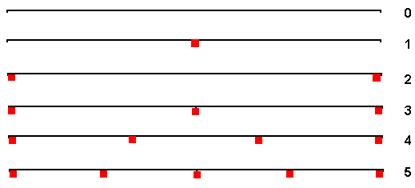
Sheet Brake Total
In optimization, you can reserve spaces on the sheet for any sheet brakes that may be required. You can set up to 12 sheet brakes.
The standard width of a sheet brake is 7 mm. In addition to this value, one or two standard trims are kept free so that no trim juts into the sheet brake.
In case of 2 or more sheet brakes, one brake each is expected on the left and right margin respectively; should the space be insufficient, it will be expanded internally
For single surfaces, sheet brakes do not require any lanes and therefore will not be considered by Signa Station. For this reason, you could also use parameter sets with sheet brakes for single surfaces
There is no horizontal centering for (effective) sheet brakes because otherwise the positions of the lanes would be unpredictable.
Schematic view of assumed positions for 0-5 sheet brakes:
Note: For "Single-sided work-and-turn", the meanings of left and right margin apply analogously to the sheet halves. This may also result in increased margins because of the sheet brakes to consider. A peculiar situation arises with even sheet counts of 4 and more since a smaller strip is formed on the sheet half.
Horizontal lanes/width/height
In addition to the number of sheet brakes, you can also set their width and the number and width of the horizontal empty areas (lanes).
The sheet brakes and the horizontal lanes must always cover the entire height and/or entire width of the press sheet. That is why the number is interdependent. An appropriate lock is integrated into the graphic user interface and described as a tooltip.
If one or more than 2 sheet brakes are selected, these are centered on the press sheet. In this case, only the values of '0' or '2' can be selected for the horizontal lanes. Accordingly, it is vice versa if the number of horizontal lanes is first entered.
"Placement" tab
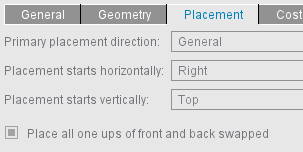
For "Sheet Optimization without Layout Default", you can also define the placement, that is, the starting point as of which the gang parts are aligned on the press sheet.
With the first cut opposite the lay edge, normally as many elements as possible are to be cut. This variable setting option makes sure that you can match optimization to suit your needs.
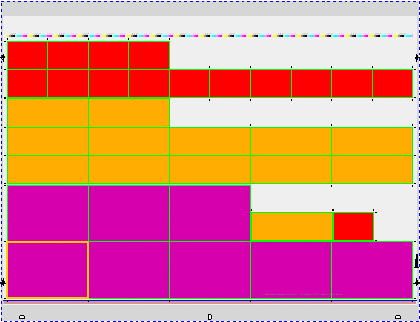
During optimization, the assembly blocks are grouped by size. Assembly blocks of the same size placed side by side make up what is known as a "ribbon". If possible, the bigger assembly blocks are always positioned more to the left. Positioning normally begins at the bottom left. If needed, you can change the starting point for optimization in horizontal and vertical direction.
Primary placement direction
"Horizontal": Sheet optimization is in horizontal ribbons. They always fill the entire space between the margins before a new ribbon begins.
"Vertical": Sheet optimization is in vertical ribbons. They always fill the entire space between the margins before a new ribbon begins.
"General": Sheet optimization is in rectangles (or rectangular ribbons). In other words, assembly blocks of the same size are grouped together to form rectangles if possible. In most cases, the rectangular ribbons don't fill the entire space between the margins.
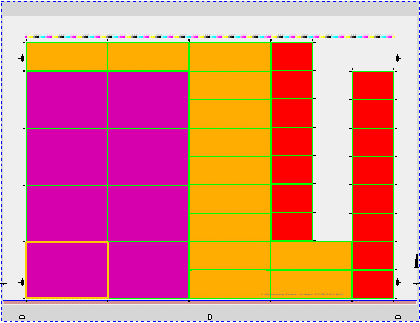
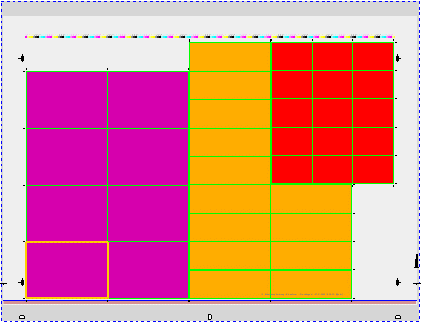
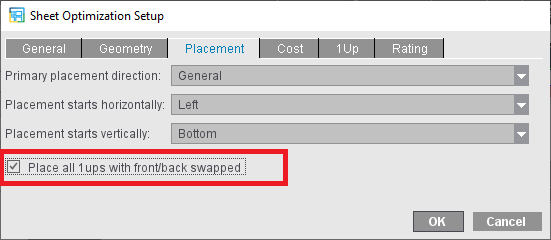
Option "Place all 1ups with front/back swapped"
This will swap all 1ups of the gang job from the front to the back and from the back to the front. This may be desired, for example, on presses with a perfecting device so that the print results are delivered face up and the stacks do not have to be turned in an additional operation for this purpose.
As a rule, swapping is applied to all 1ups of the ganging job. If jobs where swapping has already been done are added to the ganging jobs, their fronts and backs will be swapped again.
The option can also be set in the plate templates. If you enable the "Use Optimization Parameters from Plate Template" option in "General", the placement settings in the job will be disabled, and the plate template settings are displayed.
The checkbox has a gray square if multiple plate templates with different settings are loaded in the ganging job.
Note: If you also work with the "Include Separations" option, the ganging job may not be processed if the colors set for the front and back no longer match the settings for the separations after swapping.
"Cost" tab
Is equivalent to the cost data for sheet optimization (see Cost Data for Sheet Optimization) with an additional input option for the press for hourly rate and performance (sheets per hour).
Note: The cost data are not read from the MDS but you must define them yourself in this tab.
"1up" Tab
Max. No. 1up Copies
This lets you confine the maximum number of 1up copies on a press sheet to the specified value (by default, the option is disabled).
Rating criterion "Maximum 1up waste"
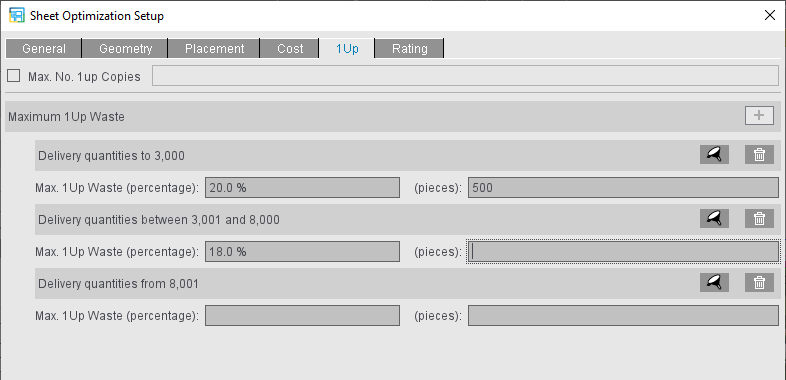
If a job contains very different delivery quantities, the job parts with low delivery quantities can result in a high amount of waste. The "Maximum 1up waste" rating criterion can be used to set the maximum amount of waste per 1up that may be generated, depending on the delivery quantity.
1.Click the plus symbol to add another rating criterion.
2.To begin with, specify the delivery quantity for which the 1up waste is to apply to.
This allows you to control the maximum 1up waste, depending on the delivery quantity. For example, a lower absolute value could be desired for a low delivery quantity and a lower percentage value for a large delivery quantity. If the criterion is to apply regardless of the delivery quantity, leave the default setting 1 to infinity in the "Edit Delivery Quantities" dialog.
3.Enter values for the maximum waste as a percentage of the delivered quantity and/or the maximum absolute value. Optimization then uses the one of the two values that generates the lower waste in relation to the desired delivery quantity.
For example, values entered for "pieces = 500" and "percentage = 20"
For a desired delivery quantity of 500 pieces, the percentage, i.e. the maximum waste produced, may be 100 pieces.
For a desired delivery quantity of 3000 pieces, the absolute value applies to 500 pieces, since the percentage would be higher with 600 pieces.
For a delivery quantity of more than 3000 pieces but a maximum of 8000, the percentage value of 18% is always used because no value has been entered in "Pieces".
If the delivery quantity exceeds 8000 units, the maximum 1up waste is not taken into account because no values are entered in both fields.
"Rating" Tab
You can define one or more rating criteria for the press sheets depending on your individual requirements by clicking the plus button. The results of these quality criteria display in the "Results" step in the table in "Optimization Result" and in the HTML report.
|
Area Use
|
Utilization of the area on a press sheet
In other words, how much sheet surface is not used and means waste in production.
"Area Use" is set by default when you first open the settings and for jobs from predecessor versions.
|
|
|
Volume Use
|
Volume Use refers to the press sheet stack
This means: Usage in the stack is also taken into account besides the area use (see above). In this case, the total number of press sheets produced is compared with the delivery quantities of the single articles, in this way calculating the share of unpaid overproduction that results from articles with a lower production quantity being placed on the sheet.
|
Can be filtered by sheet quantity: the criterion is applied only to sheet quantities within the set range.
See Edit Sheet Quantities/Delivery Quantities for details
|
|
Back Use
|
Percentage of the back in relation to the front, in other words to the area utilized
This means: If all fronts have a back (or all none), the back use is 100%, even if the area utilized is only, for example, 70%.
|
You can set whether a sheet with an empty back is rated to 0% or 100% using the button with the three dots.
This can be feasible for ganging of the "Front Only" type, i.e. for creating surfaces with an empty back.
|
|
Date
|
Assessment of the press sheets based on a uniform target date. "Oldest Target Date" refers to the date furthest back in the past or to the next date in the future.
|
You can define a period (Oldest Target Date + x days) using the button with the three dots.
|
|
Multiple 1ups
|
The rating for multiple 1ups is 100% if each article is placed just once only.
|
Can be filtered by delivery quantity: the criterion is applied only to placed 1ups with a delivery quantity within the set range.
For example, you might not want multiple 1ups for small delivery quantities but would like to allow multiple 1ups for large delivery quantities on the same press sheet.
See Edit Sheet Quantities/Delivery Quantities for details
|

Note: With a sheet optimization setup generated with Signa Station version 2020, "Date Spreading" (number of days that may lie between the single jobs at the most) may also be available as a criterion. This was replaced by "Date" in version 2020.10.
|
|
When you click the plus button, a rating criterion is enabled and you can customize it. You can create a number of different criteria.
|
|
|
For criteria with a filter option, you can also create several criteria of the same type, for example, to define a different action for various sheet quantities or delivery quantities.
|
|
|
When you click the trashcan button, the rating criterion is disabled and removed.
|
|
|
You can weight the criteria from "Very low" to "Very high". During calculation, this status decides on how much weighting will be given to the rating criterion during optimization. In the results, this does not change the single result shown in each of the columns but the overall result for the sheet.
|
|
|
The "Veto" option does not change the status of a rating criterion but refers to the "traffic light" shown: For example, if a veto value is "red", then the overall result also displayed is "red".
|
|
|
|
|
Edit Sheet Quantities/Delivery Quantities
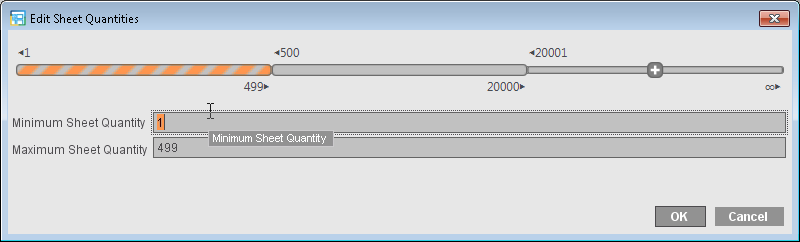
When you add a "Volume Use" or "Multiple 1ups" rating criterion, the "Edit Sheet Quantities" or "Edit Delivery Quantities" dialog opens automatically.
If the minimum value set is "1" and the box for the maximum value is left empty, then the criterion is valid for the whole range, irrespective of the production quantity/delivery quantity. In this case, you cannot create another criterion of this type.
The set range is hatched.
If only a certain range is set, e.g. a volume ranging from 500 to 20000, you can specify other criteria of this type for the remaining ranges by clicking the plus button again.
When it opens, the dialog then shows the range with a set criterion and you can no longer link this with the new criterion.
The ranges not yet linked to a criterion are indicated by a plus sign. Within the ranges not yet used, you can select subranges for the new criterion by entering a minimum and maximum value or for the whole range by clicking the plus button.
When you click the filter icon in a criterion, the "Edit Sheet Quantities" or "Edit Delivery Quantities" dialog also opens and shows the hatched range set for this criterion.
|
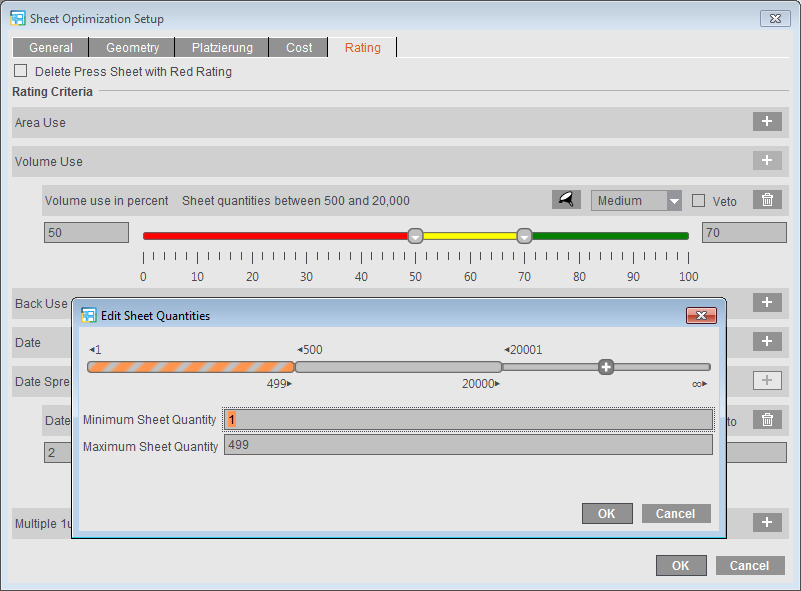
In the "Rating" tab, you can set thresholds for a "yellow" traffic light state and a "red" traffic light state.
The slider has two handles, only one of which can be active at a time. The active handle is highlighted by a colored border. A handle becomes active by moving it, by a click on it or a click in the relevant text box.
In addition to moving the active handle, you can change its position by clicking somewhere on the slider.
Use the left handle to change the threshold for the red state and the right handle to change the threshold for the yellow state.
The positions of the slider and the values in the text boxes correspond to each other.
Rating results
Note: For Sheet Optimization without Layout Default, the percentage for the rating result refers to the whole press sheet. For Sheet Optimization with Layout Default and Sheet Optimization for Packaging, the percentage refers to the default layout or cutting die. In other words, a completely filled layout produces, for example, an area utilization of 100% even if the whole press sheet was not used. This rating, varying according to optimization type, is applicable for all quality criteria except for date spreading.
The traffic light position and the values display in the press sheet lists of the HTML report and in the "Results" step. The "Rating" in the report is equivalent to the overall rating that is calculated from all defined rating criteria according to the degree of their weighting.
The results for each single quality criterion defined also display in the press sheet list and in the report. The "Multiple 1ups" column can display several times if the criterion is defined for different delivery quantities. The "Volume Use" criterion can also be defined several times (for different sheet quantities), but it always only displays once (volume use matching the optimized sheet).
Display in the "Results" step in the press sheet list:
Note: To view the criteria in the report, you must add the criteria to the table of the press sheet list with "Select Columns". In this case, only the columns where criteria are also enabled display.
Display in the HTML report:
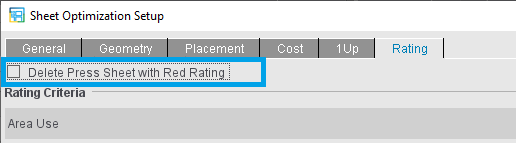
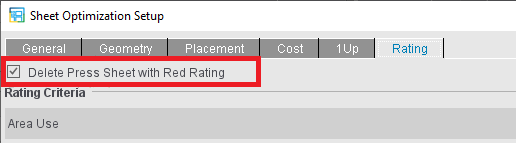
Delete Press Sheet with Red Rating
If "Delete Press Sheet with Red Rating" is enabled, press sheets that are below the left threshold, i.e. in the red, are removed automatically from the gang job.
During optimization, a warning message is issued and the removed jobs are highlighted accordingly in the "Results" step in the "State" column in the 1up list:
Using the Optimization Settings
To define settings for ganging optimization that make sense, you must first decide which priorities you have:
Option 1: Process all imported jobs
If all jobs imported from the gang pool are definitely to be processed, both options "General > Only One Press Sheet" and "Rating > Delete Press Sheet with Red Rating" must be disabled in the sheet optimization setup (default setting for a new job).
Optimization then runs essentially on a cost basis and all gang parts are placed. Although any quality criteria set are assessed and the results shown, they have only a lower priority during optimization.
Option 2: An optimal press sheet
You want to create just one press sheet from the mass of imported gang parts that will be used optimally based on certain quality criteria. Enable "Only One Press Sheet" in the "General" tab and define the quality criteria that are important for you.
During optimization, a press sheet will be created that selects those gang parts that will give you the best possible overall rating, matching the enabled quality criteria (the cost for paper and plates are assessed in this process but are only of minor importance for optimization). Gang parts not used in this case are found again in the gang pool and must be processed in another print job.
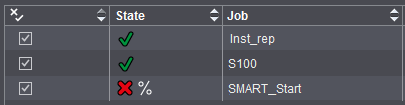
You will see a message, informing you that not all of the jobs were placed and the jobs not used will be tagged by a red cross in the list.
Option 3: Best possible utilization of all press sheets
You want to have the best possible utilization of the press sheets based on quality criteria and process as many gang parts as possible, but it is not absolutely necessary that all the gang parts are placed. Enable "Delete Press Sheet with Red State" in the "Rating" tab and define the quality criteria that are important for you.
During optimization, several press sheets may be created based on these criteria. Whenever a sheet has a red rating in the overall rating or in a criterion defined as "Veto", the sheet is rejected automatically and the gang parts are returned to the gang pool.
You will see a message, informing you that not all of the jobs were placed because of the bad rating and the jobs not used will be tagged by a red cross in the list.
Note: You will find an overview about working with the rating criteria in the video tutorial called How to control ganging optimization with rating criteria.
Notes
Costs are included also during optimization based on quality criteria. However, it is possible that the costs determined are higher than with a pure cost-based optimization.
If "Use Optimization Parameters from Plate Template" is enabled, it is still possible to work also with the rating criteria.
Combination of "Only One Press Sheet" and "Delete Press Sheet with Red Rating"
Exactly one press sheet will be created if you enable both "Only One Press Sheet" and "Delete Press Sheet with Red Rating". However, if this best possible press sheet does not meet your quality criteria (= red overall status), this press sheet will also be rejected. This means that no press sheet will be generated and you will see a warning.