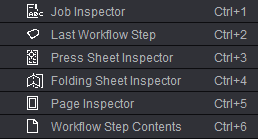
Where You Can Select Inspectors
•In the menu bar > "Inspectors".
•In the Browser window with a double click on a folding sheet, press sheet or page. Select a press sheet or folding sheet and invoke using the context-sensitive menu.
•In the graphic window in the "Press Sheet" and "Folding Sheet" tabs using the context-sensitive menu. Selection of a region and double click (e.g. on a press sheet).
•In the list window in the "Press Sheet" and "Folding Sheet" tabs, select a row in the list and invoke using the context-sensitive menu.
There are eight inspectors. Each inspector has its own special task.
You can, of course, make changes to single elements in the Folding Sheet, Press Sheet or Page Inspector and then apply them to all the elements in the product part. A summary of the details can be found in the following inspector descriptions:
The Job Inspector is found in the "Job" step in the workflow bar.
For more details, see Job (Administrative Data) .
Details about the folding sheet/folding scheme. You can enter/change some of the parameters such as the folding sheet name, positioning, sheet sizes and page spacing and gaps.
You can copy settings of the current folding sheet to similar folding sheets.
Details about the marks on the folding sheet are also displayed. You can add, change and delete marks.
For more details, see Folding Sheet Inspector .
Details about the assembly block and 1up. You can enter/change some of the parameters such as the assembly block name, copies, positioning, 1up format and placement rules.
Details about the marks on the assembly block are also displayed. You can add, change and delete marks.
Cut marks can be created automatically.
For more details, see Assembly Block Inspector .
Details about the press sheet. You can enter/change some of the parameters such as the sheet name, plate width, press sheet data like the number of colors used, selected template and paper sizes and center offset.
In addition, there is a list with the folding sheets/assembly blocks assigned to the press sheet and their details.
You can copy settings of the current press sheet to similar press sheets.
Details about the marks on the press sheet are also displayed. You can add, change and delete marks.
For more details, see Press Sheet Inspector .
The Press Sheet Inspector has an option for modifying the defaults of versions for output if you have jobs with different versions. See Version Preallocated for Versioned Output (Versioning Only) .
Details about the trim size, about working with different layers and creeping.
Automatic customization of the bleed if there are several folding sheets/assembly blocks.
Individual placement options for page and 1up contents.
You can copy the placement settings of the current page to all pages of the product part.
Details about the marks on the press sheet are also displayed. You can add, change and delete marks.
For more details, see Page/1up Inspector .
The Document Inspector is found in the "Contents" step in the workflow bar.
Details about the PDF documents assigned to the job, e.g. name, size, number of pages and separations in a document.
Details about the trimmed size and separation colors for every data page.
Placement rule in the placeholder (offset, orientation).
See 'Packaging', 'Article', 'Optimization', 'Results' Steps.
See Version Cluster Inspector .
Parameters of the Inspectors in Signa Station
The inspectors are important control elements for editing a job in Signa Station. The changes you make in the inspectors always affect all the parts in the job.
You can find some parameters at several different places, for example, data about the folding sheet/folding scheme or press sheet/plate:
•In the relevant inspectors, e.g. Folding Sheet Inspector, Press Sheet Inspector
•In the workflow bar, for example, in the "Schemes" and "Plates" steps
You can create a new job only using the workflow bar. You then use the inspectors to check and correct your data or make additional specific settings.
Naturally, you can also create just one part of the job and generate certain parameters later with the Folding Scheme Editor and add them to the job, for example, a new folding scheme.
In addition, you can also turn an existing job into a new one with the inspectors. As you can see, you use them as it suits you.