
The workflow bar shows you the steps required for creating and editing a job in a logical order from left to right. You start creating a job in the first step, "Job".
The workflow bar presents you with all the relevant parameters in their turn. You can check and/or correct the parameters entered at any time with a click on a step in the bar.
The "From Template" folder buttons allow you to use existing resources at any time, for example, jobs, product parts, customer data, page sizes, plate templates and folding schemes. See also Resources and Machines .
To open the workflow bar to create a new job:
•Start the workflow bar by selecting "File > New" or simply clicking the "New" button. The workflow bar opens:

•with its window:

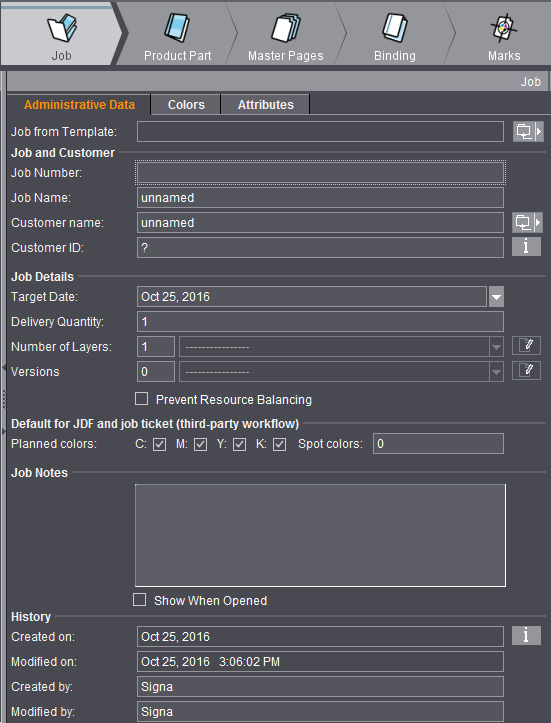
The first step in the workflow bar is "Job". This is where you enter the administrative data for the job; you can find a description of the steps and their order in Possible steps and order in the workflow bar.
Simply mark the product part in the Browser window with a click and edit it in the steps of the workflow bar.