
Privacy Policy | Imprint | Prinect Know How | Prinect Release Notes
Assign Pages or Page Lists for Output with a PagePrint Sequence
 Prerequisite: The parameters for the sheet layout can be configured after the pages are assigned. See Setup of the Parameters for Imposition, Color and Output. The changes are shown in the preview area straight away.
 Note: In the Pages Lists or Documents view, you can open single pages in Acrobat with a double click or with "Open" in the context menu. This requires that Acrobat is installed on the Cockpit computer currently used and set correctly in the Preferences. See Local Applications.
Note: A "Continue Page Processing" dialog box may appear before opening in Acrobat. You must confirm this dialog with "OK" to open Acrobat with the respective content. In this context, the "OK" button may be inoperable. This is because the "Enable Protected Mode at startup" option is enabled in the Acrobat Preferences > "Security (Advanced)". This option must be disabled if you want to open PDF documents from Cockpit. After an update of the Acrobat software, this option may be automatically enabled again. In this case, you must disable the "Enable Protected Mode at startup" option again in Acrobat "Preferences> "Security (Advanced)".

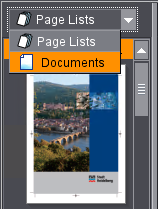
1.On the left of the "Digital Printing" window there is a list box where you can select what kind of page elements will be assigned to the sheet layout.
You can choose between the following types of assignment elements:
•Page lists
Select this option if you assigned the document pages to a page list in the previous "Pages" step.
Using page lists is recommended if you want to use a "PagePrint" sequence template as a basis for your digital print job and if the original order of the pages from the PDF documents is to be changed.
Note: If you wish to use sheet layouts created with Prinect Signa Station or the Prinect Imposition Editor and, consequently, use an ImposedPrint sequence template for the digital print job, page lists are found in the sheet layout files and the sheet layout displays on the left below the "End product" header. In this case, the pages are assigned in the "Imposition" step. See Adding sheet layouts to a job and assigning pages.
You can use page lists even if the pages are in several PDF documents and all the pages are to be output in one print job. In this case, use the "Pages" step to create a page list that contains as many pages as are going to be printed on the whole, and assign the respective pages to the page list.
•Documents
Select this option if the pages were not assigned to a page list (the order of the pages is then taken from the original PDF document) and if all pages to be output are in one PDF document.
•Documents with data records:
Documents that are available as PDF/VT files and contain one or more data records are also selected as "Documents". The data records display as a substructure. In addition to the name of the main document, the number of data records in it also displays.
Note: Page lists cannot be used if documents with data records are to be processed. The pages are always assigned via the "Documents" item in the list box.
2.If you selected an item, then the assignment elements (page lists, documents, data records) in the print job are listed in the window below the list box. There is a small triangle icon in front of these entries. You can click the icon to display the separate pages (Drop-down list)

3.Pages are assigned to the sheet layout simply by clicking a page in the relevant assignment element (document, data record or page list). At that point, all pages contained in the assignment element are automatically placed on the sheet layout in the order in which the pages are arranged in the document, data record or page list. The layout on the sheet is determined by the layout parameters selected in the "Layout settings" tab. See "Layout settings" tab.
The number of required surfaces is also calculated from the selected layout and automatically set. Example: A PDF/VT file has six data records, each with four 1ups. If "Double-sided" is selected as the layout and two 1ups are placed in each case on a surface, then six sheets are automatically provided. The 24 1ups are divided up as follows: two 1ups per surface, two surfaces (front and back) per sheet result in six sheets. Twelve sheets are the result if a single-sided layout is selected. The total number of all sheets displays in the preview in the label below the surface displayed.
Note: It is possible that you have PDF/VT files to be output that cannot be processed by Prinect Production although they comply with the PDF/VT specification. If such a file is loaded, this is indicated by a red "X" in the top left corner. You cannot submit these files. The following error cases will be detected:
•The PDF contains pages that are not assigned to data records.
•The pages within the data records are not sequential.
•The number of pages in the data records are different.

Note: You can only ever assign one assignment element, i.e. one page list or one document, to a sheet layout. If you wish to assign the pages of several documents, for example, to one sheet layout, you can use a joint page list for these documents.
Privacy Policy | Imprint | Prinect Know How | Prinect Release Notes