
Privacy Policy | Imprint | Prinect Know How | Prinect Release Notes
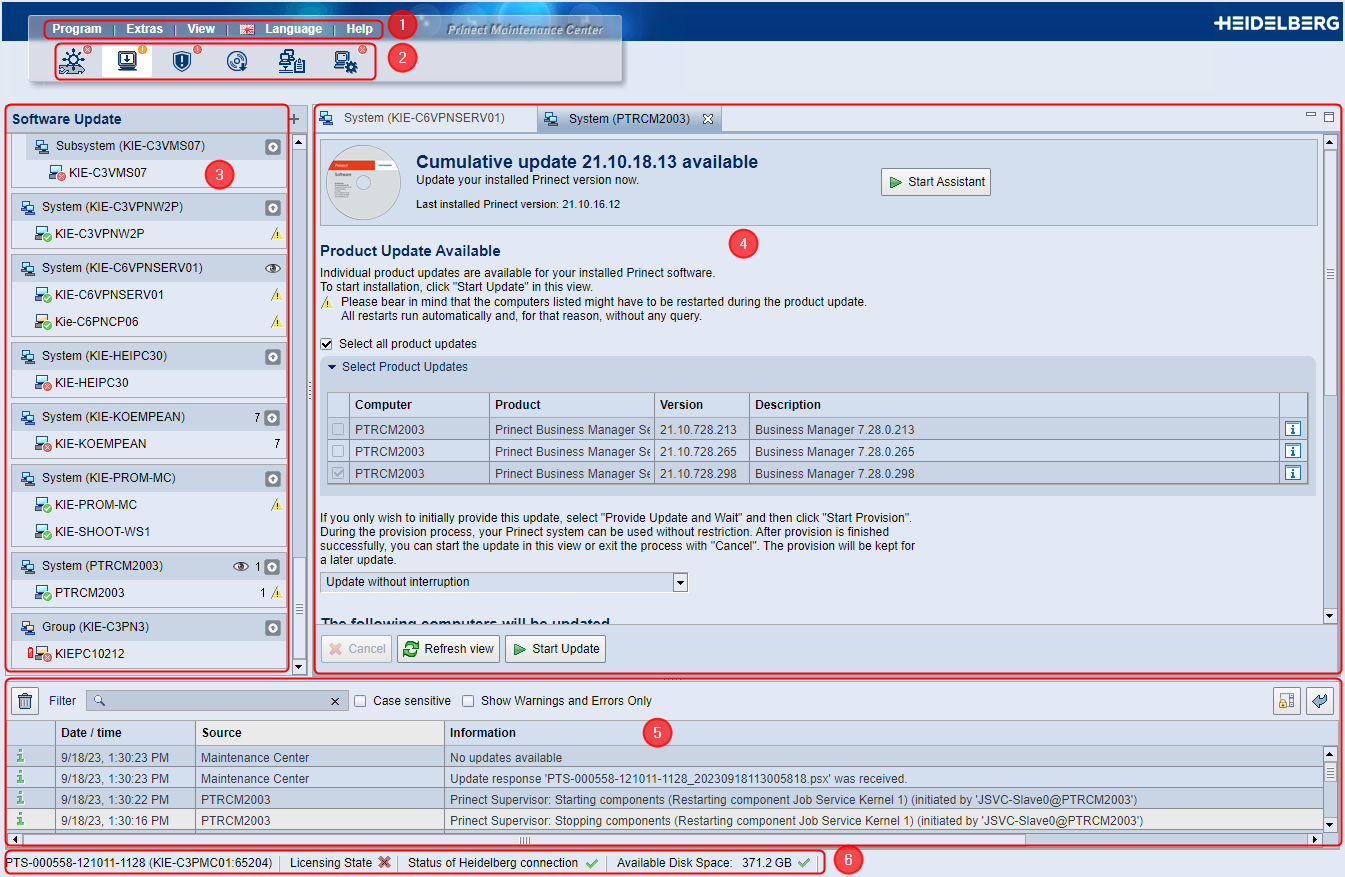
The PMC web user interface has the following elements:
(1) Main Menu: | You can call up various functions here, e.g. change the language of the user interface or call up the Online Help. The menu item "Extras" offers further information and setting options: •Search for New Software Use this to trigger an immediate scan for new software. •Loaded Software All software products or update packages that are installed and are scheduled for installation are displayed here. •Data Transfers All update packages that are currently being downloaded are shown here. •Licensing State Here you can get an overview of the licensing state of the installed Prinect components. This is where you can also extend the operating license for online licensing if applicable. •Starting the connection test With the connection test you check the status of the HEIDELBERG Connection and the connection to HEIDELBERG Customer Portal. You can also start the connection test in the "Administration > HEIDELBERG Connection" area. •Send Message Here you can enter a text message and broadcast it to selected computers in the Prinect system environment. •Download HTTPS certificate. You need so-called "certificates" separately issued for every HTTPS server to use the secure HTTPS connections. With this function, you can download the required certificates from Prinect Software Center to the local computer. |
Here you toggle between the different views of the user interface: •Prinect Supervisor: Here you can start or stop the Prinect components for the connected computers via the respective Supervisor. Here you can also check whether certain components cannot be started because, for example, corresponding licenses are missing. •Software Update: Indicates whether software updates (system upgrades, cumulative updates, product updates) are available. You can also start the update process here. •Security Advisor: The Security Advisor checks the computers connected to Prinect Maintenance Center for security issues and provides recommendations on how to resolve these issues. •Product Installations: All product installations available in the HEIDELBERG PSC are displayed here, sorted by versions. Use the "Make Available" button to download the installation packages from the PSC to the local PMC repository and make them available for local installation. •Computer Inventory: Here you can find information about the following properties of the Prinect computer selected in the navigation pane: Hardware, Network, Software, System. •Administration: Here you can manage the following PMC properties: HEIDELBERG Connection, Computer Connections, Outgoing E-Mail, Settings. | |
Displays all the Prinect computers, systems, subsystems, and groups in the local network environment. The navigation pane is available in the views "Prinect Supervisor", "Software Update", and "Computer Inventory". Here you select the Prinect computer you want to edit. | |
The details and possible settings of the selected Prinect computer selected in the navigation pane are opened here. If you select several computers in succession, a corresponding number of tabs are opened in the detail area. There is no navigation pane in the "Product installations" and "Administration" views, so the detail area takes up the full window width. | |
(5) Message Area: | Messages about currently running processes are displayed here. This includes messages about running installations, error messages, warnings, or status messages. |
(6) Footer: | Information about the PMC server, the licensing status, the status of the HEIDELBERG Connection, i.e. the connection to the HEIDELBERG Prinect Software Center, and the free disk space on the PMC server are displayed here. This information allows you to estimate whether there is enough space in the PMC repository on the hard disk for more software downloads. The entries in the footer are designed as operable controls. |
Change the size of the navigation and detail areas
You can hide the navigation pane and zoom in on the detail area, or vice versa. The corresponding buttons are located in the upper right corner of the detail area.
| Clicking this button hides the navigation pane and enlarges the detail area accordingly. |
| Clicking this button hides the detail area and enlarges the navigation pane accordingly. |
Clicking this button restores the windows to their original size. |
You can find these buttons in all views where a navigation pane is available.
Tabs in the detail area
In the views with a navigation pane, clicking an item (computer name, computer group) in the navigation pane opens the corresponding content in the detail area. If you then click another item, a new tab for that item will automatically open. If necessary, you can close individual tabs again by clicking on the "x" in the "index tab".
Identification of special situations
The following symbols identify special situations in the PMC:
 Note: After the PMC software update, the PMC may enter Maintenance Mode (switching to Maintenance Mode is the exception). Now you need to set up the PMC. To do so, launch the Setup Assistant. See PMC Setup.
You can invoke the Online Help with the Help command in the Main Menu. You can then find the information you want using the table of contents, the index or the full text search.
The Online Help is displayed in a separate Internet browser tab that opens.
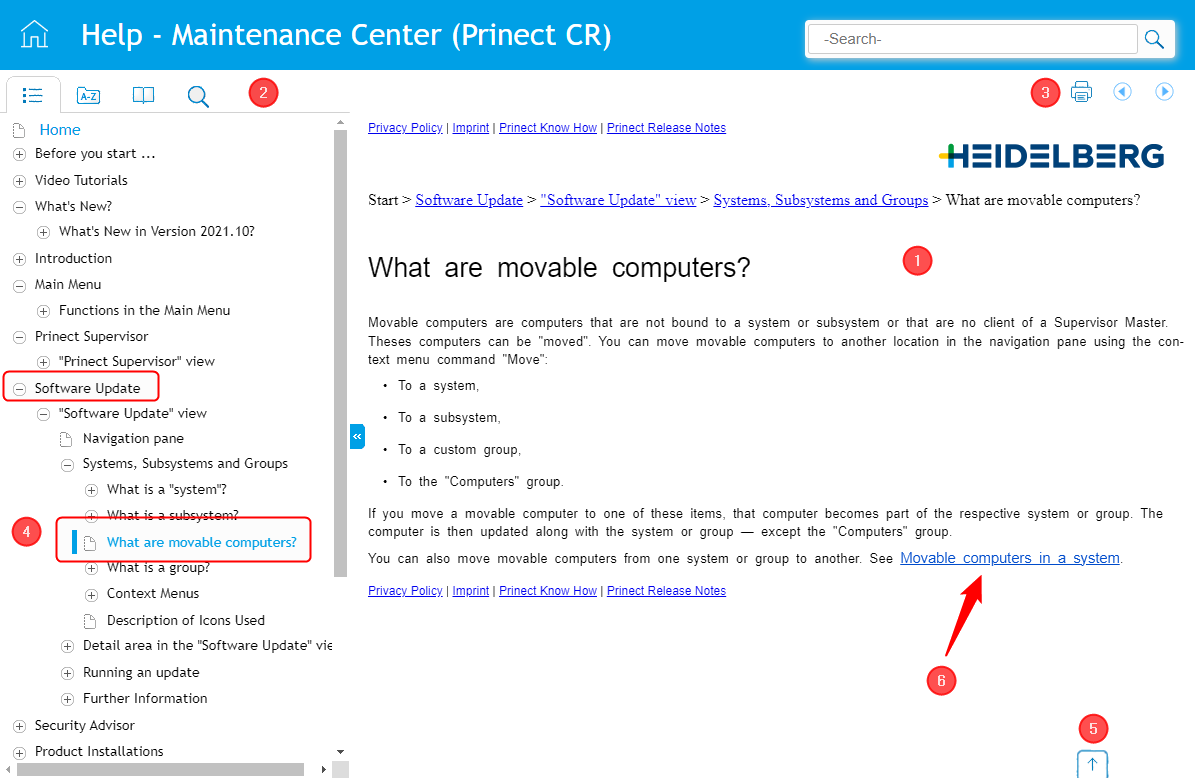
The Online Help window has the following structure:
•The content pane (1) shows the Help content. The content can consist of text, tables, images or videos.
•The buttons for toggling between the "Contents", "Index", "Glossary", and "Full Text Search" functions are located on the left of the navigation bar (2).
•The buttons for scrolling forwards and backwards in the content pages and the button for printing the current content page are located on the right of the navigation bar (3). You will find a box for a quick search in the caption bar. The quick search works in exactly the same way as the search function in the navigation bar. The Print function and Quick Search are available only in the Large desktop view.
•The table of contents displays by default in the navigation pane (4). You can view a content by clicking the related line in the table of contents. You can expand lower levels in the content by clicking an icon in front of an item (circle with plus sign). Click again to close the expanded section. The currently selected content is highlighted by a blue flag in front of the content item in the Table of Contents.
•You can scroll in the content pane if the Help content is longer than can be shown in the pane. You can go to the start of the current Help page fast with the "Go to start of page" button (5).
•Blue underlined text (6) is a hyperlink. You can jump to the related page by clicking the hyperlink.
Display of the whole table of contents
When you launch the Online Help, the table of contents may display incompletely (depending on the size of the Browser window) and may only show the section relating to the current content. This is also valid if you use Help on a mobile device and a Help content page was already invoked on it.
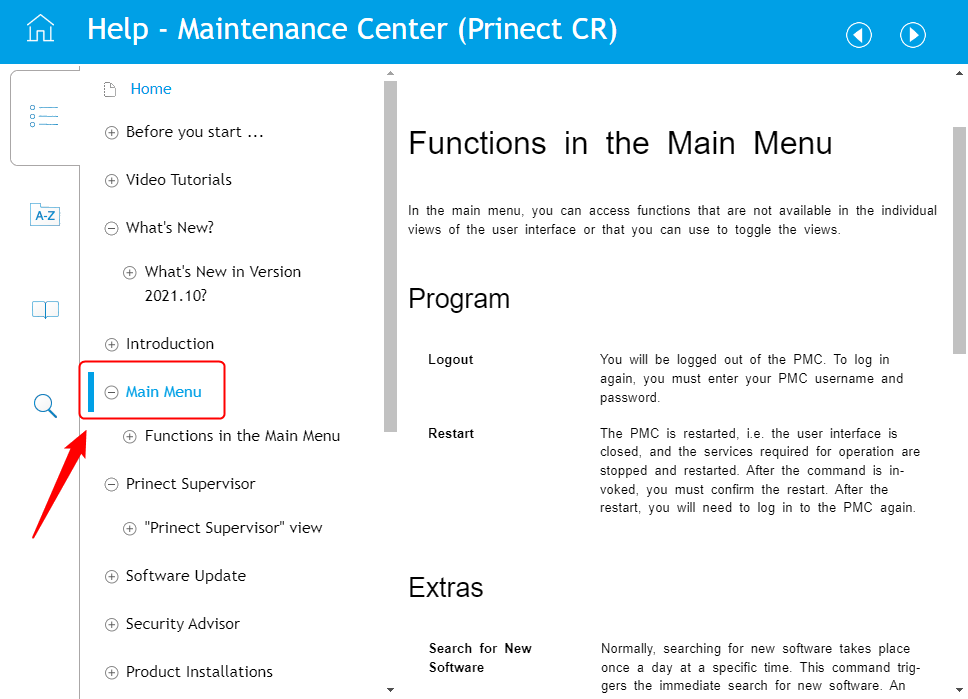
In some Help versions, only the content of the current section may display in the table of contents. To display all of the contents in cases like this, click the small folder icon in front of the topmost item in the Table of Contents (not on the content text itself). Depending on which content level the invoked page is on, you may have to repeat this process once or several times to display the entire contents.
Home button
| Click the Home button in the caption bar to open the home page of the Online Help. |
Navigation bar - Function selection ribbon
You use the function selection ribbon to toggle between the "Contents", "Index", "Glossary", and "Full Text Search" functions. The content of the Navigation pane changes accordingly when you click one of these buttons.
| Contents: The table of contents displays. When you click an item, the related content page displays. You can open lower levels by clicking the icon (circle with plus sign) in front of an item and close them by clicking the icon again. |
Index: A list with keyword (index) items displays. When you click an item, the related Help content displays. | |
| Glossary: A list with glossary items displays. When you click an item, the related definition of the term displays. Click again to close the definition. |
| Search: A text box displays where you can enter a search item. When you hit the ENTER key, all Help pages containing the search item are listed in the navigation pane. When you click an item, the related content displays. The search item is given a colored background. |
| The search window also displays at the top right in the caption bar in the Large view of the desktop Help (Windows, Mac OS). |
Navigation bar - Navigate and print
You will find the buttons for navigation and printing on the right of the navigation bar.

| The arrow buttons let you move forward and backward from one content page to the next. This means that you can browse through the whole Online Help from page to page like a book. |
| You can use the "Print" button to print the current Help window to a connected system printer. This function is available only in the Large view in Windows and Mac OS. The printout can have several pages depending on the content of the Help window. |
Referral to the Prinect Know How website
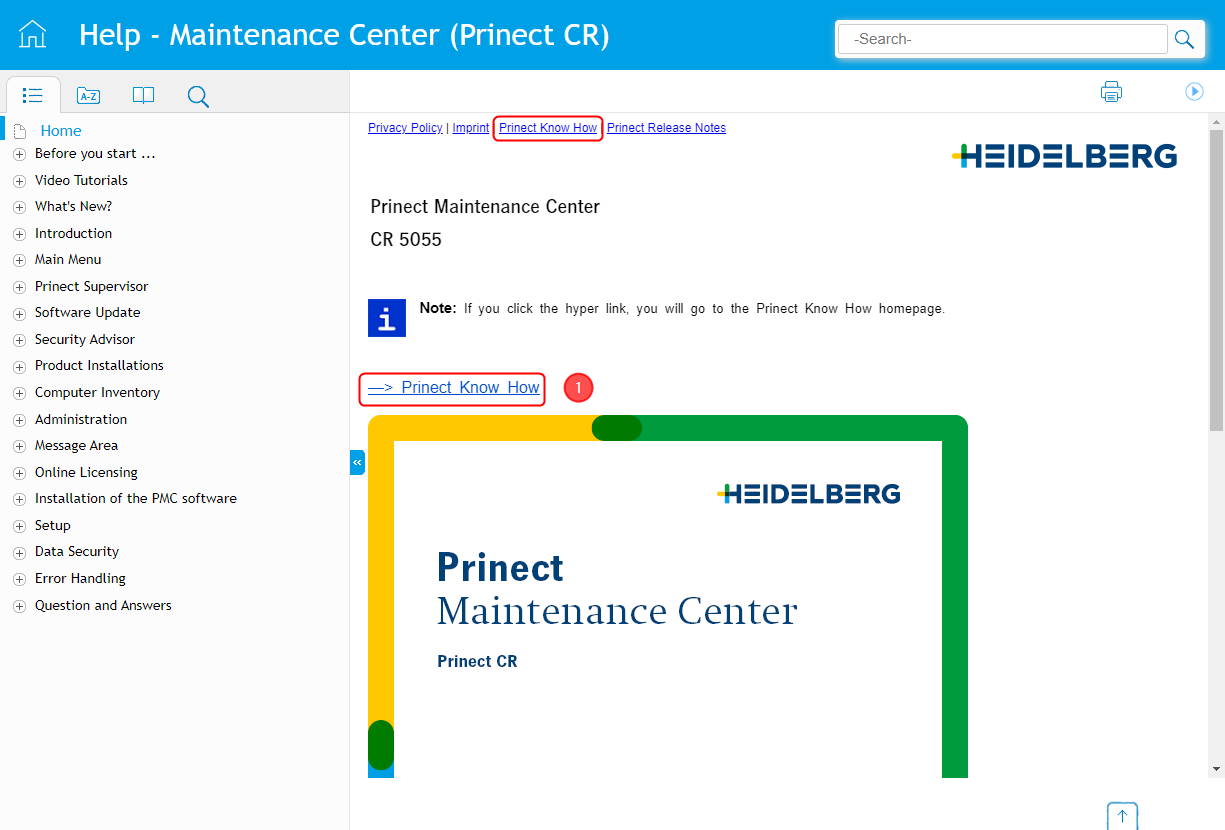
The third link at the top of the table of contents, "Prinect Know How", points to the website of the same name. This is where you have access to other information related to Prinect products:
•PDF documentation
•Video Tutorials
•Online Helps on other Prinect products.
You can also reach this website in the Online Help as follows:
•Using a hyperlink (1) on the title page or
•By clicking the "Prinect Know How" item in the header or footer of each Online Help page.
Set up Prinect Know How as a desktop icon on mobile devices
You can set up the Prinect Know How website as a desktop icon on mobile devices (Android and IOS), allowing you to access the documentation at any time. Proceed as follows:
Android:
1.Open the Prinect Know How website in the Android Internet app:
https://onlinehelp.prinect-lounge.com/App/App_start/index.htm.
2.Select the desired language.
3.Select the desired Online Help (for example Prinect Maintenance Center> [version]). The respective start page opens.
4.In the top right corner of the browser window, open the "More Options" menu (three dots or lines one below the other, depending on the Android version):

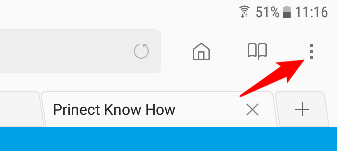
5.Choose "Add to Home screen" or "Add Page to > Home screen" in the menu.
IOS:
1.Open the Prinect Know How website in the Safari app:
https://onlinehelp.prinect-lounge.com/App/App_start/index.htm.
2.Select the desired language.
3.Select the desired Online Help (for example Prinect Maintenance Center> [version]). The respective start page opens.
4.In the top right corner of the Safari window, open the "Share" menu:
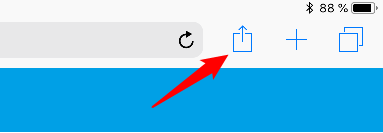
5.In the settings (swipe to the side in the second row), look for "To Home Screen" and tap this icon.
Back/forward one step (only for desktop version)
You can use the "Back one step" and "Forward one step" navigation buttons of the web browser (like for other Internet contents) to scroll through the Help pages you opened so far.
The Online Help is designed as "Responsive Help". In other words, the structure of the Help window changes to fit the given width of the browser window. If the browser window is wide enough (Large desktop view), the navigation pane on the left (with contents, index, etc. depending on what is selected) displays permanently. The Print function is also available in this view. The navigation pane will be hidden from a specific value onward if the window width is reduced or Help is viewed on a tablet. The navigation bar with the buttons for toggling between contents, index, glossary, filter, search displays vertically on the left edge of the window. The content of the navigation pane displays or changes accordingly when you click one of these buttons. Click again to close the navigation pane. If the browser window width is reduced even further or if Help is viewed on a smart phone (in landscape orientation), the navigation bar is reduced and displays at the bottom window margin.
Note: Elements in the Help window (e.g. graphics and videos) are matched dynamically to fit the size of the window.
Remember that some elements (e.g. Print function) are available only in the Large desktop view. The last window size set is retained after you close the window.
Privacy Policy | Imprint | Prinect Know How | Prinect Release Notes