Privacy Policy | Imprint | Prinect Know How | Prinect Release Notes
The "Prinect Supervisor" is a software module that monitors, starts and shuts down the Prinect software components (services) installed locally on the respective computer. The Prinect Supervisor operates according to the master-slave principle.
•The Supervisor Master can control components both on the PC where it is installed and on other PCs where other Prinect components are installed.
•Supervisor slaves are installed on computers that are connected to and controlled by the Supervisor master computer.
For example, a Supervisor master of a Prinect Production server controls the Supervisor slaves of the connected Prinect Renderer and Prinect Shooter computers. The Supervisor master also controls the stopping and starting of the Prinect components on the Supervisor slave computers.
How is the Supervisor structure formed?
The Supervisor structure is formed during installation of individual Prinect products. During installation, the Supervisors of the respective components are installed. The type and configuration of the Prinect software in the system environment determines, which Supervisors are assigned the Master Supervisor role and which become a Slave Supervisor.
"Prinect Supervisor" User Interface
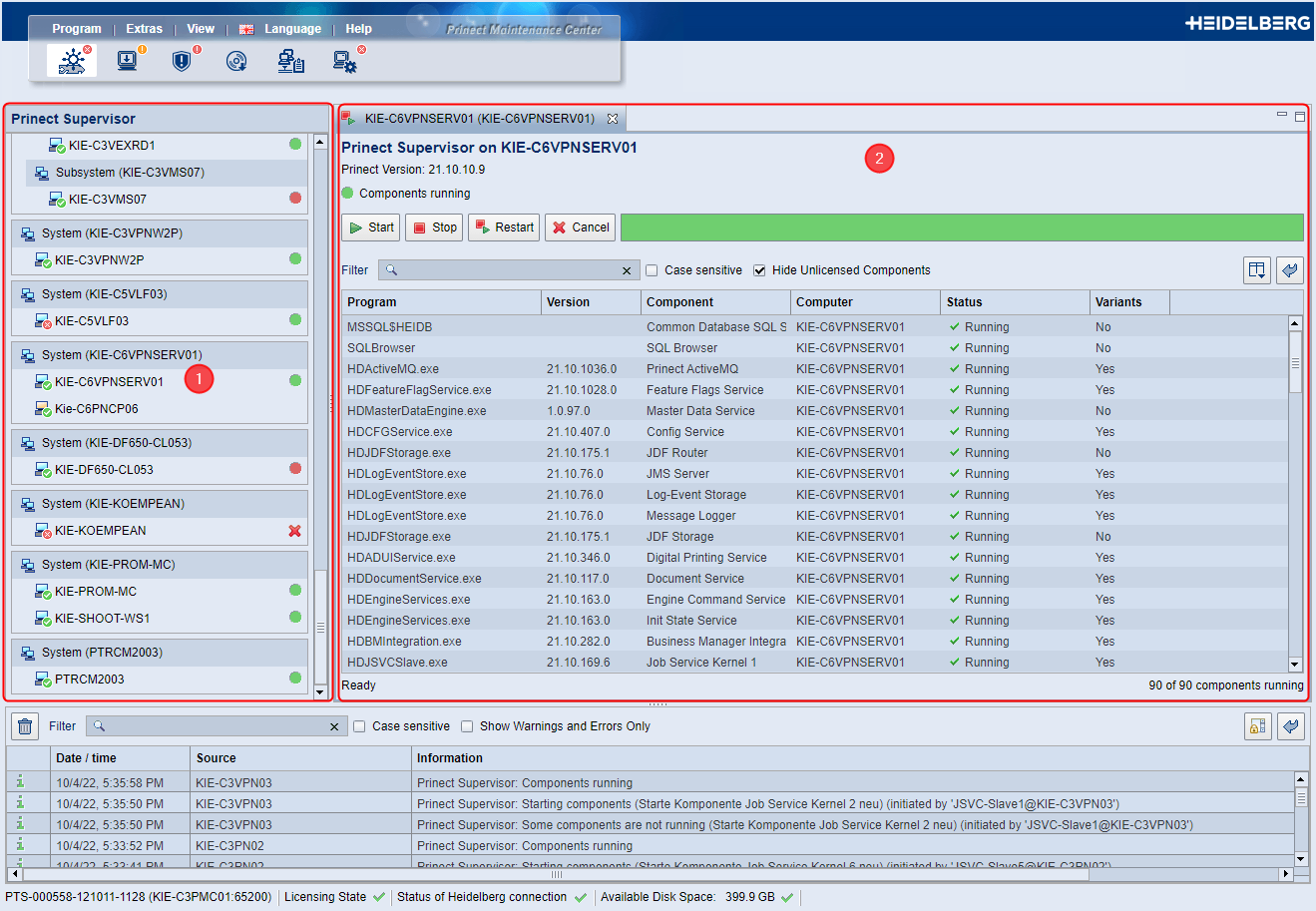
In this view, you control the Supervisors of the Prinect computers. The view is divided into three sections:
•Navigation pane (1)
•Detail area in the Supervisor view (2)
The navigation pane of the Prinect Supervisor view displays all computers in the network system environment the PMC can access and connect to. This includes computers that do not have a Prinect Supervisor installed.
Computer Categories
| Movable Computer Individual computers with Prinect software (e.g. Prinect Signa Station) installed that are present in the local network environment are identified by a computer icon with an ocher monitor. These computers are defined as "movable," which means that these computers can be moved to a system, subsystem, or custom group using the "Move" context menu command. Conversely, movable computers can be moved from one group or system to the "Computer" group or another group or system. Movable computers can be moved. |
| Computer bound to a system Computers that are bound to a system, for example Cockpit client computers logged in to a Prinect Production server are displayed with a computer icon containing a blue monitor. Computers bound in a system cannot be moved out of the system. Computers bound to a system cannot be moved. |
| System A system is a cluster of computers that contains a Prinect Production server as "center". The software applications of a Prinect Production are often installed and distributed among several computers. A software update always applies to the entire Prinect Production system, not to separate software applications. When a software application of a system is to be updated, all interdependencies with the versions of the system’s other software applications are considered automatically and also updated. This is necessary to prevent different update states that do not match each other from occurring within a Prinect Production workflow, making the Prinect software applications not (or no longer) functional. See Systems, Subsystems and Groups. In the navigation pane, Prinect Production servers are given the "System" property: System (computer name). Movable computers that have been added to the system can be moved and removed from a system. You cannot move computers bound to a system that have dependencies with other computers on the system. |
| Subsystem In some Prinect configurations, a system may contain one or more subsystems. The subsystem(s) can be updated independently of the main system update. See What is a subsystem?. Subsystem computers and computers bound to a subsystem cannot be moved. These computers can be updated independently of the main system. |
| Custom group You can create your own groups of movable computers. The computers included in a group are simultaneously updated by the PMC. See Create a custom group. |
| "Computer" group The "Computer" group is a pre-installed group that contains all movable computers that are not members of another group or system. This group serves as an "assembly point" for computers that are not assigned elsewhere. |
| Computer is connected The computer is connected to the PMC on the network. |
| Computer is offline The computer is not connected to the PMC at present. If necessary, check and correct the connection in the "Administration > Computer Connections" view. See Computer Connections. |
| The PMC is currently checking the computer This state is displayed until the license data and the position of the computer in the Prinect structure (part of a system, subsystem, group, or movable computer) are known to the PMC, or if there is an interruption of the connection for a period of two to four minutes. When the required information has been determined, the status changes to "Connected". If this information cannot be determined within a certain period of time, the status changes to "Offline". |
| PMC computer A computer that has the Prinect Maintenance Center software installed is identified by an icon with an "M" on the monitor. |
| The computer is in the sleep mode. The computer is not running. |
| The computer is running on battery power (notebook). No update is possible in battery operation. |
| The computer is rebooting During rebooting, the computer is temporarily disconnected from the PMC. |
Status Panel
Each computer displayed in the PMC is connected to the Local Information Service (LIS) via the installed Prinect software, as this is a prerequisite for a computer to be managed by the PMC. The Supervisor determines the status of the respective Prinect components. All computers running a Supervisor Master service are identified by a status icon in the navigation pane. The following statuses can appear:
| All Prinect components controlled by the respective Supervisor have been started. |
| The Supervisor is available, but not all Prinect components are started because: •Several or all of the Prinect components have been stopped, •The respective computer is shut down, •Starting or stopping some components has failed. The tooltip of the status icon provides more information. |
| Almost all components are started, except those that are in the "Application Processes" level. |
| The system is currently being started. |
| The system is currently being shut down. |
| The Prinect Supervisor is not available. This condition can occur, for example, when the Prinect Supervisor is reinstalled or when there are problems with the connection to the PMC. |
Context menu in the navigation pane
You can invoke a context menu for each computer in the navigation pane. The context menu can contain the following items:
Send Message | The "Send Message" window opens. Here you can enter a text message and broadcast it to selected computers in the Prinect system environment. See The "Send Message" window. |
Show Prinect Supervisor | A new Supervisor Properties tab opens for this computer in the detail area. See Detail area in the Supervisor view. |
Show Inventory | The view changes to the "Computer Inventory" view and shows the inventory of the respective computer. See "Computer Inventory" View. |
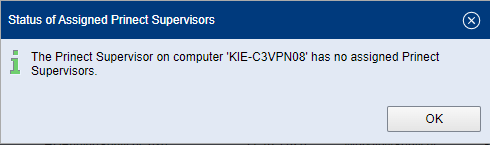
Status of the assigned Prinect supervisors | If one or more other computers with a Prinect Supervisor installed are assigned to the computer, a window displays the status of the assigned Supervisor(s):
|
Start Related Prinect Supervisor Services | The Prinect Supervisor services (components) are started. This function corresponds to the "Start" button. See Stop, start, restart all Prinect components. |
Restart Computer | The selected computer will be rebooted. |
Shut Down Computer | The selected computer is shutting down. |
 Note: Not all context menu commands are available for all computers or groups. This depends, for example, on whether a Supervisor is installed on the computer in question or whether the computer is connected to the PMC. Only the "Send Message" command is available for group items.
Detail area in the Supervisor view
Here you can view the properties or components of the Supervisor installed on the selected computer and operate the Supervisor. See Stop, start, restart all Prinect components.
Version display
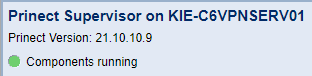
The current Prinect software version installed on this computer is displayed below the computer name. If a cumulative update has been installed, the version of the most recently installed cumulative upgrade is displayed here. See also Perform a cumulative upgrade.
Open tabs
If you click the appropriate entry in the navigation pane for a computer with a Supervisor installed or use the "Show Prinect Supervisor" context menu command, a tab with the Supervisor data relating to the computer in question opens in the detail area. This opens a separate tab for each Supervisor.
Close tabs
You can close the tabs by clicking "x" in the "index tab".
Columns in the components table
The Prinect Supervisor view displays a table of components (Prinect services) controlled by the selected Supervisor. The table has the following columns:
Column | Property |
|---|---|
Component | Name of the component. |
Executable | Name of the executable program, e.g. *.exe. |
Version | Component version. |
Each component is assigned a so-called "level". The levels determine the sequence when components are started and stopped. •All components of a level are always stopped or started together in a selection of components. The selection is highlighted red. Exception: Components of the "ApplicationProcesses" level can be started and stopped individually. •Stopping: The components with the highest level are at the bottom of the list of components. A selected component is to be stopped. If there are components with a higher level that are bound to the selected component, these components are stopped first. Only after that are all the components on the level of the selected component stopped if they are bound to this component. •Start The components with the lowest level are at the top of the list of components. A selected component is to be started. If there are components with a lower level that are bound to the selected component, these components are started first. Only after that are all the components on the level of the selected component started if they are bound to this component. | |
Computer | Name of the computer where the component is installed. |
Status | •"Stopped": Stopping of the components is finished. •"Failed": The component could not be started or stopped. •"Unlicensed": The component is unlicensed and cannot be started for this reason. •"Running": The component is running. Note: Details about the first process start that failed are shown for components that did not start. |
Message | This is where messages display that the respective components transmit to the Supervisor and consequently to the PMC. |
Type | Internal type designation of the component. |
Internal Name | The name of the component that is used internally in the workflow, for example, in log files. |
Component ID | Internal identification of the component, which also contains an association with the computer on which the component is running: Internal Name@Computer Name. |
Product ID | Displays an abbreviation for the Prinect product to which the component belongs, for example "PWF" for "Prinect Workflow" or "PCS" for "Prinect Common Services". This allows you to quickly identify which product the component belongs to. |
Process ID | It is feasible to have the Process ID displayed if you want to distinguish between processes bearing the same name (several "HDNormalizer.exe" files are often displayed at the same time, for example). Then you can use the Task Manager to specifically terminate processes that cannot be stopped in any other way, for example. The "Process ID" column is hidden by default. If necessary, you must use the "Select Columns" dialog and enable this column. See Select Columns. |
Variants | In this column, you can see whether the component supports multiple variants. See Multiple versions of components. |
Privacy Policy | Imprint | Prinect Know How | Prinect Release Notes