
Introduction to a Gang Job with Sheet Optimization
A "gang job" is designed to simplify the process of gathering folding sheets/assembly blocks/shapes from several gang parts. The gang job always uses one of the implemented multiple sheet optimizations. Gang job and sheet optimization are grouped in the "Ganging Optimization" work mode.
The elements/single jobs imported to a ganging optimization job are also known as "gang parts", the folders where these gang parts are found ready for import to a gang job are known as a "gang pool".
The results of sheet optimization differ according to the selected method. The following options are available:
•"Sheet Optimization without Layout Default"
•"Sheet Optimization with Layout Default"
•"Sheet Optimization for Packaging"
The "Gang & Sheet Optimizer" license is a requirement for using the gang job feature with automated sheet optimization.
Sheet optimization provides algorithms for the cost-effective placement of 1ups on one or more sheets. A considerable savings potential is often possible through optimization if you have different production quantities and 1up sizes.
The various cost data for sheet optimization can be set and saved in the job or in the resources. For more details, see Cost Data for Sheet Optimization.
This chapter describes the requirements for gang jobs, how to work with them and the kinds of sheet optimization as well as creating and editing gang jobs with Signa Station.
To create a gang job, the "Ganging Optimization" work mode must be enabled in the "Product Part" step in the workflow bar. The "Optimization" and "Results" steps that then appear are specific to the gang job.
Ways of Working with Gang Jobs
Basically, the kinds of gang jobs differ only in the following items:
•In the handling of the input data (move ("Ganging" button)/don't move (combi button)). As a result, all of the input data (gang parts) that are imported with the combi button can still be changed.
•In the type of input data that will be imported (gang parts). Possible formats are PDF, CAD and the "CSV/XML" reference file.
•With or without content. CAD is always without content.
"Ganging" button
In the "Optimization" step, you can import component jobs (input data) to a temporary gang job using the "Ganging" button. After you click the "Optimize" button, the component jobs are placed on the ganging sheets as set by the default and the data are moved after output.
Further details can be found in Ganging....
"Import PDF" combi button
The following features are available:
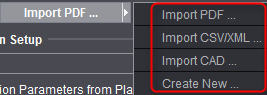
In contrast to the predecessor version, the documents are imported using the "Optimization" step and selecting the combi button for the relevant data format. If you import using the combi button, you can modify a gang job at any time and import and/or delete documents. You can place mixed data on the sheets and then save the gang job afterwards.
Gang parts are gathered in a set folder until you decide to output them. After the import of the gang parts, you can start an optimization run by clicking the "Optimize" button. After that, you can output the gang sheets.
A gang job as meant originally is usually only a temporary job. In other words, gang parts are gathered in a hotfolder and moved, copied or deleted after they are automatically output once (workflow: "Web to Print"). In the "Optimization" step, you can find this type using the "Ganging" button.
As a result of customer requests, there is a gang job also as a "normal" job. In the "Optimization" step, you can find this type using the new combi button. You can modify and save the gang job. This makes this workflow suitable for daily job processing.
The complex algorithms in optimization are integrated for both workflows ("Ganging" and "Combi button") and often find the more cost-effective and better placement on the ganging sheets.
After you define the structures and create a gang job, you can edit it further in the workflow bar.
Signa Station automatically detects an open gang job and, depending on the optimization selected, automatically adds the following tabs to the workflow bar:
•"Optimization"
•"Results"
•"Packaging" and "Marks"
The feature is described in the Optimization (Gang Job).
Note on Opening Jobs with Single Sheet Optimization from Predecessor Versions
•As of version 2019, the separate single sheet optimization was dropped. Jobs from predecessor versions that were created with single sheet optimization can be opened with Signa Station and, if necessary, converted. You can decide whether you want to open the job as a Montage job without single sheet optimization or as a new optimization job with sheet optimization.
·In the first case, the old layout stays as it is, a new optimization cannot be run.
·Optimization must be rerun when converting to a new optimization job with multiple sheet optimization. During conversion, it is assumed that it is a Montage job with single sheet optimization and one (!) product part. Any other product parts are ignored. The converted assembly blocks are added to the input list of multiple sheet optimization in the priority set in the single sheet optimization job.
Requirements for Creating a Gang Job
•You purchased the "Gang Assistant & Sheet Optimizer" license.
•When you create a job, select the "Ganging Optimization" work mode in the "Product Part" step and enable the type of optimization you want in "Sheet Optimization".
•Job description files as CSV or XML files and content files (PDF files) in defined structures must be available in order to work with the "Web to Print" workflow.
These data are generated and made available by the "MIS" or the Integration Manager in the "Web to Print" workflow.
•You can enable sheet optimization subsequently also for an existing job. Enable the radio button you want in "Sheet Optimization" in the "Product Part" step.
Types of Gang Jobs and Their Editing
"Product Part" Step in the Workflow Bar
When you select the "Ganging Optimization" work mode, the "Optimization" and "Results" steps display in the workflow bar and options for the kind of sheet optimization appear:
Sheet Optimization without Layout Default
This sheet optimization is the "default" and is shown in the Ganging Optimization with Sheet Optimization without Layout Default video tutorial. You will find a description of an example in Example for a Gang Job with "Sheet Optimiza-tion without Layout Default"
If the "Ganging with Segments for Finishing" additional license is enabled, you can also work with segments during sheet optimization without a layout default: Ganging Optimization with Segments
Sheet Optimization with Layout Default
To make work easier using standardized templates like business cards, postcards, CD covers, etc. where only the content changes, you can create predefined layouts and invoke them with this option. Optimization times are enhanced and production reliability is also greater.
You can view the following video tutorials for gang jobs in the workflow with a layout default:
Sheet Optimization for Packaging
Select this sheet optimization for working with cutting dies.