
The "Machines" tab is independent of the open job. You can use it as an archive for existing machine resources.
The machine resources are shown in a clear tree structure. You can create group folders for your own machines using the context-sensitive menu. You can edit, copy, delete and resave machine resources.
All the workstations can work with the same data sets if the default folders for saving machine resources are filed on a server and assigned to the program. See also Default Folder.
Note: The "Standard" folder in the group folders is a read-only folder that contains shipped machine resources that cannot be changed. The machine resources are used only as templates and must be saved, if necessary, in user-specific group folders.
The following procedure is recommended for creating your own machines:
1.Create your own platesetter, for example:
2.Select the "Machines" tab in the "Jobs & Resources > Resources & Machines" menu.
3.Mark the "Platesetters" folder and display the context-sensitive menu.
4.Select "New Group" in the context-sensitive menu and give it a name that you will confirm with the Enter key.
5.Open the "Standard" group folder.
6.Mark the "Suprasetter" standard resource and display the context-sensitive menu.
7.Select "Copy Platesetter Data Set" in the context-sensitive menu.
8.Now mark the new group you created and display the context-sensitive menu.
9.Select "Paste Platesetter Data Set" in the context-sensitive menu.
10.The "Suprasetter" platesetter data set is pasted and you can now double-click it to edit and save it in the Platesetter Editor.
You trigger the functions in the "Machines" tab only with the Context-sensitive Menu.
•To import resources
Display the context-sensitive menu in the "Machines" tab and select "Machine...".
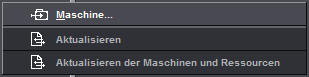
Select the machine you want to import. Signa Station automatically recognizes the type of machine you selected and presents you with only those groups that are located in that path so that you can save the machine. Read the section named "To create a group folder" if you still haven't created one.
•Refresh
Updates the currently selected machine path if you are working in a network.
The system looks for new or deleted groups and machines in the currently selected path. If new or deleted groups/machines are detected, the number found is displayed and the first element in the list is named.
The machines are available afterwards.
•Refresh Machines and Resources
Updates all machine and resources path if you are working in a network.
The system looks for new or deleted groups and machines/resources globally in all paths. If new or deleted groups/resources/machines are detected, the number found is displayed and the first element in the list is named.
The resources/machines are available afterwards.
•A double click on existing machines opens the editor responsible for the machine.
•The following function is found in the context-sensitive menu when a group folder is selected (top level in tree structure):
To be able to create a machine, you must first set up your own group folder where you can save it.
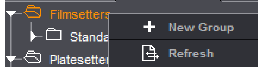
You can save a machine to the new group folder you created using the context-sensitive menu in the "Machines" tab.
·Refresh
Updates the currently selected machine path if you are working in a network.
The system looks for new or deleted groups and machines in the currently selected path. If new or deleted groups/machines are detected, the number found is displayed and the first element in the list is named.
The machines are available afterwards.
•The following functions are found in the context-sensitive menu when the folder is selected (second level in tree structure):
·Rename Group
You can give the group folder a different name.
·Delete Group
The selected group folder is deleted. You can only delete empty group folders.
·New "machine data set"
Displays the relevant editor for creating a new machine data set.
·Paste "machine data set"
A machine data set copied beforehand is pasted to the selected group folder.
This function is only enabled if a machine data set was copied and is to be added to a plausible level in the tree structure (you cannot copy a filmsetter resource to a platesetter resource).
·Import "machine data set"
You can import a Signa Station press data set to one of your custom press groups.
·"Export Group"
"Don't Unpack"
The elements of the selected group are copied to the defined folder.
"Unpack"
The elements of the selected group are copied to the defined folder.
A separate folder is created for each exported machine. A ".html" file is filed with the actual machine. This file shows the machine data.
·"Lock/Unlock Group"
Users of the "Administrator" and "PowerUser" groups can lock or unlock group folders for other users. "PowerUser" users can unlock only groups they locked themselves.
•The following functions are found in the context-sensitive menu when machines are selected (third level in tree structure):
·"Rename machine data set"
You can give the press data set a different name.
·"Edit machine data set"
Displays the editor responsible for the selected machine.
·"New machine data set"
Displays the relevant editor without any machine parameters for creating a new machine data set.
·"Delete machine data set"
The selected machine is deleted.
·"Copy machine data set"
The selected machine data set is copied and afterwards can be added with "Paste Press Data Set", for example, to another folder.

Note: You can copy a "machine data set" in a read-only Standard folder and paste it then to a folder you created (that is not write-protected). In this folder, you can modify and save the "machine data set" as you want.
·"Lock/unlock machine data set"
Users of the "Administrator" and "PowerUser" groups can lock or unlock machines for other users. "PowerUser" users can unlock only machines they locked themselves.
You will find shipped Heidelberg filmsetter data sets in the "Standard" folder in the "Filmsetters" machine resource.
Create a folder as described in To create a group folder for your own filmsetters. Mark the new folder, display the context-sensitive menu and select "New Filmsetter Properties". The Filmsetter and Platesetter Editor displays and you can now set up your own filmsetter.
You will find shipped Heidelberg platesetter data sets in the "Standard" folder in the "Platesetters" machine resource.
Create a folder as described in To create a group folder for your own platesetters. Mark the new folder, display the context-sensitive menu and select "New Platesetter Properties". The Filmsetter and Platesetter Editor displays and you can now set up your own platesetter.
You will find shipped Heidelberg sheetfed press data sets in the "Standard" folder in the "Sheetfed Presses" machine resource.
Create a folder as described in To create a group folder for your own sheetfed presses. Mark the new folder, display the context-sensitive menu and select "New Sheetfed Press Properties". The Sheetfed Press Editor displays and you can now set up your own sheetfed press.
You will find shipped Heidelberg web press data sets in the "Standard" folder in the "Web Presses" machine resource.
Create a folder as described in To create a group folder for your own web presses. Mark the new folder, display the context-sensitive menu and select "New Web Press Properties". The Web Press Editor displays and you can now set up your own web press.
You will find shipped Heidelberg digital press data sets in the "Standard" folder in the "Digital Presses" machine resource.
Create a folder as described in To create a group folder for your own digital presses. Mark the new folder, display the context-sensitive menu and select "New Digital Press Properties". The Digital Press Editor displays and you can now set up your own digital press.