
Privacy Policy | Imprint | Prinect Know How | Prinect Release Notes
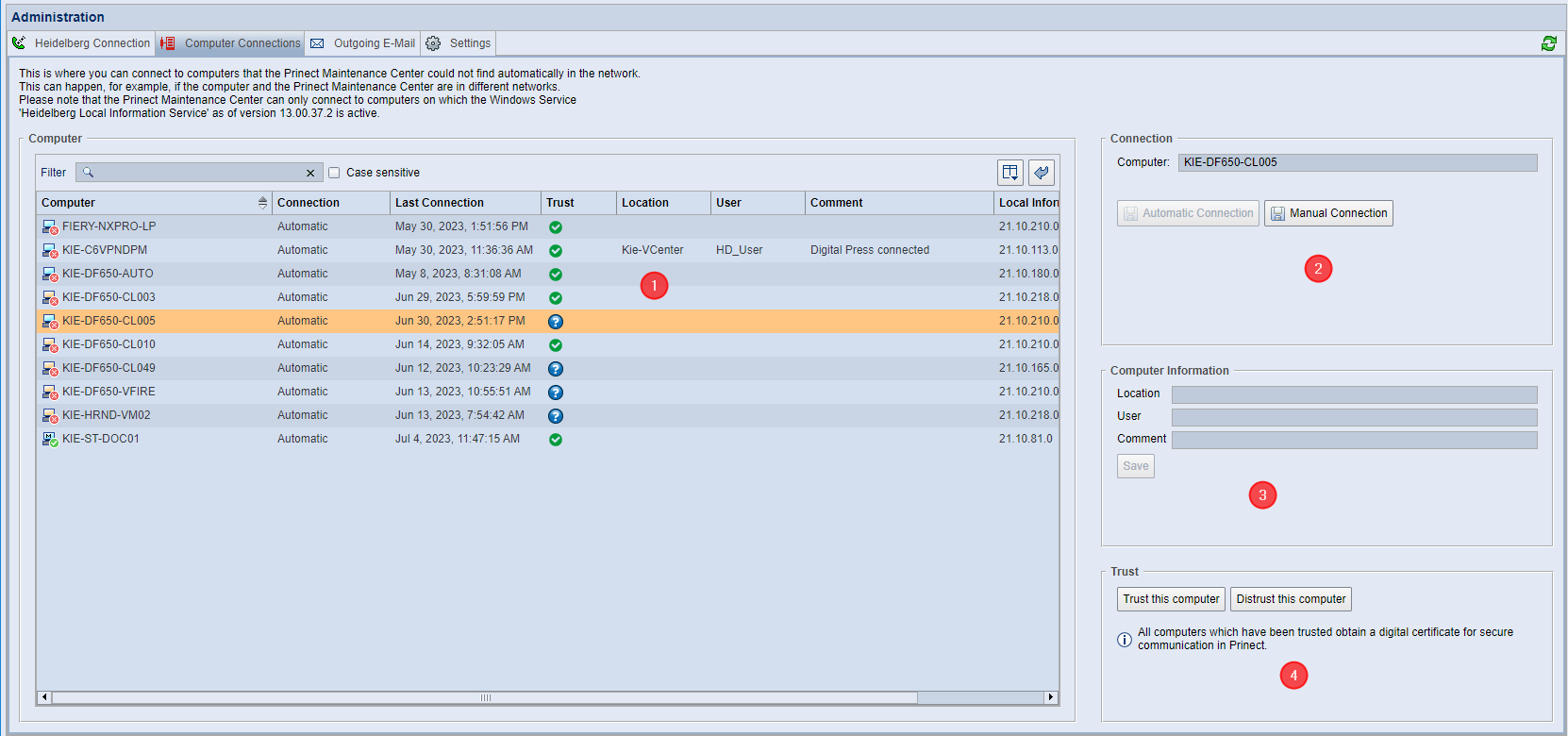
The "Computer Connections" tab consists of the following areas:
•Establish a computer connection (2)
•Trust (4)
Normally, the computers in a Prinect system environment automatically connect to the Prinect Maintenance Center. This ensures that all computers can submit their update status to the PMC and receive updates accordingly at any time.
However, some computers may not be connected to the PMC, for example, because these computers and the PMC are located in different areas of the network fabric. In such cases, you can use this tab to manually try to connect the computer to the PMC.
The computers registered to the PMC are displayed here. Typically, these computers automatically connect to the PMC, but some computers may not be connected or may no longer be connected to the PMC. The following icons indicate the status of the computer connection:
Icons in the navigation pane | |
| Movable Computer Individual computers not bound to a system or subsystem on which Prinect software (such as Prinect Signa Station) is installed are identified with a computer icon with a ocher-colored monitor. These computers are defined as "movable," which means that these computers can be moved to a system, subsystem, or custom group using the "Move" context menu command. Conversely, movable computers can be moved from one group or system to the "Computer" group or another group or system. Movable computers can be moved. |
| Computer bound to a system Computers that are bound to a system, for example Renderer computers logged in to a Prinect Production server are displayed with a computer icon containing a blue monitor. Computers bound in a system cannot be moved out of the system. Computers bound to a system cannot be moved. |
| System A system is a cluster of computers that contains a Prinect Production server as "center". The software components of a Prinect Production are often installed and distributed among several computers. A software update always applies to the entire Prinect Production system, not to separate software components. When a software component of a system is to be updated, all interdependencies with the versions of the system’s other software components are considered automatically and also updated. This is necessary to prevent different update states that do not match each other from occurring within a Prinect Production workflow, making the Prinect software components not (or no longer) functional. See Systems, Subsystems and Groups. In the navigation pane, Prinect Production servers are given the "System" property: System (computer name). Movable computers that have been added to the system can be moved and removed from the system. You cannot move computers bound to a system that have dependencies with other computers on the system. |
| Subsystem In some Prinect configurations, a system may contain one or more subsystems. This allows the subsystem(s) to be updated independently of the main system update. See What is a "system"?. Subsystem computers and computers bound to a subsystem can be updated independently of the main system. |
| Custom group You can create your own groups of movable computers. The computers included in a group can be updated simultaneously. See Create a custom group. |
| "Computer" group The "Computer" group is a pre-installed group that contains all movable computers that are not members of another group or system. This group serves as an "assembly point" for computers that are not assigned elsewhere. |
| Computer is connected The computer is connected to the PMC on the network. |
| Computer is offline The computer is not connected to the PMC at present. If necessary, check and correct the connection in the "Administration > Computer Connections" view. See Computer Connections. |
| The PMC is currently checking the computer This state is displayed until the license data and the position in the Prinect structure of the computer (part of a system, subsystem, group, or movable computer) are known to the PMC, or if there is an interruption of the connection for a period of two to four minutes. When the required information has been determined, the status changes to "Connected". If this information cannot be determined within a certain period of time, the status changes to "Offline". |
| PMC computer A computer that has the Prinect Maintenance Center software installed is identified by an icon with an "M" on the monitor. |
| The computer is in the sleep mode. The computer is not running. |
| The computer is running on battery power (notebook). No update is possible in battery operation. |
| The computer is rebooting During rebooting, the computer is temporarily disconnected from the PMC. |
Automatic | The computer has automatically connected to the PMC. |
Manual | The computer has been manually connected to the PMC. In this case, the PMC did not automatically discover the computer, for example, because the computer is in a different area of the network fabric. |
Other properties in the "Computer" list
In addition to the computer names with their connection status and connection type, the following properties are also displayed:
Last Connection | The last time the computer successfully queried the PMC is displayed here. This information can be useful for tracing an interrupted connection. |
Location | The location information (within the operating environment) can be helpful in locating the affected computer. This entry is part of the computer information that must be collected manually. See Computer Information (3). |
User | This entry indicates who is responsible for the computer or who owns the computer. This entry is part of the computer information that must be collected manually. |
Comment | Any comments can be entered here, e.g. updates may only be carried out after consultation with the user. This entry is part of the computer information that must be collected manually. |
Local Information Service | The Local Information Service version is of interest because new features are gradually implemented in the LIS. The PMC takes the different versions into account. Old versions cannot determine if Windows Updates need to be installed, for example. |
IP address | The IP address (IPv4 addresses only!) can be used to connect to a computer when connecting via the computer name is not possible. This may be the case if the "Domain Name System (DNS)" network service is not enabled or is not configured correctly in the local network environment. You can then enter the IPv4 address instead of the computer name to connect to the computer. |
Filter function
To quickly find specific computers, you can use the filter function. Enter the desired expression (any character or number string) in the search field. Then all computers where the expression occurs are filtered out.
Clicking on the "x" in the search field clears the expression you entered and returns the computer list to its complete state.
"Case sensitive" option
When this option is enabled, filtering only applies to those computers whose names match the search expression exactly in terms of upper and lower case.
If this option is not enabled, the case is not considered.
Change the table column order
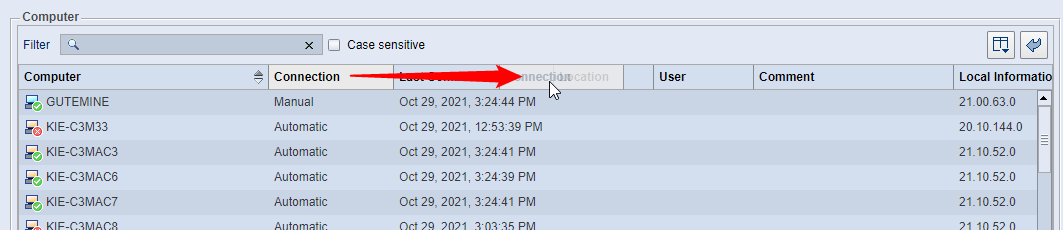
You can change the order of the table columns by clicking the header of the column you want to move, holding down the left mouse button, and moving the column horizontally to the desired position.
| You can use the "Select Columns" button to select which of the columns available in the table are displayed and which are not. The "Select Columns" dialog displays when you click the button: |
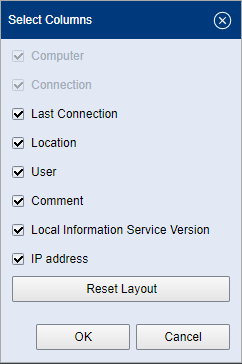
Here you can select the columns to be displayed. Confirm your selection with "OK".
"Reset Layout" button
Use this button to restore the default selection of the displayed columns.
Reset Layout
| If the order of the columns or the selection of the displayed columns in the table has been changed, you can use this button to reset the table to the original column arrangement and selection at the time of the new installation. |
Establish a computer connection (2)
 Note: Only computers running the Windows service "HEIDELBERG local information Service (LIS)" version 13.00.37.2 or later can be manually connected to the Prinect Maintenance Center. Connections to older LIS versions can also be established, but not manually. See also Communication and Data Transmission Procedure.
You may need to connect to a computer in the following cases:
•The computer appears in the Computer list (1), but is not connected.
This can be due to the following reasons:
•The computer has been connected to the PMC before but is currently offline or
•The computer is on a different subnet or
•The "HDLISMonitor" service is stopped or
•The firewall is blocking the connection.
•There is a cable break.
•A network outlet is defective or not connected.
•There was a power outage on the network switch/router.
•The computer does not appear in the list.
Until now, the computer was not connected to the PMC, or it was deleted by the PMC after 60 days of no reporting; it cannot be connected automatically at present.
In these cases, you can try to connect a computer to the PMC in the following ways:
1.Make sure that the computer you want to connect to the PMC is turned on and connected to the network.
2.Enter the computer name in the "Computer" field and click "Manual Connection". Uppercase and lowercase are not important.
A search for the specified computer is now started. The search may take a while.
3.If the search for the computer name is unsuccessful, you can enter the IPv4 address of the computer in the "Computer" field instead. If the computer is already registered with the PMC, you can find the IPv4 address in the "Computer" list. Otherwise, you will need to find the IP address elsewhere, for example, directly at the computer by typing "ipconfig" in the Command Prompt.
If the computer still cannot be reached, check (and correct) the network availability by other means, for example by verifying the connection to different areas within the network fabric (switches, hubs).
4.If the computer can be connected to the PMC, another icon appears on the left. The "Computer" list shows the connection type "Manual". The function of the connection does not depend on whether the connection was established as "Automatic" or "Manual".
5.If you click on an entry with the "Manual" connection type in the "Computer" list, the "Automatic Connection" button is enabled. When you click this button, an attempt is made to automatically connect to the computer. If the attempt is successful, the connection type changes to "Automatic". Otherwise, the computer will appear as "offline". Press the "Manual Connection" button. Now the computer will be connected manually again.
Note: For a manual connection — depending on which information is available first — the full and network qualified computer name, the "pure" computer name or the IPv4 network address of the PMC computer is registered in the LIS. If the computer name of the PMC computer is changed, or if the IPv4 address of the PMC computer is changed for an IPv4 connection, the connection to the PMC is interrupted because the previously stored data is no longer valid. To reestablish the connection in such cases, first establish an automatic connection and then a manual connection. Then the updated data is submitted to the LIS.
Here you can enter the following information for a computer selected in the "Computer" list:
•Location
Enter the location (building, room, room section) of the computer. This information can be useful for finding out where the computer is located — especially in a large operating environment.
•User
Enter the name of the user who is primarily working on the computer or who owns the computer. This information can be used to inform the affected user about actions taken by the PMC.
•Comment
Enter a comment that contains important information for the operator of the PMC or the connected computers, for example, that updates may only be carried out after consulting the respective user.
Confirm your inputs with "Save".
Note: This data is not transferred to the PSC automatically but is stored only locally.
Computer information as tooltips
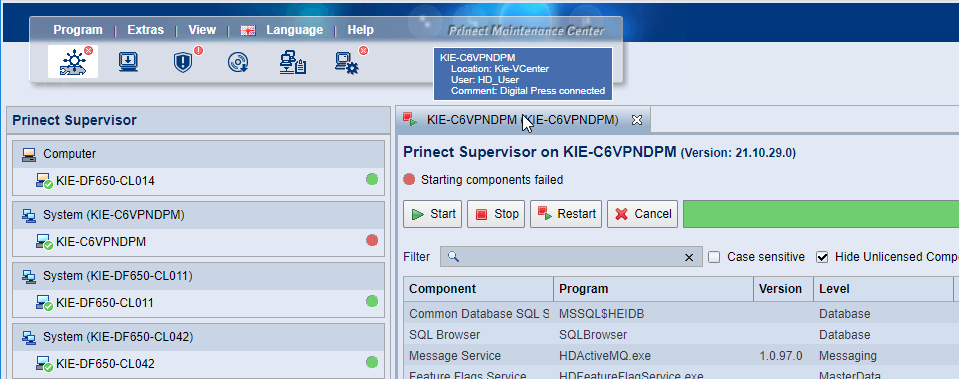
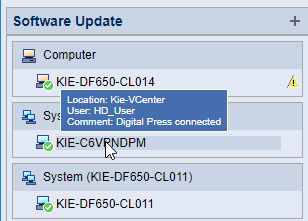
The computer information entered here is displayed as tooltips in the "Prinect Supervisor" and "Software Update" views:
•"Prinect Supervisor" view in the Navigation pane: Tool tip for the computer entry.

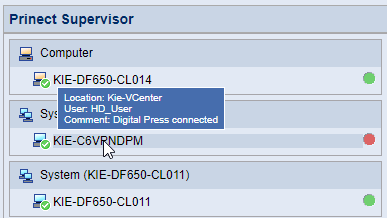
•"Prinect Supervisor" view in the detail area: Tooltip for the "tab caption".
•"Software Update" view in the Navigation pane: Tool tip for the computer entry.
•"Software update" view in the detail area: Tooltip for the "tab caption".
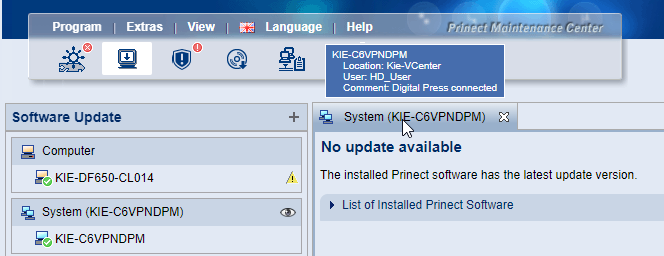
Note: The following tooltips appear, depending on where the mouse pointer is positioned:
•Single computer: displays information about this computer.
•System entry in the navigation pane: Displays the system server information.
•Sub-computer entry in the navigation pane: Displays the system server information.
•Computer group: No tooltip information is displayed.
The HTTPS protocol warrants that the computer connections are secure
The HTTPS protocol secures and encrypts the Internet connection in order to enhance the security of the computer connections within a Prinect system environment. To ensure the security status, a special security certificate must be installed on all computers connected to the PMC, and the "Trust" status must be set to "Trust" for each computer in the Administration section of the PMC.
Trust/distrust status
 Prerequisite: When the status is set to Trust, a security certificate will be installed on the respective computers. Distrusting a computer will uninstall the security certificate again. See The "Certificate Management" window.
To ensure safe communication between the Prinect computers in your system environment, the computers must have a positive "Trust" status.
The "Trust" column of the list indicates the Trust status as follows:
| Trust status unknown The trust status must be set to either "Trust" or "Distrusted" to complete PMC setup. |
| The computer is trusted If necessary, the trust status can be withdrawn from the computer. |
| The trust status has been withdrawn from the computer The computer is not trusted. |
To ensure smooth communication in your Prinect system environment, all computers involved should be trusted.
Trust a computer
To trust a computer that is not (yet) trusted, highlight the row of that computer in the "Computer" list and click the "Trust this computer" button. In the "Trust" column, the icon changes immediately to the "Trust" icon.
Distrust a computer
To distrust a computer, e.g. because a computer no longer performs any tasks within the Prinect system environment and would represent a potential security risk, select the row of the computer concerned in the "Computer" list and click the "Distrust this computer" button.
A computer that has had been distrusted will be considered a risk to the security status. Accordingly, a security warning will be displayed in the "Security Advisor" view. See Security Advisor.

What is the effect if a computer is trusted?
Computers that trusted are given digital certificates enabling them to securely communicate with each other in the Prinect system environment.
Computers that are not trusted will not receive these certificates which excludes them from secure communication within the Prinect system environment.
Set the "Trust" status when Prinect Maintenance Center starts
When you launch the web UI of Prinect Maintenance Center or – after changing the language, for example – you restart it, a window opens where you can set up the "Trust" status if computers without clearly defined "Trust" status are logged in at the PMC computer. This window contains the "Computer" list. See also "Computer" list (1).
This is where you can trust each of the computers in the Prinect system environment or distrust them. See Trust (4).
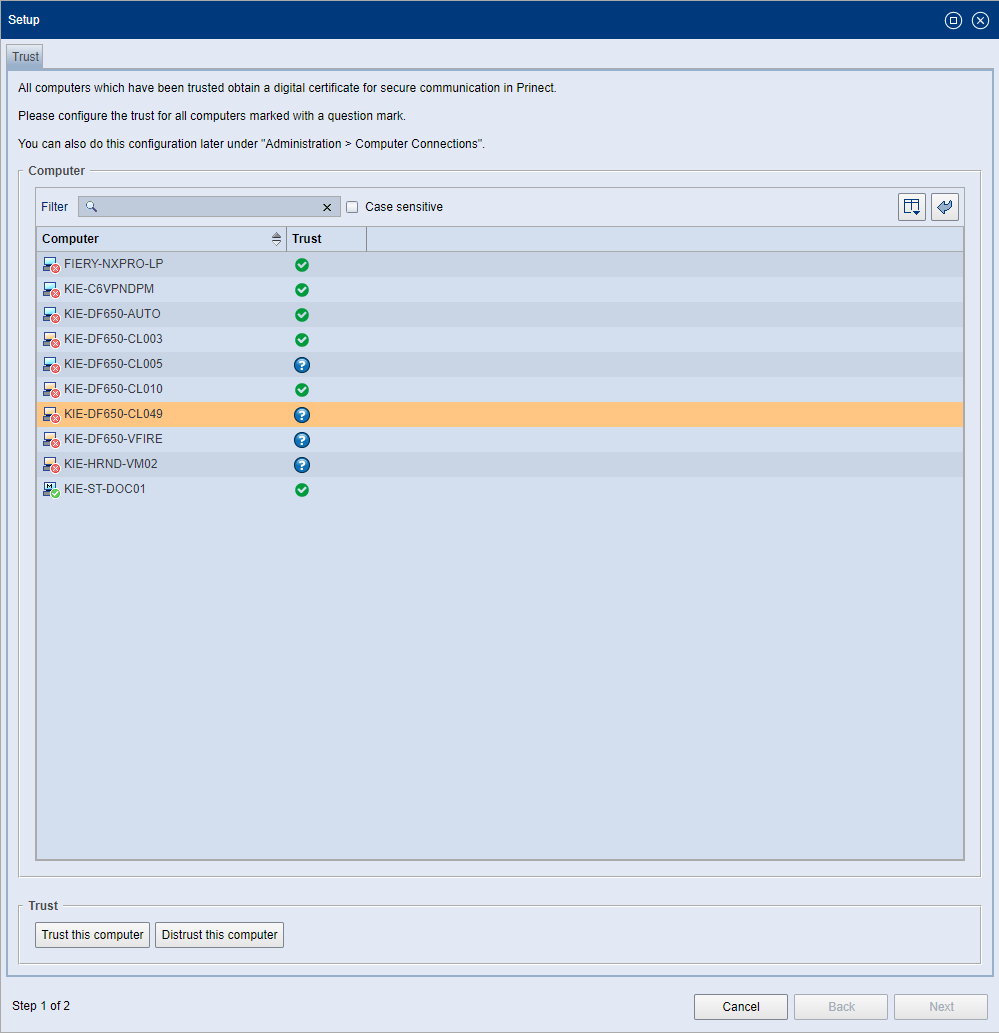
If you do not want to configure the "Trust Status" right at the start of the PMC user interface, you can click "Cancel" and configure it, for example, in the "Administration > Computer Connections" area.
Note: As an alternative, you can also switch the language of the user interface (possibly to another language and then back to the original language). This set-up dialog will appear again after each switchover if setting the "Trust" status has not yet been completed.
Click "Next" when you have defined the "Trust" status for all displayed computers. The following window opens now:
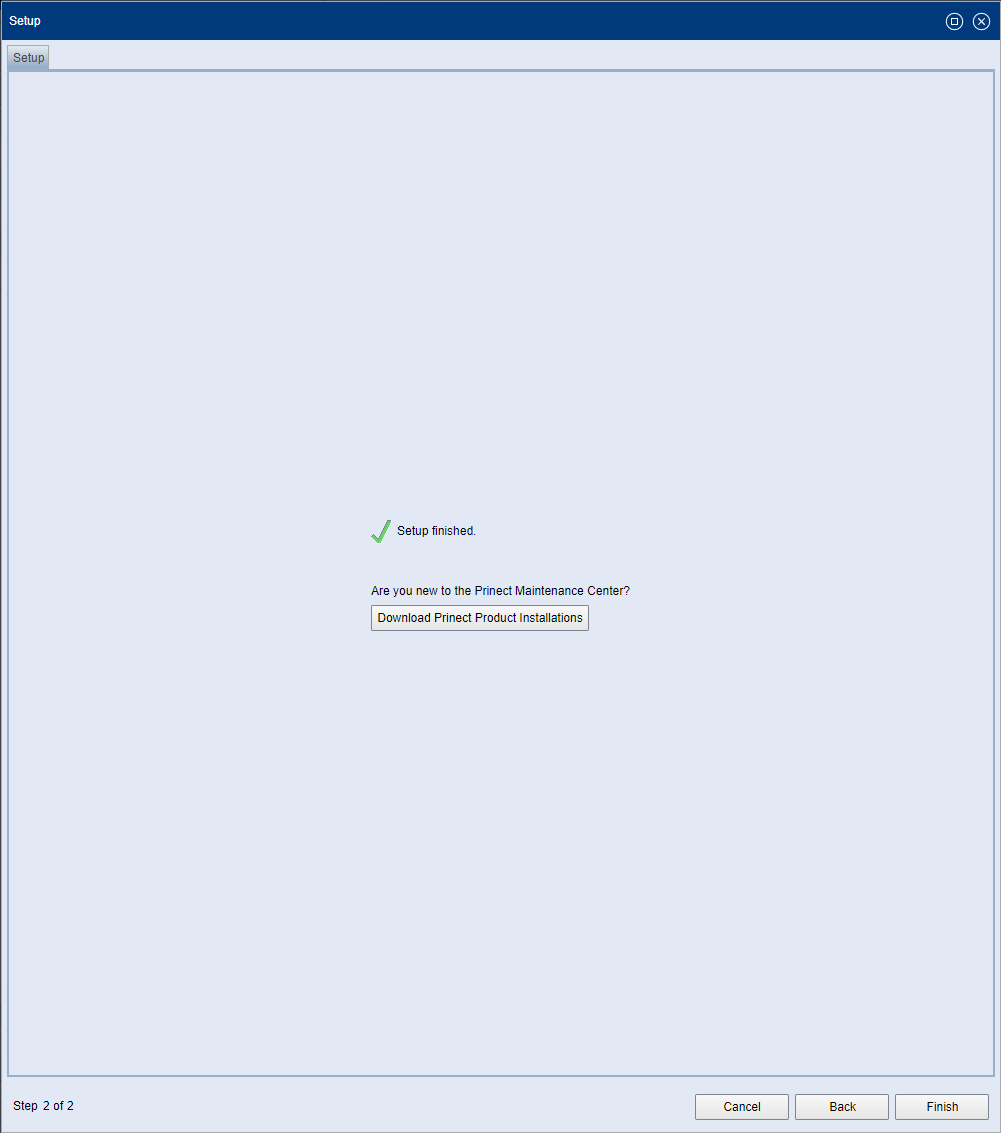
Click "Finish" to finalize the configuration.
Note: The Setup window will no longer appear if a "Trust" status has been defined for all computers in the Prinect system environment. You can still configure the Trust status in the "Administration > Computer Connections" section.
Connecting a HEIDELBERG Press to PMC
Prerequisite: To connect a press - or rather the control station computer (IPC) of the press - to PMC, the press software version must be S24B or higher. The Prinect Service Tools are only installed on the IPC from this version onwards. This is the prerequisite for the connection to the PMC.
The connection to the PMC offers the following functions:
•You can install a PMC client certificate on the press control station computer (IPC) to establish trusted connections to other computers in the HEIDELBERG system environment. See The "Certificate Management" window.
•You can update individual components of the machine software via PMC to keep the machine software permanently up to date. These component updates are offered for installation via PMC in time slots between the complete updates of the machine software. Complete updates of the machine software will continue to be installed only on the press control station.
Connecting a Press to PMC
In principle, presses or press IPCs are connected to PMC in the same way as other computers within a Prinect system environment. See also Computer Connections.
Before you can update the software of the control station computer of a press (IPC) with PMC, you must trust the new computer you want to connect. See Trust (4).
Privacy Policy | Imprint | Prinect Know How | Prinect Release Notes


