Plate Template Editor
Use this editor if you wish to create/edit a plate template that is saved as a resource in "Plate Templates".
Graphic Area
Graphic display of the plate template:
•Printing plate: dark gray
•Paper: light gray
•Subject (area of paper with print data): purple
•Ink zones: broken vertical lines
•Imaging window: within blue-and-white frame
•Baseline: blue line
•Gripper margin: reddish-brown strip below baseline
Display and input:
•The "X", "Y" coordinates show the current cursor position. The bottom left corner of the plate is the origin. The coordinates are shown in the set unit of measure.
•"W", "H": The width and height of a frame you create are shown in these boxes.
|
|
To select an object. Click an object that can be selected. This object then has a yellow frame and you can move it holding down the mouse button.
|
|
|
To select solely folding sheets/assembly blocks.
|
|
|
To zoom up the entire graphic. A "+" appears in the magnifying glass. Hold down the "Alt" key to zoom down. A "-" appears in the magnifying glass.
|
|
|
Hand tool: Lets you move scaled-up objects into the view frame. Hold down the space bar while doing so.
|
|
|
To set a measuring point and create a frame: This tool lets you set measuring points or create a frame and read off the values in the read-only boxes on the left. As an alternative to the tool: "command key + Shift key"
|
|
|
User-defined dimensions:
This tool lets you measure from one defined edge (e.g. paper edge, page edge, etc.) to another defined edge.
Example:
You are going to measure the distance between the paper edge and the beginning of the subject:
•Move the mouse pointer to the paper edge.
•The starting edge is shown as a red bar.
•Hold down the mouse button and drag the mouse pointer to the beginning of the subject.
•The target edge is shown as a green bar.
•Let go of the mouse button.
•The distance from the page edge to the paper edge is shown along a line between the red and green bar.
Note: Dimensioning in the next tool (View properties button) must be enabled.
•Use the shortcut "Alt + click" to delete the dimensions.
|
|
|
Change scale of marks freely
You can scale all marks except for the automatically placed cut and fold marks.
Select the mark you wish to scale and hold down "F5". The handles that appear let you scale the mark invariably.
As an alternative to the tool: "F5"
Enable the tool if you wish to scale proportionally. First enable a handle with the mouse pointer and hold down the mouse button. Then press the Shift key and move it using the mouse.
|
|
|
View properties:
You can use this tool to change the graphic display. See View Properties and Enable/Disable Layers .
|
|
|
List box with zoom factors.
|
|
|
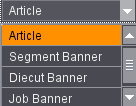
List box with the layers (articles and banners) (digital web press only).
|
Plate templates
When defining a plate template, you should load a press that is already defined (see Sheetfed Press Editor , Web Press Editor and Digital Press Editor ). You will find the presses in the "Machines" tab using the "Jobs & Resources > Resources & Machines" menu.
Plate Template Name
"Group" and "Name"
Displays the group where the plate template will be saved. Give the plate template a name. The name of the plate template is important especially for JDF import because the folders set for the import are scanned in the order in the list for plate templates matching the data in the JDF. In this process, the system looks for the name of the plate template and for the press set in the plate template (for more details, see JDF Import ).
Plate Dimension
"Press"
•Click the folder button beside this box to load a press. You set up this press beforehand in the "Machines" tab in the "Jobs & Resources > Resources & Machines" menu. If this is not the case, you can also load a standard press included in the shipment.
•"Width", "Height": The height and width are already defined as parameters and are automatically set when you load the press. You can, however, change the parameters in this box.
Paper Definitions
To be able to follow the definitions below, bear in mind the press parameters that you defined in "Machines".
Some of the following parameters are computed from the press data.
"Max. Paper Width"
Max. paper width = plate width - (2 x print margin)
"Max. Paper Height"
In the definition of the max. paper height, it is assumed that the end of paper is the same as the end of print (related to the plate start).
The following is applicable for the max. paper height:
Max. paper height = end of paper - baseline
Paper Segment
This is where you can predefine a segment length (e.g. for rolls of paper).
"Baseline"
Baseline = Lead edge of print - gripper margin
When calculating the end of paper, remember that the "Tail Edge of Print" value refers to the end of the plate. This means that the end of paper is calculated as follows:
End of paper = Plate height - tail edge of print
To summarize, the max. paper height is defined as follows:
Max. paper height = Plate height - tail edge of print - lead edge of print + gripper margin
"Gripper Margin"
This value is already defined as a machine parameter and is automatically set when you load the press. You can, however, change it in this box.
"X Offset"
Horizontal offset of the paper in relation to the plate.
"Feed direction"
The feed direction is taken from the press resource and used as default in the plate template. Setting the feed direction is particularly vital for digital presses because the feed direction is not always included in the paper definitions.
In these cases, the specifications in the plate template are used and written to the JDF during output.
You can find a detailed description of this in Digital Press Editor :
"When changed"
"Use max. paper size when changed": In the "Plates" step, the "Replace currently selected plate template..." function makes it easy for you to change a plate template.
Normally, the paper definition from the job has priority during a plate change. This means that the outer dimensions set in the job for the paper are kept, even if the plate template has different dimensions. When this option is enabled, the performance just described changes, and the data from the "new" plate template overwrite the paper size set in the job.
"Web sheeter installed": Required default for the use of rolls of paper with a height of "0". Instead of "Height", the segment length is then specified in "Paper Definition for Production" in the "Plates" step (see Roll Paper).
Subject Settings in "Imposition Mode"
The "Plates" step features the option of customizing the subject in such a way that there is still enough space, for example, for the color control bar below the subject and above the gripper margin. The settings can be predefined in the plate templates editor. These settings let you prevent, for example, that large parts of the color control bar are positioned in the gripper margin and, as a result, cannot be read by Inpress Control.
The settings for subject positioning can also be completely deactivated in the plate templates. If the "Subject settings in imposition mode" option is switched off, presets are used for subject positioning (especially for the "Vertical center" setting, the value "Center subject" under "Presets > Default values").
AutoPosition Subject
The lower edge of the subject is positioned on the lead edge (blue line) with a distance of the bleed at least.
You can change the subject position manually if the option is disabled.
Center Subject Vertically/Horizontally
The subject is centered in vertical (Y) or horizontal (X) direction. If the options are not selected, you can define a set offset of the subject to the lower edge and/or the left edge.
Note: Please note: Input of the value of "0" for the "Left" offset does not mean horizontal centering like in the program versions up to 2018 but actually positioning exactly on the left side. As of version 2019, jobs from program versions up to 2018 where horizontal centering was set with "Left offset = 0" open automatically with "Center Subject Horizontally" enabled.
Output
For output, you can now set suitable output parameter sets for different usages.
"Printing Unit"
Choose the output parameter set you want for plate output. All colors set to "Printing Unit" in the "Job > Colors" step will be printed accordingly.
"Coating Unit"
If "Coating Unit" is set as the usage in the "Job > Colors" step, the selected output parameter set will be used as well as the dimension in "Flexo Plate".
The selected output parameter set is set by default for output of the job.
Imaging Window
"Width", "Height"
Size of the imaging window
"Width": Slow scan direction
"Height": Fast scan direction
"Offset X" "Y"
The origin of the imaging window ("X", "Y") is at the bottom left.
Note: If you want your output to be centered, make sure that the imaging window is centered with regard to the plate template. Set the position of the imaging window with X, Y values.
Flexo Plate
A mixture of flexo plates and offset plates with different sizes can be found on presses with one or more varnishing units. The Signa Station could not handle different sizes in one job. This is where you set the dimensions and position of the plates.
Parameters for Ganging Optimization
You can define some of the optimization and cost data directly in the resources. You can then either apply these data to the job or you can set job-specific data. More details are to be found in "General" tab, "Geometry" tab, "Placement" tab and "Cost" tab.
For a product code search in sheet optimization with segments, the segment template group for the product code search is set by default in this section.
Marks
Manually placed marks or use of automarks sets
If "Use Manual Marks" is selected, all the marks you want for this plate template must be placed manually. The marks are then placed on all the press sheets of this plate template; press sheet-specific automatic control through rules depending on customer name, product part or press sheet is not possible.
When you switch from "Use Automarks Set" to manual control, all automarks with assigned rules are then removed for that reason. Only the automarks without defaults in "Confine to Press Sheets" are converted to manual marks.
The other way round, when switching from manual editing to automarks sets, you can decide whether marks already placed manually for the plate template are to be applied to the automarks set or whether only the marks of the selected automarks set will be used.
Administration of automarks sets is done in the Resources and they are created in the Automarks Set Editor.
The sections below will describe the setting options for manually placed marks. You can find a detailed description of the press sheet automarks sets in Automarks sets for press sheets.
Marks List
The "Marks List" contains all the marks that you positioned on the plate template. The list is sorted by "Subject", "Paper", "Plate". Within one group, the mark last positioned is at the top. The list is then in the same order as for printing.
|
|
This lets you display the "Marks" resource where you can select a mark. The mark is positioned at the bottom left of the graphic (origin) and is added to the "Marks List".
|
|
|
Replace the selected mark by another one. The selected mark is overwritten.
|
|
|
Delete selected mark.
|
|
|
When automarks sets are used:
|
|
|
When this function is enabled, the selected mark has a magenta border in the graphic view to be able to identify it more easily. Click the button again to disable the marking.
|
|
|
Use the filter function to confine the display of the table to the marks that are enabled in the selected automarks set. If you wish to enable further marks, you must disable the filter function by clicking the button again. All enabled marks display, even if they are not currently in use in the job.
|
|
|
For manually set marks:
|
|
|
Moves a selected mark up in the list (sorting function). The printing order is also defined.
|
|
|
Moves a selected mark down in the list (sorting function). The printing order is also defined.
|
Selected Mark
"Group/Name"
This displays the resources group and the name of the selected mark.
"Color"
Separations which will have the mark. Click the right arrow to open the table where you define the color layers on which the achromatic mark will be placed. See also Color.
"Reference Point"
Reference point on which the mark will be placed. The hotspot of the mark snaps accurately into position above this spot. The reference points appear when you move a mark in the graphic, holding down the mouse button. Depending on what is set as the parent, the reference points for paper, plate or subject are shown.
"Position X, Y"
Mark coordinate relative to the selected reference point. See also "Change" button .
"Scale Width, Height"
Scaling factor of the mark (minimum = 10%, maximum = 500%).
Color control bars that are used for ink zone control may not be scaled in X direction. See also "Keep proportions during scaling" button.
"Orientation"
Indicate in degrees or select any angle.
"Parent"
A mark is assigned to the paper, plate or subject. If you change the size or position of one of these objects, the position of the assigned mark is matched automatically.
Expert Mode
"Foreground"
The mark is either on top of (= foreground) or below the page content.
"Surface"
You can assign each mark to a certain surface (front, back) or to "All Surfaces" using the "Surface" list box.
"Width", "Height"
Shows the mark size.
"Clippath"
This parameter lets you define the part of a mark that can be cut out. You can do this in one of the following two ways:
a) You define the margins in "Clippath". When you click a mark with the right mouse button, a yellow rectangle surrounding the mark appears. The margins defined refer to this rectangle.
•"Margin left": A value of "0" corresponds to the left margin of the rectangle surrounding the mark. A value you enter is the distance starting from the left margin and extending into the mark. This part of the mark is cut out when you hit the Tab key or click another text box.
•"Margin bottom", "Right", "Top": See "Margin left". You can cut the mark accordingly from the bottom, right and top margin.
b) You can draw a bounding box within the mark. This bounding box surrounds the part of the mark that will remain after the other part is cut out.
To do this, press the command key + Shift key and create the box holding down the mouse button. First let go of the mouse button and then the command + Shift keys. Some of the bounding box must be within the selected mark.
|
|
Allow changes on the left and right margin. Only affects marks with AutoClip. The mark type then changes accordingly to not automatic.
|
|
|
The function is only applied when you click this button.
|
You can find other tips in the Working with marks - Introduction.
Marks Resources
In this tab, you can drag-and-drop marks in the graphic to the position you want. You will see reference points for paper and subject if you move an object in the graphic holding down the mouse button.
All reference points (paper, plate, subject) are shown while you drag-and-drop from the marks resources. A mark relates to a certain reference point (parent) when you position it on this reference point. Paper is always taken as the reference if you do not place the mark on a reference point.
Only the reference points of the relevant parent are shown when you move a mark.
You can find more details about operation in Selected Mark.
Notes on Marks
•The "TilingLine_Horizontal" and "TilingLine_Vertical" marks must have "Paper" as their parent as tiling will not work if they don't.
•In tiling, the start of imaging can be defined by setting the "TilingLine_Horizontal" and "TilingLine_Vertical" lines:
a) The outer tiling line is within the paper: In this case, the plate defines the start of imaging. The tiling line tiles the sheet and the appropriate tile numbers are displayed.
b) The outer tiling line is outside the paper or at the start of it: In this case, imaging starts at the position of the tiling line. The sheet is not divided by this tiling line.
•The "TilingRegister" and "TilingText" marks are set automatically.
Reassigning Marks to the Plate Template
When marks are reorganized, e.g. because groups were renamed, they can no longer be found in the plate templates. As a result, the marks in question are removed from the plate template.
In most cases, this is not necessary. It is sufficient to reassign the marks.
When you open a plate template and Signa Station cannot find the marks, you will be asked whether alternative marks are to be chosen. During replacement, the marks resources will be searched for marks of the same names. These are then offered when you are prompted for alternative marks.
If desired, all other missing marks are searched for in the group containing the one suggested in the first place. This is particularly feasible if the group name has only been renamed.
When a mark by the same name cannot be found in any other group, you can select an alternative mark for the missing mark with the Resource Selection dialog.
The choice of alternative marks for missing marks remains valid until you close the Signa Station. In this way, marks missing in other plate templates can be replaced nearly automatically (a summary of replaced marks is displayed).
The list of resources to refresh of the Resource Refresh Assistant also contains plates templates where marks could not be found. When refreshing, you can select alternative marks (see also Resource Refresh Assistant ).
The choice of alternative marks for missing marks is also offered when you select the plate template during job definition and during a plate template change in the "Plates" step.
Example:
Two plate templates contain a color control bar from a group that was renamed.
When you open one of these plate templates in the Plate Template Editor, the original color control bar can no longer be found. For this reason, you are prompted whether to choose an alternative mark.
You have three options available to you:
•"Yes": the suggested mark is accepted, and all other missing marks will be searched for in the same group.
•"No": the suggested mark is discarded, and a Resource Selection dialog opens where you can manually assign an alternative mark.
•"Cancel": the missing mark is not replaced with an alternative mark and is consequently removed from the plate template.
A message appears after missing marks were replaced with alternative marks.
When you open the second plate template with the color control bar, the replacement based on the assignments on the first plate template occurs automatically.
Loading the 'Plate Templates' Resource to the Job
This is where you load the resource to the job:
•"Plates" step with the "Select Plate Template from Resource..." button.